# Get a list of accounts and their balances
Source: https://docs.fuse.io/api-reference/account/get-a-list-of-accounts-and-their-balances
/api-references/explorer-api.yaml get /?module=account&action=listaccounts
# Get balance for multiple addresses
Source: https://docs.fuse.io/api-reference/account/get-balance-for-multiple-addresses
/api-references/explorer-api.yaml get /?module=account&action=balancemulti
# Get ERC-721 token transfer events by address
Source: https://docs.fuse.io/api-reference/account/get-erc-721-token-transfer-events-by-address
/api-references/explorer-api.yaml get /?module=account&action=tokennfttx
# Get internal transactions by transaction or address hash
Source: https://docs.fuse.io/api-reference/account/get-internal-transactions-by-transaction-or-address-hash
/api-references/explorer-api.yaml get /?module=account&action=txlistinternal
# Get list of blocks mined by address
Source: https://docs.fuse.io/api-reference/account/get-list-of-blocks-mined-by-address
/api-references/explorer-api.yaml get /?module=account&action=getminedblocks
# Get list of tokens owned by address
Source: https://docs.fuse.io/api-reference/account/get-list-of-tokens-owned-by-address
/api-references/explorer-api.yaml get /?module=account&action=tokenlist
# Get pending transactions by address
Source: https://docs.fuse.io/api-reference/account/get-pending-transactions-by-address
/api-references/explorer-api.yaml get /?module=account&action=pendingtxlist
# Get the native token balance for an address
Source: https://docs.fuse.io/api-reference/account/get-the-native-token-balance-for-an-address
/api-references/explorer-api.yaml get /?module=account&action=balance
# Get token account balance for token contract address
Source: https://docs.fuse.io/api-reference/account/get-token-account-balance-for-token-contract-address
/api-references/explorer-api.yaml get /?module=account&action=tokenbalance
# Get token transfer events by address
Source: https://docs.fuse.io/api-reference/account/get-token-transfer-events-by-address
/api-references/explorer-api.yaml get /?module=account&action=tokentx
# Get transactions by address
Source: https://docs.fuse.io/api-reference/account/get-transactions-by-address
/api-references/explorer-api.yaml get /?module=account&action=txlist
# Return balance from a provided block
Source: https://docs.fuse.io/api-reference/account/return-balance-from-a-provided-block
/api-references/explorer-api.yaml get /?module=account&action=eth_get_balance
# Get block number by time stamp
Source: https://docs.fuse.io/api-reference/block/get-block-number-by-time-stamp
/api-references/explorer-api.yaml get /?module=block&action=getblocknobytime
# Get block reward by block number
Source: https://docs.fuse.io/api-reference/block/get-block-reward-by-block-number
/api-references/explorer-api.yaml get /?module=block&action=getblockreward
# Get estimated block countdown time by block number
Source: https://docs.fuse.io/api-reference/block/get-estimated-block-countdown-time-by-block-number
/api-references/explorer-api.yaml get /?module=block&action=getblockcountdown
# Get the latest block number
Source: https://docs.fuse.io/api-reference/block/get-the-latest-block-number
/api-references/explorer-api.yaml get /?module=block&action=eth_block_number
# Get a list of contracts
Source: https://docs.fuse.io/api-reference/contract/get-a-list-of-contracts
/api-references/explorer-api.yaml get /?module=contract&action=listcontracts
# Get ABI for a verified contract
Source: https://docs.fuse.io/api-reference/contract/get-abi-for-a-verified-contract
/api-references/explorer-api.yaml get /?module=contract&action=getabi
# Get contract creator address hash and creation transaction hash
Source: https://docs.fuse.io/api-reference/contract/get-contract-creator-address-hash-and-creation-transaction-hash
/api-references/explorer-api.yaml get /?module=contract&action=getcontractcreation
# Get contract source code for a verified contract
Source: https://docs.fuse.io/api-reference/contract/get-contract-source-code-for-a-verified-contract
/api-references/explorer-api.yaml get /?module=contract&action=getsourcecode
# Return status of a proxy contract verification attempt
Source: https://docs.fuse.io/api-reference/contract/return-status-of-a-proxy-contract-verification-attempt
/api-references/explorer-api.yaml get /?module=contract&action=checkproxyverification
# Return status of a verification attempt
Source: https://docs.fuse.io/api-reference/contract/return-status-of-a-verification-attempt
/api-references/explorer-api.yaml get /?module=contract&action=checkverifystatus
# Verify a contract through Sourcify
Source: https://docs.fuse.io/api-reference/contract/verify-a-contract-through-sourcify
/api-references/explorer-api.yaml post /?module=contract&action=verify_via_sourcify
# Verify a contract with its source code and contract creation information
Source: https://docs.fuse.io/api-reference/contract/verify-a-contract-with-its-source-code-and-contract-creation-information
/api-references/explorer-api.yaml post /?module=contract&action=verify
# Verify a contract with Standard input JSON file
Source: https://docs.fuse.io/api-reference/contract/verify-a-contract-with-standard-input-json-file
/api-references/explorer-api.yaml post /?module=contract&action=verifysourcecode
# Verify a Vyper contract with its source code and contract creation information
Source: https://docs.fuse.io/api-reference/contract/verify-a-vyper-contract-with-its-source-code-and-contract-creation-information
/api-references/explorer-api.yaml post /?module=contract&action=verify_vyper_contract
# Verify proxy contract
Source: https://docs.fuse.io/api-reference/contract/verify-proxy-contract
/api-references/explorer-api.yaml post /?module=contract&action=verifyproxycontract
# Get Fungible ERC20 Token Balances
Source: https://docs.fuse.io/api-reference/erc20-tokens/get-fungible-erc20-token-balances
/api-references/balances-api.yaml get /assets/{address}
# Get Event Logs by Address and/or Topic(s)
Source: https://docs.fuse.io/api-reference/logs/get-event-logs-by-address-andor-topics
/api-references/explorer-api.yaml get /?module=logs&action=getLogs
# Get Non Fungible NFT Token Balances
Source: https://docs.fuse.io/api-reference/nft-tokens/get-non-fungible-nft-token-balances
/api-references/balances-api.yaml get /nft-assets/{address}
# Authenticate user
Source: https://docs.fuse.io/api-reference/smart-wallets/authenticate-user
/api-references/fuse-smart-wallets-api.yaml post /auth
Authenticate user using signed data standard EIP-191.
# Get Wallet Actions
Source: https://docs.fuse.io/api-reference/smart-wallets/get-wallet-actions
/api-references/fuse-smart-wallets-api.yaml get /actions
# Get staked tokens by wallet address
Source: https://docs.fuse.io/api-reference/staking/get-staked-tokens-by-wallet-address
/api-references/staking-api.yaml get /staked_tokens/{accountAddress}
Retrieves information about tokens staked by a specific wallet address.
# Retrieve staking options
Source: https://docs.fuse.io/api-reference/staking/retrieve-staking-options
/api-references/staking-api.yaml get /staking_options
Fetches available staking options including details like APR, token information, and provider IDs.
# Stake tokens
Source: https://docs.fuse.io/api-reference/staking/stake-tokens
/api-references/staking-api.yaml post /stake
Stakes a specified amount of tokens from a wallet.
# Unstake tokens
Source: https://docs.fuse.io/api-reference/staking/unstake-tokens
/api-references/staking-api.yaml post /unstake
Unstakes a specified amount of tokens back to a wallet.
# Get ERC-20 or ERC-721 token total supply by contract address
Source: https://docs.fuse.io/api-reference/stats/get-erc-20-or-erc-721-token-total-supply-by-contract-address
/api-references/explorer-api.yaml get /?module=stats&action=tokensupply
# Get latest price of native coin in USD and BTC
Source: https://docs.fuse.io/api-reference/stats/get-latest-price-of-native-coin-in-usd-and-btc
/api-references/explorer-api.yaml get /?module=stats&action=ethprice
# Get latest price of native coin in USD and BTC in more general format
Source: https://docs.fuse.io/api-reference/stats/get-latest-price-of-native-coin-in-usd-and-btc-in-more-general-format
/api-references/explorer-api.yaml get /?module=stats&action=coinprice
# Get total coin supply from DB minus burnt number
Source: https://docs.fuse.io/api-reference/stats/get-total-coin-supply-from-db-minus-burnt-number
/api-references/explorer-api.yaml get /?module=stats&action=coinsupply
# Get total supply in Wei from DB
Source: https://docs.fuse.io/api-reference/stats/get-total-supply-in-wei-from-db
/api-references/explorer-api.yaml get /?module=stats&action=ethsupply
# Get total supply in Wei from exchange
Source: https://docs.fuse.io/api-reference/stats/get-total-supply-in-wei-from-exchange
/api-references/explorer-api.yaml get /?module=stats&action=ethsupplyexchange
# Get total transaction fees in Wei paid by users to validators per day
Source: https://docs.fuse.io/api-reference/stats/get-total-transaction-fees-in-wei-paid-by-users-to-validators-per-day
/api-references/explorer-api.yaml get /?module=stats&action=totalfees
# Get bridged tokens list
Source: https://docs.fuse.io/api-reference/token/get-bridged-tokens-list
/api-references/explorer-api.yaml get /?module=token&action=bridgedTokenList
# Get ERC-20 or ERC-721 token by contract address
Source: https://docs.fuse.io/api-reference/token/get-erc-20-or-erc-721-token-by-contract-address
/api-references/explorer-api.yaml get /?module=token&action=getToken
# Get token holders by contract address
Source: https://docs.fuse.io/api-reference/token/get-token-holders-by-contract-address
/api-references/explorer-api.yaml get /?module=token&action=getTokenHolders
# Get error status and message
Source: https://docs.fuse.io/api-reference/transaction/get-error-status-and-message
/api-references/explorer-api.yaml get /?module=transaction&action=getstatus
# Get transaction info
Source: https://docs.fuse.io/api-reference/transaction/get-transaction-info
/api-references/explorer-api.yaml get /?module=transaction&action=gettxinfo
# Get transaction receipt status
Source: https://docs.fuse.io/api-reference/transaction/get-transaction-receipt-status
/api-references/explorer-api.yaml get /?module=transaction&action=gettxreceiptstatus
# Get UserOps by wallet address
Source: https://docs.fuse.io/api-reference/user-operations/get-userops-by-wallet-address
/api-references/graphql-api.yaml get /userops/{address}
Fetches user operations for a specific wallet address, including transactions, user operation hashes, and related activity data.
# Get Price Change for Token Over An Interval
Source: https://docs.fuse.io/api-reference/v1-price-change/get-price-change-for-token-over-an-interval
/api-references/trade-api-merged.yaml get /api/v0/trade/pricechange/interval/{timeFrame}/{tokenAddress}
# Get Price Change for Token Over Last 24 hours
Source: https://docs.fuse.io/api-reference/v1-price-change/get-price-change-for-token-over-last-24-hours
/api-references/trade-api-merged.yaml get /api/v0/trade/pricechange/{tokenAddress}
# Get Price Change for Token Over Time Duration
Source: https://docs.fuse.io/api-reference/v1-price-change/get-price-change-for-token-over-time-duration
/api-references/trade-api-merged.yaml post /api/v0/trade/pricechange/{tokenAddress}
Specify a duration object to calculate the price change over the specified timeframe.
# Get Latest Price for a Token
Source: https://docs.fuse.io/api-reference/v1-price/get-latest-price-for-a-token
/api-references/trade-api-merged.yaml get /api/v0/trade/price/{tokenAddress}
# Get Historical Statistics of a Token
Source: https://docs.fuse.io/api-reference/v1-stats/get-historical-statistics-of-a-token
/api-references/trade-api-merged.yaml get /api/v0/trade/stats/{tokenAddress}
# Get a quote for buying or selling any ERC20 token
Source: https://docs.fuse.io/api-reference/v2-swap/get-a-quote-for-buying-or-selling-any-erc20-token
/api-references/trade-api-merged.yaml get /api/v1/trade/quote
# Get an indicative price for a transaction
Source: https://docs.fuse.io/api-reference/v2-swap/get-an-indicative-price-for-a-transaction
/api-references/trade-api-merged.yaml get /api/v1/trade/price
# Returns the liquidity sources enabled for the chain
Source: https://docs.fuse.io/api-reference/v2-swap/returns-the-liquidity-sources-enabled-for-the-chain
/api-references/trade-api-merged.yaml get /api/v1/trade/sources
# Add addresses to a webhook
Source: https://docs.fuse.io/api-reference/webhooks/add-addresses-to-a-webhook
/api-references/fuse-notification-api.yaml post /webhook/add-addresses
Associate new addresses with an existing webhook to listen for their events.
# Create a webhook
Source: https://docs.fuse.io/api-reference/webhooks/create-a-webhook
/api-references/fuse-notification-api.yaml post /webhook
Create a webhook associated with a project to receive notifications.
# Delete a webhook
Source: https://docs.fuse.io/api-reference/webhooks/delete-a-webhook
/api-references/fuse-notification-api.yaml delete /webhook/{webhookId}
Remove a webhook by its ID.
# Delete addresses from a webhook
Source: https://docs.fuse.io/api-reference/webhooks/delete-addresses-from-a-webhook
/api-references/fuse-notification-api.yaml post /webhook/delete-addresses
Remove addresses from a webhook's listening scope.
# Get a webhook by ID
Source: https://docs.fuse.io/api-reference/webhooks/get-a-webhook-by-id
/api-references/fuse-notification-api.yaml get /webhook/{webhookId}
Retrieve details of a specific webhook by its ID.
# Get addresses for a webhook
Source: https://docs.fuse.io/api-reference/webhooks/get-addresses-for-a-webhook
/api-references/fuse-notification-api.yaml get /webhook/addresses/{webhookId}
Retrieve all addresses associated with a specific webhook.
# Get webhooks for a project
Source: https://docs.fuse.io/api-reference/webhooks/get-webhooks-for-a-project
/api-references/fuse-notification-api.yaml get /webhooks/{projectId}
Retrieve all webhooks associated with a given project ID.
# Update a webhook
Source: https://docs.fuse.io/api-reference/webhooks/update-a-webhook
/api-references/fuse-notification-api.yaml put /webhook
Update a webhook's details such as its URL or event type.
# Community
Source: https://docs.fuse.io/docs/basics/ecosystem/community
For up-to-date news about the latest developments, help, and discussion with other Fuse community members, you can join us on a number of social media platforms, including:
* [X/Twitter](https://twitter.com/intent/user?screen_name=Fuse_network)
* [Discord](https://discord.com/invite/jpPMeSZ)
* [Telegram](https://t.me/fuseio)
* [YouTube](https://www.youtube.com/c/fusenetwork?sub_confirmation=1)
Developers can find out more about what we're building on [GitHub](https://github.com/fuseio).
# Ecosystem
Source: https://docs.fuse.io/docs/basics/ecosystem/ecosystem
# The Fuse Network Ecosystem
As an open source, decentralized blockchain platform, Fuse relies on a global community of contributors to function, grow, and thrive. Find out more about the different stakeholders in the Fuse ecosystem, and how you can contribute.
## Individuals
Fuse users can benefit from a wide range of tools and services created by the core Fuse team, by third-party developers within the Fuse ecosystem, and by organizations within the wider crypto space. These include wallets, bridges, and block explorers.
For the latest updates on Fuse, and to explore the community, [follow Fuse on X](https://x.com/Fuse_network) and [join our Discord](https://discord.com/invite/jpPMeSZ).
## Validators and Staking
Validators maintain network security and process transactions. Find out the requirements for running a validating node, and how to get set up.
Validators can also participate in Fuse’s open governance process by voting on Fuse Improvement Proposals (FIPs).
FUSE holders can stake or delegate their tokens to validating nodes to earn a share of rewards, contribute to network security, and to support FIPs.
## Building on Fuse
Developers will find extensive tools and tutorials to help them get started and build powerful applications on the Fuse network.
# Fuse Explorer
Source: https://docs.fuse.io/docs/basics/ecosystem/fuse-explorer
Fuse Blockscout Explorer
# Fuse Explorer
[Fuse Explorer](https://explorer.fuse.io/) is a full-featured block explorer for the Fuse Network and many other chains. Fuse Explorer is open-source software and is based on the Blockscout explorer.
About Blockscout:
> Blockscout is optimized for next-level blockchain exploration. Multichain, highly configurable, and open source, the explorer portal opens up access to all chain data and functionality. Search blocks, transactions and addresses, then go beyond to connect and interact with apps, bridges, wallets and more. The blockchain universe is yours to explore!
## Main Features
* Track Blocks, Accounts, Balances, and Token transfers
* API-based access to blockchain information
* The ability to read and authenticate smart contracts
* Easily tag and keep tabs on your transactions by using the tools under "My Account."
### Blockscout Pro API
Blockscout recently launched their Pro API — a premium blockchain data service that provides enhanced access to on-chain data across multiple networks, including Fuse. It offers higher rate limits, custom endpoints, and improved performance compared to the standard explorer API.
**Key highlights:**
* Higher rate limits and improved performance for production workloads
* Multichain support through unified endpoints using chain IDs
* Multiple API types: REST API v2, JSON RPC API v2 (Etherscan-compatible), and ETH RPC API
* Credit-based usage system with a free tier available
To get started, visit the [Blockscout Developer Portal](https://dev.blockscout.com/) or read the [Pro API documentation](https://docs.blockscout.com/devs/pro-api).
### Fuse Spark
Fuse testnet explorer is available on [https://explorer.fusespark.io/](https://explorer.fusespark.io/)
Get free testnet FUSE tokens from the **Testnet Faucets** on [ChainDrop faucet](https://chaindrop.org "ChainDrop faucet") and [Stakely faucet.](https://stakely.io/faucet/fuse-testnet-spark)
# FIPs
Source: https://docs.fuse.io/docs/basics/ecosystem/fuse-governance-and-development/fips
Fuse Improvement Proposals
# FIPs
See FIP1 for more information: [https://github.com/fuseio/FIPs/blob/master/FIPS/fip-1.md](https://github.com/fuseio/FIPs/blob/master/FIPS/fip-1.md)
### What is a FIP?
FIP stands for Fuse Improvement Proposal. A FIP is a design document providing information to the Fuse community or describing a new feature for Fuse Network. The FIP should provide motivation and technical specifications for the feature.
| FIP | Description | Status |
| ----------------------------------------------------------------- | ------------------------------------------------------------ | ------------------------------------------------------ |
| [FIP-1](https://github.com/fuseio/FIPs/blob/master/FIPS/fip-1.md) | Introduction and explanation about FIP's | Done |
| [FIP-2](https://github.com/fuseio/FIPs/blob/master/FIPS/fip-2.md) | Enabling delegation of fuse tokens to validators | Done |
| [FIP-3](https://github.com/fuseio/FIPs/blob/master/FIPS/fip-3.md) | Lowering the stake to run a validator node to 100K Fuse | Done |
| [FIP-4](https://github.com/fuseio/FIPs/blob/master/FIPS/fip-4.md) | Multi validators, validators can run multiple nodes | Undone |
| [FIP-5](https://github.com/fuseio/FIPs/blob/master/FIPS/fip-5.md) | Validators key splitting, validator will have separated keys | Undone |
| [FIP-6](https://github.com/fuseio/FIPs/blob/master/FIPS/fip-6.md) | Bridge implementation should be changeable by voting | Undone |
| [FIP-7](https://github.com/fuseio/FIPs/blob/master/FIPS/fip-7.md) | Tiny Ethereum Network transactions on end of cycle | Undone |
| [FIP-8](https://github.com/fuseio/FIPs/blob/master/FIPS/fip-8.md) | Adjusting Block Rewards by the Validator's Stake | [Done](https://github.com/fuseio/fuse-network/pull/61) |
# Supported EIPs
Ethereum Improvement Proposals (EIPs) supported by FUSE:
| EIP | Description |
| --------------------------------------------------- | --------------------------------------------------- |
| [EIP-150](https://eips.ethereum.org/EIPS/eip-150) | Gas cost changes for IO-heavy Operations |
| [EIP-155](https://eips.ethereum.org/EIPS/eip-155) | Simple replay attack protection |
| [EIP-160](https://eips.ethereum.org/EIPS/eip-160) | EXP cost increase |
| [EIP-161](https://eips.ethereum.org/EIPS/eip-161) | State trie clearing |
| [EIP-140](https://eips.ethereum.org/EIPS/eip-140) | REVERT instruction |
| [EIP-211](https://eips.ethereum.org/EIPS/eip-211) | New opcodes: RETURNDATASIZE and RETURNDATACOPY |
| [EIP-214](https://eips.ethereum.org/EIPS/eip-214) | New opcode STATICCALL |
| [EIP-658](https://eips.ethereum.org/EIPS/eip-658) | Embedding transaction status code in receipts |
| [EIP-145](https://eips.ethereum.org/EIPS/eip-145) | Bitwise shifting instructions in EVM |
| [EIP-1014](https://eips.ethereum.org/EIPS/eip-1014) | Skinny CREATE2 |
| [EIP-1052](https://eips.ethereum.org/EIPS/eip-1052) | EXTCODEHASH opcode |
| [EIP-1283](https://eips.ethereum.org/EIPS/eip-1283) | Net gas metering for SSTORE without dirty maps |
| [EIP-1344](https://eips.ethereum.org/EIPS/eip-1344) | ChainID opcode |
| [EIP-1706](https://eips.ethereum.org/EIPS/eip-1706) | Disable SSTORE with gasleft lower than call stipend |
| [EIP-1884](https://eips.ethereum.org/EIPS/eip-1884) | Repricing for trie-size-dependent opcodes |
| [EIP-2028](https://eips.ethereum.org/EIPS/eip-2028) | Transaction data gas cost reduction |
| [EIP-2929](https://eips.ethereum.org/EIPS/eip-2929) | Gas cost increases for state access opcodes |
| [EIP-2930](https://eips.ethereum.org/EIPS/eip-2930) | Optional access lists |
## EVM Version
Based on the implemented Ethereum Improvement Proposals (EIPs), Fuse chain is compatible with the EVM version up to and including the **Berlin** network upgrade. In addition, EIP-1559 is part of London network upgrade.
Ref: [https://github.com/ethereum/execution-specs/tree/master/network-upgrades/mainnet-upgrades](https://github.com/ethereum/execution-specs/tree/master/network-upgrades/mainnet-upgrades)
# Fuse Governance
Source: https://docs.fuse.io/docs/basics/ecosystem/fuse-governance-and-development/fuse-governance-and-development
Fuse is already a significantly decentralized platform, and plans are in motion to achieve complete community control.
# Fuse Governance
Governance is currently split among the following actors:
**1) Network Validators.** Fuse Network validators are entrusted with deciding whether to adopt [Fuse improvement proposals](./fips.mdx) (FIPs). Regardless of their share of the overall network stake, every validator has one vote, but this will likely change soon.
**2) Fuse Foundation and the project team.** Like most public blockchain projects at the initial stage of development, the development of the core network protocol and the Fuse treasury that primarily consists of the undistributed genesis FUSE supply are currently managed mainly by a foundation.
For Fuse, this role is played by Gibraltar-incorporated company Fuse Network Limited. Fuse Foundation employs the Fuse project team, whose members' profiles can be found [here](https://fuse.io/about).
The project team implements network protocol updates adopted by the validators and other protocol changes that do not require validator votes and maintain the full node software. It develops the mobile-centric infrastructure for creating and managing token communities on Fuse.
It also boosts the network's adoption by improving the Fuse tech stack, securing new partnerships and integrations, onboarding ecosystem projects, and marketing the platform within the crypto space and beyond.
Since Fuse is a decentralized public blockchain platform, no permission from the project team is required for anyone who wishes to integrate with or develop on top of Fuse, including the network and node software development.
\*\*3)
# Oracles
Source: https://docs.fuse.io/docs/basics/ecosystem/oracles
# Oracles
Blockchain oracles are third-party services that provide data to smart contracts running on a blockchain network. Oracles act as intermediaries between the blockchain network and the outside world, enabling smart contracts to execute based on real-world events or data.
## SupraOracles
[Supra](https://supra.com) is a novel, high-throughput Oracle & IntraLayer: A vertically integrated toolkit of cross-chain solutions (data oracles, asset bridges, automation network, and more) that interlink all blockchains, public (L1s and L2s) or private (enterprises).
Supra’s distributed Verifiable Random Function (dVRF) solution provides unbiased, unpredictable, and provably fair randomness for blockchain gaming and casinoFi use-cases such as loot boxes, NFT-minting, character upgrades, odds-based games, and on-chain lotteries. Supra’s dVRF design uses a novel non-interactive Distributed Key Generation (NI-DKG), allowing it to be very low-latency and cryptographically secure. Supra’s dVRF paper was accepted into ACM CCS 2023, a top cybersecurity conference.
Check out the developer docs [here](https://supra.com/docs/overview/).
In the table below are the Supra Smart Contracts deployed on Fuse.
| **Contract Name** | Contract Address | Version |
| :------------------------- | :------------------------------------------------------------------------------------------------------------------------ | :------ |
| **Supra Router Contract** | [0x1daB558F090029580854FbCF8f83ef3Ad8C223b5](https://explorer.fuse.io/address/0x1daB558F090029580854FbCF8f83ef3Ad8C223b5) | V2 |
| **Supra Deposit Contract** | [0x7a168e3AE8B701648D4f8F89B5fCD278885eBeFA](https://explorer.fuse.io/address/0x7a168e3AE8B701648D4f8F89B5fCD278885eBeFA) | V2 |
## DIA
[DIA](https://www.diadata.org/) is a cross-chain, trustless oracle network delivering verifiable price feeds for Fuse. DIA sources raw trade data directly from primary markets and computes it onchain, ensuring complete transparency and data integrity.
**Key Features:**
* Complete verifiability from source to destination smart contract.
* Direct data sourcing from 100+ primary markets eliminating intermediary risk.
* Support for 20,000+ assets across all major asset classes.
* Custom oracle configuration with tailored sources and methodologies.
**Data Products:**
* **Token Price Feeds**: Real-time market prices for assets across CEXs and DEXs.
* **Fundamental Feeds**: Fair value pricing and backing data (NAV, Proof of Reserve, and more).
* **Real-World Asset (RWA) Feeds**: Traditional financial data including Equities, FX rates, commodities, and ETFs.
* **Randomness**: Verifiable random number generation for gaming, lotteries, and more.
**Get Started:**
* [How DIA oracles work on Fuse](https://www.diadata.org/docs/guides/chain-specific-guide/fuse)
* [Request a custom oracle](https://www.diadata.org/docs/guides/how-to-guides/request-a-custom-oracle)
## Chainlink
A centralized version on Chainlink data feeds will be launched soon.
# Wallets
Source: https://docs.fuse.io/docs/basics/ecosystem/wallets-on-fuse
Crypto wallets are designed to store your private keys securely, while keeping your crypto accessible at all times. They allow you to send and receive cryptocurrencies and tokens, and often to interact with decentralized applications (dApps).
Unlike a normal wallet, which can hold actual cash, crypto wallets technically don’t store your crypto. Your holdings live on the blockchain, but can only be accessed using your private key. Your keys prove your ownership of your digital money and allow you to make transactions. If you lose your private keys, you lose access to your crypto.
[Volt App](https://voltage.finance/mobile) is one secure blockchain wallet and social network that provides users with an easy-to-use solution for their self-sovereign financial needs. With Volt App, users can manage their cryptocurrency portfolios, link multiple wallets to the app, and send and receive tokens with the power of the Fuse network.
Check the Fuse website's [Ecosystem](https://www.fuse.io/ecosystem?filters=defi%2Cinfrastructure%2Caggregator%2Cwallet%2Cdev-tools%2Cpayments%2Cdex%2Cnfts%2Cbridge%2Caccount-abstraction%2Caggregator%2Canalytics%2Cblockchain%2Cbridge%2Ccex%2Ccex-aggregator%2Ccharity%2Ccommunity%2Ccompliance%2Ccross-chain%2Cdapp%2Cdex%2Cdid%2Cdata%2Cdefi%2Cdev-tools%2Cdevops%2Cdomains%2Ce-commerce%2Cecosystem-project%2Con-ramp%2Cfuse-operator%2Cgovernance%2Cindexing%2Cinfrastructure%2Cinsurance%2Cinteroperability%2Cmarketplace%2Cnfts%2Cnodes%2Coracles%2Cp2p%2Cperpetuals%2Cportfolio-tracker%2Cquests%2Crpc%2Csecurity%2Csharing-economy%2Csocial-impact%2Cstablecoins%2Cstaking%2Cstorage%2Ctracker%2Cwallet%2Cwallet-2%2Cpayments%2Cyield-optimizer\&tag=Wallet) page for description of other wallets available on Fuse.
| Wallets | |
| :---------- | ------------ |
| AlphaWallet | Avocado |
| Bitazza | BitKeep |
| DePocket | Essentials |
| Frontier | Krystal DeFi |
| Life Crypto | Metamask |
| Nabox | Obvious |
| Quidl | Rabby |
| SafePal | Tria |
| Tweed | Volt |
# Fuse MCP
Source: https://docs.fuse.io/docs/basics/fuse-ai/Fuse-MCP
# Fuse MCP Server
The Fuse MCP Server connects AI agents and LLM-powered tools directly to Fuse Network through the [Model Context Protocol](https://modelcontextprotocol.io/) (MCP) — an open standard that lets AI assistants call external tools, query live data, and trigger on-chain actions in a structured, permission-scoped way.
Any MCP-compatible AI client — Claude, Cursor, Gemini, or a custom agent — can connect to the Fuse MCP Server and immediately gain access to on-chain data from the Fuse blockchain, the full Fusebox SDK, and Fusebox REST APIs. That means an AI can read wallet balances, token prices, staking positions, and transaction history, and with a self-hosted instance, submit transactions, deploy contracts, and execute ERC-4337 UserOperations — all through natural language, without the developer writing manual integration code.
The server is available as a free hosted endpoint at [https://mcp.fuse.io/mcp](https://mcp.fuse.io/mcp) for read-only use, or self-hosted via Docker or Node when write capabilities are needed.
## Two Ways to Use It
**Hosted endpoint (read-only, free).** Point any MCP-compatible agent at `https://mcp.fuse.io/mcp`. No setup, no API key, no rate limit configuration needed. All 35 read tools are available immediately. Write tools are disabled on the hosted endpoint — they require a server-side private key.
**Self-hosted (reads + writes).** Run your own instance via Docker or Node to unlock all 50 tools including EOA transfers, contract deployment, ERC-4337 UserOperations, and gasless transactions via the Fuse paymaster. Required when you need to sign transactions or operate at higher rate limits.
## Architecture
The server exposes three layered backends:
* **viem JSON-RPC** — chain primitives readable from any public Fuse node, plus EOA write operations: send FUSE, ERC-20 transfers, generic contract calls, contract deployment, and EIP-191/EIP-712 signing.
* **Fusebox Web SDK** — value-added read APIs (token prices, staking, portfolio, UserOp history) and ERC-4337 smart-account writes via UserOperations, with optional gasless execution via the Fuse paymaster.
* **Fusebox REST APIs** — direct access to Notification, Smart Wallet, Trade, and Explorer endpoints.
## Quick Connect (Hosted Endpoint)
The hosted endpoint speaks Streamable HTTP at `https://mcp.fuse.io/mcp`. Pick your client below.
### Claude Code
```bash theme={null}
claude mcp add fuse --transport http https://mcp.fuse.io/mcp
```
To remove later: `claude mcp remove fuse`
### Cursor
Settings → MCP → Add new server, or edit `~/.cursor/mcp.json`:
```json theme={null}
{
"mcpServers": {
"fuse": {
"url": "https://mcp.fuse.io/mcp"
}
}
}
```
### Claude Desktop
Claude Desktop launches MCP servers as local subprocesses, so it connects to the hosted endpoint through the `mcp-remote` bridge.
Edit `~/Library/Application Support/Claude/claude_desktop_config.json` (macOS) or `%APPDATA%\Claude\claude_desktop_config.json` (Windows):
```json theme={null}
{
"mcpServers": {
"fuse": {
"command": "npx",
"args": ["-y", "mcp-remote", "https://mcp.fuse.io/mcp"]
}
}
}
```
Restart Claude Desktop after saving.
### Continue (VS Code / JetBrains)
`~/.continue/config.yaml`:
```yaml theme={null}
mcpServers:
- name: fuse
url: https://mcp.fuse.io/mcp
```
### Cline / Roo Code
Add via the MCP sidebar → "Add Remote Server", URL `https://mcp.fuse.io/mcp`. Or edit `~/.cline/mcp_settings.json`:
```json theme={null}
{
"mcpServers": {
"fuse": { "url": "https://mcp.fuse.io/mcp", "transport": "streamable-http" }
}
}
```
### Zed
`~/.config/zed/settings.json`:
```json theme={null}
{
"context_servers": {
"fuse": { "command": { "path": "npx", "args": ["-y", "mcp-remote", "https://mcp.fuse.io/mcp"] } }
}
}
```
### Any other Streamable HTTP client
* **Endpoint:** `https://mcp.fuse.io/mcp`
* **Transport:** Streamable HTTP (POST + optional SSE upgrade)
* **Auth:** none (hosted endpoint is read-only)
## Self-Hosting for Writes
The hosted endpoint runs without `FUSE_PRIVATE_KEY` — write tools return an actionable error directing you here. Run your own instance when you need to sign transactions, deploy contracts, or submit ERC-4337 UserOps.
### Docker
```bash theme={null}
docker build -t fuse-mcp-server .
docker run --rm -p 3000:3000 \
-e MCP_TRANSPORT=http \
-e FUSEBOX_PUBLIC_API_KEY=pk_live_... \
-e FUSE_PRIVATE_KEY=0x... \
-e FUSE_USE_PAYMASTER=true \
fuse-mcp-server
```
Point your agent at `http://127.0.0.1:3000/mcp` using the same client configs above.
### docker-compose
Create a `.env` file next to `docker-compose.yml`:
```text theme={null}
FUSEBOX_PUBLIC_API_KEY=pk_live_...
FUSEBOX_SECRET_API_KEY=sk_live_...
FUSE_PRIVATE_KEY=0x...
FUSE_USE_PAYMASTER=true
```
Then:
```bash theme={null}
docker compose up -d
```
### Node (stdio mode)
```bash theme={null}
npm install
npm run build
FUSE_PRIVATE_KEY=0x... node dist/index.js
```
For Claude Desktop or any client that spawns the server as a local subprocess:
```json theme={null}
{
"mcpServers": {
"fuse": {
"command": "node",
"args": ["/absolute/path/to/fuse-mcp-server/dist/index.js"],
"env": {
"FUSEBOX_PUBLIC_API_KEY": "pk_live_...",
"FUSE_PRIVATE_KEY": "0x...",
"FUSE_USE_PAYMASTER": "true"
}
}
}
}
```
## Available Tools (v0.2 — 50 total)
### RPC-Backed Reads
*No API key required.*
| Tool | Description |
| :---------------------------------- | :------------------------------------------------------------------------ |
| `fuse_get_balance` | Native FUSE or ERC-20 balance for any address |
| `fuse_get_transaction` | Fetch a transaction by hash |
| `fuse_get_receipt` | Transaction receipt — status, logs, gas used |
| `fuse_read_contract` | Call any view/pure function. ABI auto-fetched from the Fuse explorer |
| `fuse_get_token_metadata` | Name, symbol, decimals, and total supply for any ERC-20 |
| `fuse_get_gas_price` | Current gas price and EIP-1559 fee suggestions |
| `fuse_resolve_ens` | Resolve an ENS name to an address (requires `ENS_RPC_URL`) |
| `fuse_get_account_abstraction_info` | ERC-4337 state for a smart account: deployment, EntryPoint nonce, deposit |
### Fusebox SDK Reads
*Requires* `FUSEBOX_PUBLIC_API_KEY`*. Get yours at [console.fuse.io/build](https://console.fuse.io/build).*
`fuse_list_wallet_tokens`, `fuse_list_wallet_nfts`, `fuse_get_staking_options`, `fuse_get_staked_tokens`, `fuse_get_token_price`, `fuse_get_token_price_change`, `fuse_get_token_price_history`, `fuse_list_supported_tokens`, `fuse_get_trade_quote`, `fuse_get_user_operations`
### Fusebox REST APIs
*Requires* `FUSEBOX_PUBLIC_API_KEY`*. Notification tools also require* `FUSEBOX_SECRET_API_KEY`*.*
* **Notification (8):** webhook management and address subscription tools
* **Smart Wallet (2):** `fuse_smart_wallet_authenticate`, `fuse_smart_wallet_get_actions`
* **Trade (3):** indicative price, liquidity sources, price change over duration
* **Explorer (1):** `fuse_explorer_query` — a generic dispatcher covering all 40+ Etherscan-style endpoints
### EOA Writes
*Requires* `FUSE_PRIVATE_KEY`*. Self-hosted only.*
| Tool | Description |
| :------------------------ | :----------------------------------------------------------------------- |
| `fuse_get_signer_address` | Show which EOA the server controls |
| `fuse_send_native` | Transfer native FUSE |
| `fuse_send_erc20` | Transfer an ERC-20 (decimals auto-detected) |
| `fuse_write_contract` | State-mutating contract call (simulates first to surface revert reasons) |
| `fuse_deploy_contract` | Deploy from bytecode + ABI + args |
| `fuse_sign_message` | EIP-191 personal signature — no broadcast |
| `fuse_sign_typed_data` | EIP-712 structured-data signature — no broadcast |
### Smart-Account Writes (ERC-4337 UserOps)
*Requires* `FUSE_PRIVATE_KEY `*+* `FUSEBOX_PUBLIC_API_KEY`*. Self-hosted only. Set* `FUSE_USE_PAYMASTER=true `*for gasless execution.*
`fuse_smart_get_info`, `fuse_smart_transfer_token`, `fuse_smart_transfer_nft`, `fuse_smart_approve_token`, `fuse_smart_approve_nft`, `fuse_smart_approve_and_call`, `fuse_smart_call_contract`, `fuse_smart_execute_batch`, `fuse_smart_swap_tokens`, `fuse_smart_stake_token`, `fuse_smart_unstake_token`
## Use Cases for Builders
### Query blockchain data in natural language
Any developer, analyst, or product team can connect the MCP Server to their AI client and interrogate on-chain state without writing a single RPC call:
* *"What's the FUSE balance and DeFi positions for address 0x...?"*
* *"Show me the last 10 UserOperations for this smart account"*
* *"What are the current staking options and their APRs?"*
* *"What's the 30-day price history for this token?"*
### Build Fuse-native apps without writing integration code
Because the MCP Server carries the full Fusebox SDK context, an AI agent can go from a natural language prompt to a working implementation in a single pass. Describe your app, and the AI handles scaffolding, contract interaction, and SDK wiring.
Example prompts (self-hosted, write tools enabled):
* *"Create a wallet onboarding flow with account abstraction that airdrops 10 FUSE to each new user on account creation"*
* *"Deploy a loyalty token for my business and mint 1000 tokens to this address"*
* *"Scaffold a staking dashboard that shows active positions and lets users unstake with one click"*
* *"Execute a batch: swap 100 USDC to FUSE and stake the result, gasless via the paymaster"*
### Accelerate Fusebox SDK integration
Teams building with the Fusebox SDK can use the MCP Server as a live reference and code generator. Ask the AI to implement specific SDK flows — account abstraction, swaps, staking, NFT portfolio views — and it will produce correct, Fusebox-idiomatic code because it has the full SDK surface available as callable tools, not just static documentation.
### Launch a loyalty token or branded stablecoin
Loyalty programs and branded payment tokens are some of the most practical things a business can deploy on Fuse — and the MCP Server makes both accessible without writing smart contract code from scratch.
**Loyalty tokens** give businesses a way to reward customers on-chain: deploy a token, mint it to users based on activity, and let them redeem it within your ecosystem. With write tools enabled, the entire lifecycle is manageable through natural language.
Example prompts (self-hosted, write tools enabled):
* *"Deploy a loyalty token called BREW with a supply of 10 million for my coffee brand. Make me the owner."*
* *"Mint 500 BREW tokens to each of these 20 wallet addresses."*
* *"Check the BREW balance for address 0x... and tell me if they've hit the 1,000-token redemption threshold."*
* *"What's the total circulating supply of BREW and how many unique holders does it have?"*
**Branded stablecoins** let businesses issue their own dollar-pegged token — useful for closed-loop payment systems, employee rewards in markets with currency volatility, or building a branded wallet experience on top of Fuse. Because Fuse is EVM-compatible and supports the full ERC-20 standard, a branded stablecoin is a standard smart contract deployment with a custom name, symbol, and mint/burn logic.
Example prompts (self-hosted, write tools enabled):
* *"Deploy a branded stablecoin called ACME Dollars (ACMED) pegged to USDC at 1:1. I want to be able to mint and burn it."*
* *"Mint 50,000 ACMED and send 1,000 to each of these vendor wallet addresses."*
* *"Show me all transfers of ACMED in the last 7 days."*
* *"Scaffold a simple redemption UI where users can swap ACMED back to USDC."*
For both use cases, the MCP Server handles the contract interaction while the AI assistant generates deployment arguments, manages minting schedules, and queries balances — all without the business needing a blockchain developer on staff.
→ See the [Fuse x402 endpoints](https://ai.fuse.io) for per-request loyalty token minting and balance checking, available to AI agents without self-hosting.
## Configuration
| Variable | Default | Purpose |
| :------------------------ | :---------------------- | :--------------------------------------------------------------------------------------------------------------------------- |
| `MCP_TRANSPORT` | `stdio` | `stdio` (local subprocess) or `http` (Streamable HTTP) |
| `MCP_HTTP_HOST` | `0.0.0.0` | HTTP bind host |
| `MCP_HTTP_PORT` | `3000` | HTTP listen port |
| `MCP_HTTP_PATH` | `/mcp` | HTTP route path |
| `FUSE_NETWORK` | `mainnet` | `mainnet` (chain 122) or `spark` (testnet, chain 123) |
| `FUSE_RPC_URL` | network default | Override the JSON-RPC endpoint |
| `FUSE_EXPLORER_URL` | network default | Override the Blockscout explorer base URL |
| `FUSE_ENTRYPOINT_ADDRESS` | ERC-4337 v0.7 canonical | Override the ERC-4337 EntryPoint address |
| `ENS_RPC_URL` | unset | Ethereum mainnet RPC for resolving `.eth` names |
| `FUSEBOX_PUBLIC_API_KEY` | unset | Required for SDK reads, REST APIs, and smart-account tools |
| `FUSEBOX_SECRET_API_KEY` | unset | Required for Notification API tools |
| `FUSEBOX_BASE_URL` | SDK default | Override the Fusebox API host (e.g. for staging) |
| `FUSEBOX_API_ORIGIN` | `https://api.fuse.io` | Override the raw HTTP client's Fusebox API origin |
| `FUSE_PRIVATE_KEY` | unset | 32-byte hex private key for the signer. Required by all write tools. Read once at startup, never accepted as a tool argument |
| `FUSE_USE_PAYMASTER` | `false` | When `true`, smart-account UserOps route through the Fuse paymaster (gasless) |
## Security
**Key handling.** Private keys live in the server's environment only. They are never accepted as tool arguments — passing a key through a tool call would expose it in the agent's conversation transcript. The server reads `FUSE_PRIVATE_KEY` once at startup and signs locally.
**Hosted endpoint.** `https://mcp.fuse.io/mcp` has no `FUSE_PRIVATE_KEY` configured. Write tools return a clear error pointing to self-hosting. The Fusebox public key bundled on the hosted endpoint is rate-limited for fair sharing.
**Self-hosted production.** Treat a self-hosted instance as a hot-wallet signer. Run it alongside your application, restrict ingress, fund the EOA with the minimum FUSE you're willing to lose to a prompt-injection mishap, and prefer `FUSE_USE_PAYMASTER=true` so the smart wallet can transact without holding gas.
## Resources
* [Fuse MCP Server — GitHub](https://github.com/fuseio/fuse-mcp-server)
* [Get a Fusebox API Key](https://console.fuse.io/build)
* [Fusebox SDK Documentation](https://docs.fuse.io/)
* [Model Context Protocol — Official Docs](https://modelcontextprotocol.io/)
* [Fuse Network Explorer](https://explorer.fuse.io/)
# fuse x402
Source: https://docs.fuse.io/docs/basics/fuse-ai/fuse-x402-agentic-payments-for-fuse-apis
# **Fuse x402 - Agentic Payments for Fuse APIs**
x402 is an emerging payment protocol for AI agents - it lets software agents make micropayments to access APIs and data services without accounts, API keys, or manual billing. Think of it as a paywall that any AI can cross autonomously, paying per request in real time.
Fuse Network has integrated x402 to expose blockchain data and business infrastructure as paid, agent-accessible endpoints. Any AI agent - Claude, ChatGPT, or a custom autonomous system - can query Fuse network stats, wallet data, DeFi opportunities, and deploy or manage loyalty programs by simply calling the API and settling payment in USDC on Base. No signup, no subscription, no API key rotation. The agent pays, gets the data, and moves on.
This is what agentic commerce looks like at the infrastructure layer: Fuse APIs become monetisable services that AI agents can discover and consume on demand, while developers and businesses using those agents get frictionless access to Fuse's full stack.
***
## **How It Works**
Every Fuse x402 endpoint carries machine-readable pricing metadata. When an AI agent calls an endpoint, it receives a 402 Payment Required response containing payment instructions - the amount, the settlement currency (USDC on Base), and the merchant address. The agent then submits the payment on-chain and retries the request with a payment proof header. The server verifies the proof and returns the result.
The entire flow is automated. The agent handles discovery, payment construction, and verification without any human intervention.
**Settlement details:**
* Network: Base mainnet (eip155:8453)
* Currency: USDC
* Merchant address: 0x198Ac74EFAeECE818Fb06C89bfded7C33d97C6F9
* No accounts or API keys required
***
## **Paid Endpoints**
| **Method** | **Endpoint** | **Description** | **Price** |
| :--------- | :---------------------------------------- | :------------------------------------------------------ | :-------- |
| GET | /api/fuse/stats | Real-time Fuse network statistics | \$0.01 |
| GET | /api/fuse/wallet/:address | Wallet balance, transaction history, and DeFi positions | \$0.05 |
| GET | /api/fuse/defi/opportunities | Business DeFi yield opportunities on Fuse | \$0.10 |
| POST | /api/fuse/loyalty/create | Deploy a loyalty or payment token | \$5.00 |
| POST | /api/fuse/loyalty/mint | Mint loyalty tokens to a recipient address | \$0.50 |
| GET | /api/fuse/loyalty/balance/:token/:address | Check loyalty token balance for an address | \$0.02 |
***
## **Agent Discovery**
Agents can auto-discover all available endpoints and their pricing without any manual configuration. Two discovery methods are supported:
**OpenAPI specification**
[OpenAPI 3.1.0 specification](https://ai.fuse.io/openapi.json)
Standard OpenAPI 3.1.0 spec listing all endpoints, parameters, and response schemas.
**x402 well-known discovery**
[https://ai.fuse.io/.well-known/x402](https://ai.fuse.io/.well-known/x402)
x402-native discovery endpoint. Agents that support the x402 protocol will automatically scrape this, learn what each endpoint does, how much it costs, and how to pay - no integration work required on the developer's side.
An AI agent pointed at [https://ai.fuse.io/](https://ai.fuse.io/) will be able to discover and use all endpoints automatically. You can instruct your agent in plain language: *"Get me the current stats for the Fuse blockchain"* - it will find the right endpoint, pay for it, and return the result.
***
## **Using Fuse x402 with an AI Agent**
### **Option 1 - Prompt your agent directly**
If your agent supports x402 payments and has access to a funded wallet (USDC on Base), simply tell it what you need:
* *"Get the current network statistics for Fuse blockchain"*
* *"What are the DeFi yield opportunities available on Fuse right now?"*
* *"Check the wallet balance and DeFi positions for address 0x..."*
* *"Deploy a loyalty token for my business"*
The agent handles endpoint discovery, payment, and result retrieval automatically.
### **Option 2 - Direct API call with x402 payment**
For developers integrating x402 into their own agent pipelines, the standard x402 flow applies:
1. Make the initial request to the endpoint
2. Receive a 402 Payment Required response with payment details
3. Submit USDC payment on Base to the merchant address
4. Retry the request with the X-PAYMENT header containing your payment proof
5. Receive the response
Refer to the [x402 protocol documentation](https://x402.org/) and the[ OpenAPI spec](https://fuse402.vercel.app/openapi.json) for full integration details.
***
## **Use Cases**
**Real-time blockchain monitoring** Agents can poll /api/fuse/stats to monitor network health, track block times, or trigger alerts - paying only for the data they actually consume, with no standing subscription.
**Wallet intelligence for AI applications** Retrieve enriched wallet data including balances, transaction history, and active DeFi positions for any address. Useful for portfolio agents, financial reporting tools, or any AI that needs to reason about on-chain activity.
**AI-driven loyalty programs** Deploy and manage loyalty tokens entirely through agent interactions. An agent can create a loyalty program, mint tokens to users, and check balances - all programmatically, at per-transaction cost.
**DeFi opportunity discovery** Agents managing treasuries or business funds can query yield opportunities on Fuse and act on them without requiring a human in the loop.
***
## **Wallet Requirements**
To use Fuse x402 endpoints, the AI agent needs access to a wallet funded with USDC on Base mainnet. There are two ways to provide this:
**EOA wallet (direct):** Provide your wallet's private key directly to the agent. Note that some AI platforms (including Claude) may decline to handle raw private keys for security reasons.
**Solid Agent Wallet (recommended):** Use the Solid Agent Wallet to generate an API key that the agent can use to make x402 payments on your behalf - without exposing your private key. Your underlying funds remain in your Solid wallet and continue earning yield on idle USDC while in use. See the[ Solid Agent Wallet guide](https://claude.ai/chat/solid-agent-wallet.md) for setup instructions.
***
## **Discovery & Listings**
Fuse x402 is listed on [x402scan](https://www.x402scan.com/server/ec7567f9-712c-435f-8b68-3ac90913b835), a public registry of x402-compatible APIs. Agents that reference x402scan can discover Fuse endpoints automatically alongside other x402 providers.
**Note:** The current Fuse x402 deployment is a working prototype hosted at [https://ai.fuse.io](https://ai.fuse.io). Some endpoints currently return representative data while full production infrastructure is being finalised. The API surface and payment mechanics are stable and ready for integration.
***
## **Resources**
* [Fuse x402 - Discovery Endpoint](https://ai.fuse.io)
* [Fuse x402 on x402scan](https://www.x402scan.com/server/ec7567f9-712c-435f-8b68-3ac90913b835)
* [x402 Protocol Documentation](https://x402.org/)
# Solid Agent Wallet
Source: https://docs.fuse.io/docs/basics/fuse-ai/solid-agent-wallet
The Solid Agent Wallet turns your Solid account into an agentic payment layer. It gives AI agents - Claude, ChatGPT, or any autonomous system - a secure way to make payments on your behalf without ever touching your private keys.
Instead of exposing your wallet credentials to an AI platform, you generate an API key from your Solid account. That key authenticates the agent and authorises it to spend from a separate, agent-controlled EOA inside your existing Solid wallet. You stay in control: you can revoke any key at any time, create separate keys for different agents or platforms, and your underlying funds continue earning yield on idle USDC while they sit in the wallet.
***
## **How It Works**
The Agent Wallet is a sub-account of your main Solid wallet, controlled by Solid's Turnkey-based key infrastructure. The private key never leaves Solid's custody and is never exposed to you or to the AI agent - only the API key is shared. This is the same model Solid uses for its smart wallet architecture, extended to support agentic payment flows.
When an AI agent needs to make an x402 payment, it uses the API key to authenticate with Solid's payment endpoint. Solid handles the on-chain settlement in USDC on Base - the agent gets the result, and your wallet balance is debited the cost of the API call.
**Key properties:**
* Private key is fully custodied by Solid - never exposed or exportable
* API keys can be created, used, and revoked independently per agent or platform
* Spendable balance is in USDC; idle funds earn yield automatically
* Sub-wallet has its own on-chain address, visible and trackable
***
## **Setting Up Your Agent Wallet**
### **1. Open the Agent section in Solid**
Navigate to the **Agent** tab in your Solid app. You'll see your Agent Wallet with its spendable balance, on-chain address, and any existing API keys.
### **2. Deposit funds**
Click **+ Deposit** to fund your Agent Wallet. Rather than transferring funds directly, the Agent Wallet is funded by borrowing against your Solid savings balance. Your savings principal stays in the vault and continues earning yield - only the borrowed USDC sits in the Agent Wallet ready for spending. This means your capital keeps working for you even while the agent draws on it for payments.
### **3. Generate an API key**
Click **Generate API key**. Each key is labelled with its creation date and last-used date so you can track activity across agents. Create separate keys for Claude Desktop, ChatGPT, automation scripts, or any other agent you want to authorise independently.
### **4. Copy the prompt**
Click **Copy prompt** to get a ready-made instruction block you can paste directly into Claude Desktop, ChatGPT, or any other AI client. The prompt tells the agent your wallet address, how to authenticate, and how to use the Fuse x402 payment endpoints - no manual configuration needed.
\\
## **Using with an AI Agent**
Once your Agent Wallet is set up, paste the copied prompt into your AI client of choice. From there, you can instruct the agent in plain language:
* *"Get me the current Fuse network stats"*
* *"Check the DeFi yield opportunities available on Fuse"*
* *"What's the balance and recent activity for wallet address 0x...?"*
* *"Deploy a loyalty token for my business using the Fuse API"*
The agent will handle endpoint discovery, payment via your Agent Wallet, and result retrieval - with no further action required from you.
For developers integrating programmatically, the x402 payment endpoint is:
```text theme={null}
curl -X POST https://accounts.solid.xyz/v1/agents/me/x402-pay \
-H "Authorization: Bearer YOUR_SOLID_API_KEY" \
...
```
***
## **Yield on Idle USDC**
The Agent Wallet is funded through Solid's "Borrow against savings" mechanism - meaning your savings principal never leaves the vault. It continues earning yield in the background while the borrowed USDC in your Agent Wallet is available for the agent to spend on API calls.
This makes the Solid Agent Wallet meaningfully different from other agent wallet providers: rather than moving funds out of a yield-bearing position just to make micropayments, your capital stays productive the entire time. For teams or applications with large agent wallet balances, this compounds materially over time.
***
## **Security Model**
**No private key exposure.** The underlying EOA private key is held by Solid's Turnkey-based infrastructure and is never shown to users or shared with agents. This is the same model used for Solid's main smart wallet - the key exists in custody but is never exported.
**Per-agent key isolation.** Each API key is independent. If a key is compromised or an AI platform behaves unexpectedly, revoke that key immediately - other keys and your main Solid wallet are unaffected.
**Revocation at any time.** Every API key has a **Revoke** button in the Agent Wallet interface. Revoking a key immediately cuts off that agent's ability to make payments without affecting your balance or other keys.
**Spend visibility.** Every payment made through your Agent Wallet is recorded and visible in your Activity feed, so you can audit exactly what each agent spent and when.
***
## **Agent Wallet vs. EOA Wallet**
| | **Solid Agent Wallet** | **Direct EOA Wallet** |
| :------------------------ | :-------------------------------- | :-------------------------------------------------------- |
| Private key exposure | Never exposed | Must be shared with agent |
| AI platform compatibility | API key accepted by all platforms | Some platforms (incl. Claude) may block private key input |
| Per-agent access control | Yes - separate keys per agent | No |
| Revocation | Instant, per key | Not possible without rotating wallet |
| Yield on idle funds | Yes - automatic | No |
| Setup | One-time in Solid app | Manual wallet funding required |
***
## **Relationship to Fuse x402**
The Solid Agent Wallet and Fuse x402 are independent but designed to work together. x402 is the payment protocol that Fuse APIs use to charge per request. The Agent Wallet is the funding layer that gives agents a safe, yield-bearing way to make those payments.
You can use Fuse x402 endpoints with any USDC wallet on Base - the Agent Wallet is not required. But it is the recommended setup for users who want full security, per-agent control, and yield on idle balances.
→ See[Fuse x402 - Agentic Payments](https://docs.fuse.io/docs/basics/fuse-ai/fuse-x402-agentic-payments-for-fuse-apis) for the full list of available endpoints and how the payment protocol works.
***
## **Resources**
* [Solid App](https://app.solid.xyz/)
* [Fuse x402 - Agentic Payments](https://docs.fuse.io/docs/basics/fuse-ai/fuse-x402-agentic-payments-for-fuse-apis)
* [x402 Protocol Documentation](https://x402.org/)
# How Fuse works
Source: https://docs.fuse.io/docs/basics/how-fuse-works/how-fuse-works
# Fuse Consensus
Blockchain consensus refers to the process by which blockchain network nodes agree on the ledger's current state. In a blockchain network, every node has a copy of the ledger, and nodes must collectively validate any changes before they can be permanently added to the chain.
Ultimately, the goal of any consensus algorithm is to ensure that the ledger is updated in a secure and trustworthy way without the need for a centralized authority to oversee the process.
In a PoS consensus algorithm, nodes in the network are chosen to validate transactions based on the amount of cryptocurrency they hold rather than their computing power (as in a proof-of-work system). The selected nodes validate the transaction, add it to the chain, and are rewarded with transaction fees and block rewards. PoS is used in networks such as Ethereum.
## DPoS Consensus
Fuse Network uses a unique delegated Proof of Stake (DPoS) consensus model, adding the concept of delegators to PoS. Delegators are FUSE token holders who wish to participate in the consensus process without running a node themselves, due to having only a small stake, or their lack of technical knowledge.
Delegators are able to delegate or trustlessly lend their staked FUSE tokens to the selected validator, thus increasing its weight in the network. Validators and delegators both receive block rewards as an incentive for helping secure the network. The size of the rewards is proportional to their stake.
On-chain governance allows validators to vote on the core network contracts that determine processes such as staking mechanics, validator set selection, block rewards logic, and governance.
## Governance
Read more in the [Governance section](../ecosystem/fuse-governance-and-development)
## Delegation
Fuse Network validators can boost their share of the overall consensus stake by attracting funds from other users who do not run validator nodes themselves.
Those users are referred to as "delegators". A delegator is free to choose any validator (or validators) and stake any amount of FUSE with them to participate. The [Fuse Staking ](https://staking.fuse.io)[platform](https://staking.fuse.io) is the most convenient way to delegate FUSE to a validator.
A delegator receives the share of Fuse block rewards proportionate to their stake minus the fee paid to their chosen validator. The minimum fee is currently set at 15%. This value was chosen to mitigate the risk of validator consolidation by offering low delegation fees.
## Staking Requirements
To participate in securing the network and join the validators set, the node operator must stake a minimum required amount of 100,000 FUSE. Becoming a validator on Fuse is permissionless, meaning that a node operator needs to satisfy specific technical requirements. The current maximum staking amount per node is 5,000,000 FUSE.
The need to stake FUSE ensures that an entity cannot create multiple seemingly distinct validators without incurring a high cost, hence providing protection against Sybil attacks. Currently, the maximum number of validators permitted on the Fuse Network is 100.
The validator who publishes a block agreed upon during a consensus round is rewarded by the network protocol in newly minted FUSE tokens. They also receive the fees users pay for the transactions included in the block.
Over time, validators can expect to publish a share of blocks equal to their overall stake. Since FUSE uses DPoS, a validator can increase their share by attracting FUSE tokens from delegators.
## Misbehaving and malfunctioning
Validators can be expected to be jailed for violating the consensus rules, such as producing bad blocks or not publishing blocks at all. Jailed nodes cannot produce blocks and thus don't receive block rewards, and at the same time, cannot withdraw FUSE for several days. This provides a strong incentive for validators to behave in the desired manner.
### The AuRa Consensus Model
Fuse Network Consensus Algorithm is based on AuRa (Authority Round) consensus [mechanism](https://openethereum.github.io/Aura), developed by the OpenEthereum team (previously by Parity). AuRa allows integrating on-chain validator set selection and block rewards logic with smart contracts.
Building our unique smart contracts for Consensus and block rewards and making them upgradable via the proxy contracts the Fuse Consensus was created. Check out the [repo](https://github.com/fuseio/fuse-network) for more info.
The chosen validator set takes turns in a round-robin fashion to sign and confirm blocks. A signed block is broadcast and propagated to all network participants. Every node participant verifies and appends the block to his state, thus confirming the block.
New blocks are produced every 5 seconds, in which a validator has a time window to publish his block and receive a reward for his actions.
Although, in theory, achieving transaction finality in this model may take some time, for practical purposes, a transaction on Fuse Network can be considered finalized after a single block confirmation.
# Validators
Source: https://docs.fuse.io/docs/basics/how-fuse-works/how-to-become-validator
# How To Become A Validator
The Fuse network is operated by validator nodes that are hosted by network participants from all around the world. The network allows entrepreneurs to easily plug payments into their products and onboard their users to a platform that allows them to pay, transact, and access financial services in their favorite currency.
All access to the network is public, and all the code is open source so that it can be customized and localized to developers' and users' needs. Any application hosted on the Fuse chain needs to pay small fees to the network's validators to validate its transactions on the network.
The more communities and users conducting transactions, the more validators will earn as a reward for approving these transactions. This allows the network to grow organically as more usage in the system and more network participants means rewards increase.
### What does it mean to be a validator?
Any entity holding the FUSE token can run a node that approves transactions in the network and, in doing so, receive rewards in the form of Fuse tokens (FUSE).
Validators run special software that holds a copy of the Fuse blockchain and validates transactions in the network.
Every 5 seconds, the network groups the latest transactions broadcast to the system, validates them, and signs them so they can never be changed in the future.
The validators receive a block reward (X per block) for this work. Yearly inflation of 5% is distributed between all validators (the block reward is updated to accommodate this functionality).
Validators are the guardians of the network and are in charge of not only maintaining it but also steering it in its future through the governance mechanism that allows any holder of FUSE tokens to vote on important decisions and upgrades to the network in its development and resource allocation.
### Who should become a validator?
**Companies that build on the network**
The Fuse open-source stack allows many companies to collaborate on the same code base. Allowing any company interested in using the Fuse services and code to join as a stakeholder is a new innovative approach to collaboration and partnerships.
Any company that builds products on the network can own a piece of it and become a stakeholder. Running a node in the process will allow the company to earn rewards and grow as the network grows.
The company can also use this open-source infrastructure to save costs for its development needs. Operating a node gives reliable access to the network, and participation in its governance aligns all the different interests behind the operation of the network.
**3rd party service providers**
We are starting to see many service providers creating and providing services across blockchains—services like KYC, exchanges, credit score providers, lenders, etc.
Any service provider can become a stakeholder in the network, and already today, we are seeing the potential of cross-blockchain transactions uniting business processes between different entities using cryptography to cut out middlemen.
**Community operators on Fuse**
Community operators are the foremost stakeholders in the network and can upgrade themselves to a validator and thus provide better access to their clients.
### Who shouldn’t become a validator (and what they can still do)
* **Non-technical users.** Running a node requires technical background in blockchain and web hosting. It’s not very complicated, but also not trivial or basic.
* **Simple holders**. We are looking for validators who are invested in the future of the network and are looking to take an active part. The DPoS (Delegated Proof of Stake) mechanism was created to achieve this.
Not everybody who wants to earn rewards needs to be a validator. Any token holder can delegate their FUSE tokens to a validator to earn rewards.
### How can I become a validator?
* Minimum of 100,000 FUSE tokens staked or delegated. In a DPoS blockchain, all the validators must have a staking requirement. The stake of 100,000 FUSE needs to be locked in a contract to be eligible to become a validator.
* Run a full node.
# End Of Cycle Flow
Source: https://docs.fuse.io/docs/basics/how-fuse-works/participating-in-network-consensus/end-of-cycle-flow
This describes the End-of-Cycle flow that completes the Cycle, handles rewards, and enforces the consensus.
# End-of-Cycle Flow
1. BlockReward.reward is called every block, and when the cycle ends calls the Consensus.cycle
2. Consensus.cycle is responsible for several functions:
1. Sets the boolean Consensus.ShouldEmitInitiateChange to true
2. Calls BlockReward.onCycleEnd, which sets the boolean BlockReward.shouldEmitRewardedOnCycle to true as well
3. The fuse-validator-app (fuseapp container on validator vms) checks the value of the above two booleans and, when true calls the following two functions (two separate transactions):
1. Consensus.emitInitiateChange
2. BlockReward.emitRewardedOnCycle
Note that only one validator can make this call successfully, so the 1st one succeeds, and all others fail. But it’s ok because those are 0-gas transactions. So actually, the validator who is the next one to validate a block is the one who successfully makes those calls.
1. The above calls emit the following events:
1. Consensus.InitiateChange
2. BlockReward.RewardedOnCycle
2. The bridge oracles fuseoracle-initiate-change and fuseoracle-rewarded-on-cycle are responsible for listening to the above events.
3. Those oracles should run on all validators and call submitSignature on the HomeBridgeNativeToErc contract in the Fuse network - each validator should submit the signature for each oracle (events).
4. Once enough validators have submitted their signatures (most current validators), the home bridge emits an event called CollectedSignatures (again, one event for each of the previous events in section 4).
5. The bridge oracle fuseoracle-collected-sigantures is responsible for listening to the CollectedSignature events, and all validators should get it. The validator responsible for transmitting the transaction to the mainnet is the last one to submit the signature in section 7, and its address is part of the event details. Hence, other validator oracles “know” it’s not their turn and skip the event. If a validator is down or out of money or infura is dead - the next one in line (in the ValidatorSet) is responsible for transmitting to the mainnet.
6. Eventually, on the mainnet, we are supposed to see two transactions to the ForeignBridgeNativeToErc each cycle - one updating the new validators and one minting the fuse tokens created during this cycle on Fuse.
Note that if the new validator sets transactions to fail on the mainnet, there’s a chance the minting will fail as well because before transmitting, it checks if all signatures are valid.
There can be a situation where new validators were added on a cycle and were fast enough to submit their signatures on fuse end-of-cycle transactions but weren’t updated on mainnet due to failure of the 1st transactions so that the 2nd one will contain “invalid” signatures from the mainnet perspective.
Example of a successful flow (from 7/6/2020)
1. Consensus.emitInitiateChange transaction on fuse - [https://explorer.fuse.io/tx/0xfc44d6ded7521fe00de3167b4845adc0df91df2021680cc3dea588179b14bdc4](https://explorer.fuse.io/tx/0xfc44d6ded7521fe00de3167b4845adc0df91df2021680cc3dea588179b14bdc4)
2. BlockReward.emitRewardedOnCycle transaction on fuse - [https://explorer.fuse.io/tx/0x76ae7870209c878c1eb120ecde9704902d5c823d67df3ecd55e340aab89e97fe](https://explorer.fuse.io/tx/0x76ae7870209c878c1eb120ecde9704902d5c823d67df3ecd55e340aab89e97fe)
3. Successful validators update transactions on mainnet - [https://etherscan.io/tx/0xf43b2abebd64537dbd7d834c9ac7a42ce8a925da5cb5278002ce0687187c8882](https://etherscan.io/tx/0xf43b2abebd64537dbd7d834c9ac7a42ce8a925da5cb5278002ce0687187c8882)
4. Successful fuse minting transaction on mainnet - [https://etherscan.io/tx/0x2bd70ecbff6e84c18306701eb380e558a7340fab61aadf1af7690021aeeef5ce](https://etherscan.io/tx/0x2bd70ecbff6e84c18306701eb380e558a7340fab61aadf1af7690021aeeef5ce)
# Participating In Network Consensus
Source: https://docs.fuse.io/docs/basics/how-fuse-works/participating-in-network-consensus/participating-in-network-consensus
# Participating In Network Consensus
Consensus is a fault-tolerant mechanism used in blockchain systems to achieve agreement on the complete state of the network. The Fuse Network uses a [Delegated Proof of Stake](https://en.bitcoinwiki.org/wiki/DPoS) (DPoS) consensus model. DPoS is a variation of [Proof of Stake](https://en.bitcoinwiki.org/wiki/Proof-of-stake) consensus.
In PoS, a set of validators is responsible for keeping the network updated and validating the network's state. They do this in turns, with the next validator being selected by an algorithm, and every validator has an opportunity to participate. On their turn, the validator updates the network's state, and the rest of the validators check that the update is valid.
A consensus contract is used to manage the network validators and delegators list.
BlockReward contract calculates the reward amount validators and delegators will receive on each block validation. The reward size is proportional to the validator's stake.
With Voting, contract validators vote on changes to these three base-level contracts. All those contracts are proxied with an implementation that handles the logic. The implementations can be changed only by the Voting process.
The bridge transfers the Fuse native token between Fuse and Ethereum networks.
## [Consensus: 0x3014ca10b91cb3d0ad85fef7a3cb95bcac9c0f79](https://explorer.fuse.io/address/0x3014ca10b91cb3d0ad85fef7a3cb95bcac9c0f79)
This contract is responsible for handling the network DPos consensus. The contract stores the current validator set and chooses a new validator set at the end of each cycle. The logic for updating the validator set is to select a random snapshot from the snapshots taken during the cycle.
The snapshots are taken of pending validators who staked more than the minimum stake needed to become network validators. Therefore, the contract is also responsible for staking, delegating, and withdrawing those funds.
The stake amount for a validator is the sum of staked and delegated amount to its address.
This contract is based on `non-reporting ValidatorSet` [described in Parity Wiki](https://openethereum.github.io/Validator-Set.html).
:::info
minimum stake amount = 100,000 Fuse token
cycle duration blocks = 34560 (approximately 2 days)
:::
## [Block Reward: 0x63D4efeD2e3dA070247bea3073BCaB896dFF6C9B](https://explorer.fuse.io/address/0x63d4efed2e3da070247bea3073bcab896dff6c9b)
This contract generates and distributes block rewards to the network validators according to the network specs (5% yearly inflation).
Another role of this contract is to call the snapshot/cycle logic on the Consensus contract.
This contract is based on `BlockReward` [described in Parity Wiki](https://openethereum.github.io/Block-Reward-Contract.html).
## [Voting: 0x4c889f137232E827c00710752E86840805A70484](https://explorer.fuse.io/address/0x4c889f137232E827c00710752E86840805A70484)
This contract is responsible for opening new ballots and voting to accept/reject them. Ballots are offers to change other network contracts' implementation.
Only network validators can open new ballots, and everyone can vote on them, but only validators' votes count when the ballot is closed.
Ballots are opened/closed on the cycle end.
:::info
max number of open ballots = 100
max number of open ballots per validator = 100 / number of validators
minimum ballot duration (cycles) = 2
maximum ballot duration (cycles) = 14
:::
## [Proxy Storage](https://explorer.fuse.io/address/0x23D8634ED1B2662dC96FcE6208fde93258731333)
This contract is responsible for holding network contracts implementation addresses and upgrading them if necessary (via voting).
# Stake Delegate And Withdraw
Source: https://docs.fuse.io/docs/basics/how-fuse-works/participating-in-network-consensus/stake-delegate-and-withdraw
# Stake, Delegate and Withdraw
To become a Fuse chain validator,a participant must have a stake of at least 100,000 FUSE tokens.
The stake amount is the sum of the address's staked and delegated FUSE tokens. This guide walks through the process of using MEW (MyEtherWallet.com) in the Fuse network Roadmap. (These functionalities will be built into our Studio and will not require any technical knowledge in the future.)
## Stake
There are two options to stake (both should be called from the address which would be the validator)
1. Send Fuse tokens to the [consensus contract](https://explorer.fuse.io/address/0x3014ca10b91cb3d0ad85fef7a3cb95bcac9c0f79) - 0x3014ca10b91cb3D0AD85fEf7A3Cb95BCAc9c0f79 on the Fuse Network.
2. Call the "stake" function on the [consensus contract](https://explorer.fuse.io/address/0x3014ca10b91cb3d0ad85fef7a3cb95bcac9c0f79) - 0x3014ca10b91cb3D0AD85fEf7A3Cb95BCAc9c0f79 on the Fuse Network.
## Delegate
FUSE token holders who don't want to run a node alone but still wish to participate in network governance can delegate any amount to one of the validators. Delegating is done by calling the "delegate" function on the [consensus contract](https://explorer.fuse.io/address/0x3014ca10b91cb3d0ad85fef7a3cb95bcac9c0f79) with the validator address as data (see the screenshot from MEW).
## Withdraw
Both stakers and validators can withdraw their FUSE tokens, up to the staked/delegated amount, at any time. The withdrawn amount will be deducted from the validator stake amount. If the stake amount falls below the minimum, the validator will be removed from the Fuse chain validators list. There are two options to withdraw:
1. 1\. Call the "withdraw" function on the [consensus contract](https://explorer.fuse.io/address/0x3014ca10b91cb3d0ad85fef7a3cb95bcac9c0f79) with one parameter - the amount to withdraw. This call is for stakers and will reduce the stake amount of the sender address.
2. 2\. Call the "withdraw" function on the [consensus contract](https://explorer.fuse.io/address/0x3014ca10b91cb3d0ad85fef7a3cb95bcac9c0f79) with two parameters - validator address and amount to withdraw. This call is for both stakers (who can use their address as the parameter) and for delegators to withdraw their delegated stake on a specific validator.
# Vote
Source: https://docs.fuse.io/docs/basics/how-fuse-works/vote
# Vote
Fuse chain functionality can be changed by voting on the contracts implementations. New implementations can be deployed and opened to vote by validators for others to decide whether to accept/reject the changes.
## Open a new ballot
To open a new vote, a validator needs to call the "newBallot" function on the [voting contract](https://explorer.fuse.io/address/0x4c889f137232E827c00710752E86840805A70484) with the following parameters:
* startAfterNumberOfCycles - number of cycles (minimum 1) after which the ballot is open for voting
* cyclesDuration - number of cycles (minimum 2) for the ballot to remain open for voting
* contractType
* 1 - Consensus
* 2 - BlockReward
* 3 - ProxyStorage
* 4 - Voting
* proposedValue - address of the new implementation deployed for the relevant contract type
* description - text description which should contain the reason/change introduced in the ballot
## Check ballot info
Everyone can check all the ballots created using the "getBallotInfo" function. This function receives two parameters:
* id - the ballot id
* key - account address
## Vote
Everyone can vote on open ballots after the start block has passed until the final block.
It's important to note that at the end of a vote, only validators count toward the final result.
Voting is done by calling the "vote" function, which receives two parameters:
* id - the ballot id
* choice - 1 is accept, 2 is reject
Some other useful functions of the [voting contract](https://explorer.fuse.io/address/0x4c889f137232E827c00710752E86840805A70484) are:
## getQuorumState
Returns the state of a specific ballot id: 1 - in progress, 2 - accepted, 3 - rejected
## getAccepted/getRejected
Returns the number of accepts/rejects of a specific ballot id.
## activeBallots
Returns an array of active ballot ids.
# Fuse Bridge
Source: https://docs.fuse.io/docs/basics/overview/bridge-to-fuse
# Bridge to Fuse
Cross-chain bridges enable the transfers of digital assets between Fuse and other major blockchains. The following bridges are currently available:
## Fuse Bridge
Fuse Bridge can be accessed via the Fuse Tool called [Console](https://console.fuse.io/bridge). Console includes a Bridge which allows users to move funds from different networks and centralized exchanges to Fuse. The Bridge connects Fuse Network to **Ethereum**, **Polygon**, **Arbitrum**, **Optimism**, **Base**, **BNB Chain** and **Solana**. It supports the transfers of popular assets, including **FUSE**, **USDC**, **USDT**, and **WETH**.
The service also enables bridging assets from centralized exchanges such as Binance, Coinbase, KuCoin, and Huobi Global.
## AllBridge
[Allbridge](https://app.allbridge.io/bridge?from=SOL\&to=FUSE\&asset=USDC) is an innovative cross-chain bridging solution designed to make asset transfers between blockchains safe, reliable, and convenient.
It offers native and wrapped token transfers between Ethereum Virtual Machine (EVM) and non-EVM compatible blockchains.
Use [Allbridge](https://app.allbridge.io/bridge?from=SOL\&to=FUSE\&asset=USDC) to effortlessly transfer funds from Solana to the Fuse Network blockchain.
## LayerSwap
[Layerswap](https://layerswap.io/app) enables instant and seamless asset bridging across centralized exchanges, blockchains, and wallets with minimal fees. It offers significant gas savings and excellent customer support.
Use Layerswap to effortlessly transfer funds from centralized exchanges to the Fuse Network blockchain.
# Connect to Fuse
Source: https://docs.fuse.io/docs/basics/overview/connect-to-fuse
MetaMask connection
To connect to Fuse and start using blockchain-powered apps and services, you will need a wallet and certain information about the network.
## Blockchain Wallets
A blockchain wallet is a piece of software that is used to manage cryptocurrencies. It allows the user to carry out transactions on-chain. Transactions are cryptographically signed by the user's private key (effectively a long, unique password) and are therefore highly secure. The privacy and identity of users are maintained, because there is no intrinsic link between the wallet address and the user's real-world identity. Wallets provide all the features necessary for secure and safe transfer of cryptocurrencies, and in many cases, more complex operations and interactions with decentralized applications (dApps).
There are broadly two different types of blockchain wallet:
1. **Hot Wallets** are connected to the internet, allowing for quick and easy access to funds. Hot wallets are useful for day-to-day transactions, but are not as secure as other options since they are exposed to the web. Web-based wallets and mobile wallets are two examples of hot wallets.
2. **Cold Wallets** are not connected to the internet. They are less convenient to use, since additional steps are required to make transactions, but they are more secure. Hardware wallets are a type of cold storage wallet.
For ease of access to Fuse Blockchain, you can start by installing MetaMask, one of the most widely-used wallets. MetaMask takes the form of a browser extension, and can be used to interact with dApps.
## MetaMask
1. To set up Fuse as a new network on Metamask, click on the network selector at the top of the app and then choose "Custom RPC" from the list:
2\. Then in the "New RPC URL" field, enter this address: [https://rpc.fuse.io](https://rpc.fuse.io)
**Network Details**
Additional: [https://rpc.fuse.io](https://rpc.fuse.io)
ChainId: 122
Explorer: [https://explorer.fuse.io](https://explorer.fuse.io/)
Symbol: Fuse
[Click here](https://news.fuse.io/how-to-add-fuse-network-to-metamask/) for a complete step-by-step guide to adding Fuse to MetaMask. Alternatively, manually add the information below to your MetaMask wallet.
The process is similar for other wallets that require Fuse Network to be added manually, although sometimes less information may be required.
| **Network name** | Fuse Network |
| :--------------- | :----------------------------------------------------- |
| **Chain ID** | 122 |
| **Symbol** | FUSE |
| **Gas Price** | **10 Gwei** |
| **RPC** | [https://rpc.fuse.io/](https://rpc.fuse.io/) |
| **Native Token** | FUSE |
| **Explorer** | [https://explorer.fuse.io/](https://explorer.fuse.io/) |
Some wallets also support adding the Fuse Network via tools like [Chainlist](https://chainlist.org/).
# FUSE Token
Source: https://docs.fuse.io/docs/basics/overview/fuse_token
About FUSE token and buying/selling
The network’s native token is the Fuse Token (FUSE). This is used in several ways within the ecosystem, including:
**Transaction fees:** As FUSE is the native currency of the Fuse Network blockchain, users must pay transaction fees (gas) in FUSE.
**Payments:** As the native currency, sending FUSE does not require interactions with smart contracts. FUSE transfers therefore generally require lower transaction fees than ERC-20 transfers.
**Validation:** Token holders can stake FUSE to become a validator. The minimal staking requirement is 100,000 FUSE. While the network is continuously growing, there are currently 60+ validators.
**Voting:** Validators can vote on protocol changes with their staked FUSE and with the tokens delegated to them by stakers. This means validators with a larger amount of FUSE staked or delegated have greater voting rights on network upgrades and governance changes.
**Staking:** FUSE holders can choose one or more validators to delegate and stake their tokens. They receive a share of the Fuse block rewards proportionate to the share of their stake in the total stake, minus the minimum 15% fee paid to the validator(s).
➡️ [Get FUSE on Voltage Finance](https://voltage.finance/home)
➡️ [The Ultimate Guide to Getting Fuse Tokens](https://news.fuse.io/getting-fuse-tokens-the-ultimate-guide/)
***
### FUSE Tokenomics
Fuse is preparing an updated tokenomics framework.
This upgrade is in-place, meaning all balances, contracts, and token supply remain intact. The FUSE token continues as the native asset of the network. No new token will be issued, and no bridging or manual migration is required.
## TLDR
Fuse’s tokenomics are evolving:
* No new token: same supply, same balances.
* Transition to a revenue-based, deflationary economy.
* Fee burning (FIP-1559) and a 400M max supply.
* Rewards and yields are tied to real network performance.
* stFUSE introduces liquid staking and revenue sharing for long-term sustainability.
## Why Tokenomics Are Evolving
The existing token model was designed for an earlier phase of the network, focused on inflationary rewards to bootstrap validator and community participation.
As the network matures, Fuse is transitioning to a revenue-based, deflationary model — one that rewards real network usage rather than continuous token emissions.
This transition aligns with Fuse’s broader economic goals:
* Building a sustainable, long-term economy supported by real revenue flows.
* Reducing inflation and setting a capped total supply.
* Strengthening the link between network performance and token utility.
## FUSE Token Utility
The FUSE token remains the core utility and governance asset of the network. It underpins all economic and governance mechanisms, including:
Gas fees: Used for transaction payments and network operations.
* Staking and Governance: Locked in stFUSE to secure the network and participate in decision-making.
* Protocol Revenue Sharing: stFUSE holders earn a share of network fees, sequencer revenue, and service-based income.
* Ecosystem Participation: Used across DeFi protocols and consumer apps built on Fuse (Solid, Voltage, Freedom, etc.).
## Inflation Reduction and Max Supply
To ensure long-term sustainability, Fuse is gradually transitioning toward a deflationary token model and introducing a maximum supply cap of 400,000,000 FUSE, approved through community governance.
This transition was originally proposed in the Inflation Reduction and Max Supply initiative, following governance discussions around [FRC002](https://forum.fuse.io/t/frc02-setting-a-max-supply-introducing-fee-burn-and-transitioning-to-a-deflationary-model/633/23) and the implementation of [FIP-1559](https://news.fuse.io/max-supply-max-potential-the-journey-of-fuse-token-to-a-sustainable-future/#Fee-Burning-with-FIP-1559) (fee burning).
Key points of this framework:
* Gradual Inflation Reduction:
The network’s inflation rate is being decreased in stages, ensuring stability for validators and stakers while progressively reducing token emissions.
* Fee Burning (FIP-1559):
A portion of every transaction’s base fee is burned, permanently removing tokens from circulation and offsetting emissions.
This mechanism strengthens scarcity and moves Fuse toward a net-deflationary state as usage grows.
* Max Supply Cap:
The total supply of FUSE will never exceed 400 million tokens, ensuring long-term predictability and value preservation.
* Projected Outcome:
Fuse is expected to reach a near-zero or deflationary state (inflation \<1%) around 2027, depending on overall network activity and fee burn rates.
This model ensures that token value scales with network usage. The more the network is used, the more sustainable and scarce FUSE becomes.
## Key Principles of the New Tokenomics Model
While full details will be released in a dedicated proposal, the updated tokenomics will center on:
1. Full-State Continuity: No change to supply or circulating balances during migration.
2. Revenue-Based Rewards: Staking rewards sourced from network revenue such as sequencer fees, service income, and other protocol-level fees.
3. stFUSE Integration: A liquid staking and revenue-sharing mechanism for sustainable, yield-based participation.
4. Foundation Incentives: Temporary transition incentives from the Fuse Foundation to maintain staking yields while fee-based rewards ramp up.
5. Deflationary Stability: A fixed max supply, fee burning, and reduced emissions model supporting long-term value.
## Key Principles of the New Staking Rewards Model
The new reward model is designed to be sustainable and activity-driven:
* Sequencer Fees: Share of transaction inclusion fees paid by network users.
* Protocol Service Revenue: Income from FuseBox, Charge, and other middleware services.
* Ecosystem Flows: Fees and yield from consumer apps such as Solid and Freedom.
* Foundation Incentives: Initial rewards are distributed until on-chain revenue sources are self-sustaining.
## What’s Changing in FUSE Tokenomics
* Reward model: from inflationary emissions → revenue-based rewards.
* Token structure: from growth-based inflation → capped, deflationary economy.
* Staking mechanism: introduction of stFUSE for liquid staking and DeFi integration.
* Economic alignment: rewards directly linked to network performance and usage.
## What’s Staying the Same in FUSE Tokenomics
* Token supply continuity: no new token issuance.
* FUSE utility: still used for fees, staking, and governance.
* User balances: all accounts, contracts, and balances remain intact.
## Next Steps
A comprehensive updated Tokenomics Proposal is being developed and will include:
* Detailed supply and allocation overview.
* Revenue and reward distribution mechanics.
* Governance integration via stFUSE.
* Inflation reduction roadmap and supply cap enforcement.
Once finalized, the proposal will be published for community review and governance approval.
***
### Treasury
# Fuse Treasury Transparency Report
As of April 25, 2025, Fuse Network’s treasury holds approximately 136,812,240 \$FUSE. These funds are strategically allocated across multiple dedicated pools, each designed to support specific areas of network growth, from core development and liquidity programs to grants, partnerships, and community-driven initiatives.
In this report, we break down the current treasury holdings, allocation purposes, and the guiding principles behind our treasury management approach, reinforcing our long-standing commitment to building a sustainable, decentralized financial ecosystem.
## Treasury Breakdown
Fuse’s treasury is diversified into various pools as follows:
#### 1. Team Pool Safe - 0xee80276cd5691ddce00ec164e9395684363a5b91
* Allocation: 24,695,833 \$FUSE, locked until 2028 with a 1 year cliff.
* Purpose: Set aside for future projects to support the network's long-term success. Locked funds ensure smart budgeting and are ready for important goals or unexpected needs
#### 2. Future Development Pool - 0x48982611e6d7413ea88f4c911fbd3dc029004e5e
* Allocation: 50,355,136 \$FUSE. locked until 2028 with a 1 year cliff.
* Purpose: Dedicated to funding innovation, ecosystem enhancements, and technical advancements.A robust development fund ensures the network remains competitive and adaptive, fostering continuous growth.
#### 3. Bootstrap Pool - 0xc7e1cad138d6d4478b60e27ccd501af3e2c2ede3 - lock
* Allocation: 35,595,099 \$FUSE (), locked until 2026 with 1 year cliff.
* Purpose: To attract and foster strategic partnerships that strengthen Fuse's ecosystem, provide liquidity support, and offer incentives.
* Why It Matters: Building and nurturing strategic partnerships can drive network adoption, strengthen the ecosystem, provide liquidity support, offer incentives, and create new revenue streams for long-term sustainability.
#### 4. New Network Incentives (multiple wallets)
We have adopted a multi-pool approach for diversification to achieve an optimal balance between immediate operational needs, future growth investments, and strategic incentives. This approach minimizes risk, provides liquidity for ongoing development, and safeguards the network against potential market volatility during a bear cycle. From the beginning, we have aligned our diversification strategies with best practices in treasury management to emphasize resilience and sustainability.
## Network Overview: Current Token Distribution
| Pool Name | Address/Wallet | Allocation | Purpose |
| --------------------------- | ------------------------------------------ | ----------------- | ---------------------------------------------- |
| Team Pool Safe | 0xee80276cd5691ddce00ec164e9395684363a5b91 | 24,695,833 \$FUSE | Long-term team & project growth |
| Future Development Pool | 0x48982611e6d7413ea88f4c911fbd3dc029004e5e | 50,355,136 \$FUSE | Development, upgrades & innovation |
| Bootstrap Pool | 0xc7e1cad138d6d4478b60e27ccd501af3e2c2ede3 | 35,595,099 \$FUSE | Partnerships, liquidity & community incentives |
| New Network Incentives Pool | Multiple wallets | 26,166,172 \$FUSE | Fuse incentives, grants, liquidity growth |
***
### Where to buy FUSE
#### CEXes
Centralized exchanges (CEXes) facilitate the trading, buying, and selling of various cryptocurrencies. These platforms operate as an intermediary between users by providing a centralized online marketplace where participants can exchange digital assets for other cryptocurrencies or fiat currency.
You can buy FUSE from the centralized exchanges listed below:
| CEX |
| ----------------------------------------------------------------------------------- |
| [Gate.io](https://www.gate.io/en/price/fuse-fuse) |
| [Huobi Global](https://www.htx.com/en-us/asset-introduction/details/?currency=fuse) |
| [MEXC Global](https://www.mexc.com/price/FUSE) |
| [AscendEX](https://ascendex.com/en/cashtrade-spottrading/usdt/fuse) |
#### DEXes
A DEX (decentralized exchange) is a peer-to-peer marketplace where users can trade cryptocurrencies in a non-custodial manner, without the need for an intermediary to facilitate the transfer and custody of funds. DEXs substitute intermediaries—traditionally, banks, brokers, payment processors, or other institutions—with blockchain-based smart contracts.
You can swap FUSE using the decentralized exchanges listed below:
| DEX |
| ----------------------------------------------- |
| [Fluxswap](https://app.fluxswap.io/) |
| [IcecreamSwap](https://icecreamswap.com) |
| [Mirakle](https://app.mirakle.io) |
| [PancakeSwap](https://pancakeswap.finance/swap) |
| [Quickswap](https://quickswap.exchange/#/) |
| [Rango Exchange](https://rango.exchange/) |
| [Sushi](https://www.sushi.com/swap) |
| [Uniswap](https://app.uniswap.org/) |
| [Voltage](https://voltage.finance/swap) |
#### Fiat On-Ramps
Fiat on-ramps and off-ramps are services that facilitate the exchange of fiat currencies for cryptocurrencies and tokens such as FUSE, USDC or USDT, and vice versa. There are several types of fiat on-ramps and off-ramps, including platforms for cryptocurrency transactions, peer-to-peer (P2P) platforms, brokerage services, and payment processors. Each type caters to different user needs.
| On/Off-Ramps |
| ----------------------------------- |
| [PayBis](https://paybis.com/) |
| [Transak](https://transak.com/) |
| [TransFi](https://www.transfi.com/) |
More information about FUSE trading volumes and prices on various exchanges can be found on the [FUSE token CoinMarketCap page](https://coinmarketcap.com/currencies/fuse-network/).
### Yield Farming FUSE Token
The project team occasionally uses the FUSE token to power liquidity reward (yield farming) programs to boost liquidity on DEXes and participation in the Fuse Lending Network.
The ongoing liquidity rewards programs on DEXes can be found [here](https://app.voltage.finance/index.html#/farm/122).
***
## FUSE On Other Blockchains
One way to ensure the growth of Fuse and its prospects is by enabling additional versions (wrappers) of FUSE on other chains. These wrapped FUSE take the form of ERC-20 tokens.
Wrapped versions of the FUSE token exist on Ethereum (mainnet), Binance Smart Chain, the Arbitrum One layer-2 optimistic rollup chain for Ethereum, and Optimism. The latter is a wrapper of a wrapper powered by the Ethereum-Arbitrum bridge, and its withdrawals from Arbitrum are subject to the optimistic rollup rules.
You can add these to your Web3 wallet using the below networks and contracts:
| Network | Fuse Contract |
| ------------ | -------------------------------------------------------------------------------------------- |
| Ethereum | [Etherscan](https://etherscan.io/token/0x970b9bb2c0444f5e81e9d0efb84c8ccdcdcaf84d) |
| Polygon | [Polygonscan](https://polygonscan.com/address/0xf915fdda4c882731c0456a4214548cd13a822886) |
| BNB Chain | [BSCscan](https://bscscan.com/address/0x5857c96dae9cf8511b08cb07f85753c472d36ea3) |
| Arbitrum One | [Arbiscan](https://arbiscan.io/token/0xbdef0e9ef12e689f366fe494a7a7d0dad25d9286) |
| Optimism | [Optimism](https://optimistic.etherscan.io/token/0xe453d6649643f1f460c371dc3d1da98f7922fe51) |
| Base | [Base](https://basescan.org/token/0x01facC69EC7360640AA5898E852326752801674A) |
# Getting Started
Source: https://docs.fuse.io/docs/basics/overview/overview
Overview
# About Fuse
Fuse is an Ethereum-compatible platform designed to improve access to Web3 technology for businesses and developers by simplifying payments and blockchain transactions.
Fuse is suited to all types of enterprise users, from Web2 companies that want to integrate blockchain functionality into their apps, through to Web3-native projects.
Like other public blockchains, Fuse is open, decentralized, and permissionless. Anyone can make transactions, anyone can run a validating node to help secure the network, and anyone can build applications with Fuse’s technology, without restriction.
As an EVM-compatible platform, applications deployed on other Ethereum-based chains work seamlessly on Fuse. Additionally, the Fuse network and ecosystem offer a number of features to ensure a user-friendly developer experience, including account abstraction, an extensive SDK, and powerful APIs. Fast confirmation times (\<5s) and very low transaction costs (around \$0.0001 per tx) make Fuse suitable for applications of all kinds: gaming, social, payments, DeFi, and more.
FUSE is the native token of the network. New FUSE tokens are issued with every block added to the network, and can be used to pay gas fees, similar to Ether (ETH) on Ethereum.
# FAQs
Source: https://docs.fuse.io/docs/basics/support-faq/faq
# FAQs
## Fuse Basics
### What is the Fuse network?
The Fuse network is a decentralized platform for creating and deploying Web3 applications. It is an EVM-compatible L1 blockchain that offers fast and inexpensive transactions, making it ideal for building decentralized applications.
### What is a Fuse Smart Wallet?
A Fuse Smart Wallet is a non-custodial smart contract wallet ([based on ERC-4337](https://eips.ethereum.org/EIPS/eip-4337)) that allows users to securely store, send, and receive cryptocurrency and tokens. It is built on top of the Fuse network and offers gasless transactions, making it ideal for use in dApps.
### What is an Operator?
An **Operator** on Fuse is an intermediary that enables consumers interact with the Fuse blockchain via their own solutions. Operators can include integrators, payment providers, financial institutions, apps, consumer clubs, sharing economies, startups, local communities, online and offline retailers, and more. They use the Fuse Network blockchain and other tools to power payment services for their customers, enabling the exchange of real-world goods and services using the blockchain.
A key feature of Operators is that they pay network fees on behalf of users.
Operators an build their applications on Fuse using the FuseBox Web SDK, Flutter SDK or REST API endpoints.
## Building On Fuse
### How do I build on Sparknet?
To deploy applications to Fuse Sparknet, follow the "Build on Fuse Guide" and set the Network ID to **123**.
### How do I deploy to mainnet?
To deploy applications to Fuse mainnet, follow the "Build on Fuse Guide" and set the Network ID to **122**.
### How can I find all API endpoints?
Check out our [API documentation](../../developers/fusebox/apis/).
### What programming languages are supported by the FuseBox SDK?
Currently, the FuseBox SDK supports Dart & JS, with support for more languages planned in the near future.
### What is a gasless transaction?
A gasless transaction is a transaction that does not require the user to pay for gas fees. In the case of the Fuse network, gasless transactions are covered by paymasters, who are incentivized to provide this service to users.
### Can I use the FuseBox SDK to interact with other blockchains?
Currently, the FuseBox SDK is designed to work with the Fuse network/Fuse Sparknet. However, we are planning to add support for additional blockchains and networks in the future.
### How do I find all Web/Flutter SDK methods?
The [FuseBox SDK](/docs/developers/fusebox/sdk/README) contains all the methods required for building a complete application on Fuse, with SDKs for both Flutter and JS. The FuseBox SDK simplifies the incorporation of Account Abstraction on the Fuse Blockchain, offering features such as:
* Smart Contract wallet creation
* ERC20 and native FUSE transfers
* Staking
* Data services
* Trading functions
### Troubleshooting
If you encounter any issues while using FuseBox, here are some troubleshooting steps you can take:
* Make sure you have followed the installation instructions correctly.
* Check that you have installed the latest version of the SDK ([Web](https://www.npmjs.com/package/@fuseio/fusebox-web-sdk "Web SDK"), [Mobile](https://pub.dev/packages/fuse_wallet_sdk "Flutter SDK")).
* Verify that your API key is valid and has the necessary permissions. Get an [API KEY.](https://console.fuse.io/build "API KEY")
* Check the SDK documentation for common issues and solutions.
## Fuse Bridge
### I have USDC or WETH on the Fuse network and want to bridge it to another network, but the Bridge displays a balance of 0.
* The Fuse Bridge uses other tokens (USDC V2 and WETH V2). Don't worry, their value is identical to standard USDC and WETH on the Fuse network.
* First, you need to swap your USDC/WETH tokens for USDC V2/WETH V2 on the [Voltage Finance dApp](https://app.voltage.finance) and then bridge the tokens from Fuse to another network.
### I deposited USDC or WETH into the Fuse network, but I don't see the tokens in my wallet.
* By depositing USDC or WETH into the Fuse network, you receive new tokens which exist specifically for the bridge. Therefore, to see them in your wallet, you need to add them. You can use the "**Add Token**" button or add them manually using the contract address.
* USDC V2 contract address: [0x28c3d1cd466ba22f6cae51b1a4692a831696391a](https://explorer.fuse.io/token/0x28C3d1cD466Ba22f6cae51b1a4692a831696391A/token-transfers)
* WETH V2 contract address: [0x5622f6dc93e08a8b717b149677930c38d5d50682](https://explorer.fuse.io/token/0x5622F6dC93e08a8b717B149677930C38d5d50682/token-transfers)
After that, you can swap these tokens for standard USDC and WETH on Fuse using the [Voltage](https://app.voltage.finance) Finance dApp.
### What are the Fuse token addresses on Polygon, Optimism, and Arbitrum?
* Optimistic (OP): [0xe453d6649643F1F460C371dC3D1da98F7922fe51](https://optimistic.etherscan.io/token/0xe453d6649643f1f460c371dc3d1da98f7922fe51)
* Arbitrum (ARB): [0x6b021b3f68491974bE6D4009fEe61a4e3C708fD6](https://arbiscan.io/token/0x6b021b3f68491974be6d4009fee61a4e3c708fd6)
* Polygon (MATIC): [0x6b021b3f68491974bE6D4009fEe61a4e3C708fD6](https://polygonscan.com/token/0x6b021b3f68491974be6d4009fee61a4e3c708fd6)
### What tokens can be transferred using the Fuse Token Bridge?
* The Fuse Token Bridge can send FUSE, USDC, and WETH tokens.
### Between which networks can these tokens be transferred?
* The tokens can be transferred between the Fuse Network and Polygon, Optimism, and Arbitrum.
### Is there a guide available on how to use the Fuse Token Bridge?
* Yes, you can [find out how to use the bridge here](https://youtu.be/LUsoAdsTWM4?si=LuOxRsTlMZ9RSsHh).
### What is the Native Token of the Fuse Network?
* The native token of the Fuse Network is the Fuse token (FUSE).
### What technology powers the Fuse bridge, and who monitors its security?
* The token bridge is powered by LayerZero technology, and its security is monitored by blockchain security experts Ironblocks.
### Are there any fees associated with using the Fuse Token Bridge?
* Currently, there are zero bridge fees on the Fuse Token Bridge.
### Is there any liquidity concern users should know about?
* Users should be aware that liquidity at this stage is minimal, so they are advised to avoid trying to bridge substantial amounts.
### How are gas fees on Fuse Network calculated?
* Blockchain gas fees are calculated based on the complexity of the transaction or contract interaction on the network. Every operation, such as sending tokens, interacting with a contract, or transferring assets, requires a certain amount of computational work measured in "gas".
* The total gas fee is determined by multiplying the gas used by the gas price, which is measured in units (gwei for Ethereum).
### I had FUSE tokens on the Polygon network, but after I withdrew the FUSE tokens from the Fuse network, I received other FUSE tokens. What's happening?
* Don't worry, both tokens are valid, but one of them is deprecated and no longer used in the bridge.
* Deprecated FUSE token on Polygon: [0xF915fDDa4c882731C0456a4214548Cd13A822886](https://polygonscan.com/token/0xF915fDDa4c882731C0456a4214548Cd13A822886)
* New FUSE token on Polygon: [0x6b021b3f68491974bE6D4009fEe61a4e3C708fD6](https://polygonscan.com/token/0x6b021b3f68491974be6d4009fee61a4e3c708fd6)
* Just swap the deprecated tokens for new ones. This can be done directly in MetaMask, for instance, or in any other dApp.
### Where to Get Help
If you have any questions, feedback, or need assistance with the FuseBox, please reach out to us:
* Join our [Telegram](https://t.me/fuseio/163566) community.
* Join our [Discord](https://discord.com/invite/jpPMeSZ).
* Contact us via \[Email]:(mailto:[hello@fuse.io](mailto:hello@fuse.io))
* Visit our website for additional resources: [https://fuse.io/](https://fuse.io/sdk)
# Support FAQs
Source: https://docs.fuse.io/docs/basics/support-faq/support-faq
If you have questions about the Fuse network or ecosystem, you'll find much of the information you need here in our FAQs. You can also try our Ask Fuse AI chatbot.
If you still can't find what you're looking for, try asking one of our moderators or team in the [Fuse Discord](https://discord.com/invite/jpPMeSZ) to help you.
# Building On Fuse
Source: https://docs.fuse.io/docs/developers/building-on-fuse/building-on-fuse
Top page for Developers menu
Fuse is a powerful and cost-effective platform that is ideal for building blockchain-powered applications of all kinds. No matter what your use case, the Fuse ecosystem has the functionality you need and all the tools required to make it a reality.
[FuseBox](/docs/developers/fusebox/fusebox) provides a means of getting set up with a wallet and interacting with the Fuse blockchain without the need to make direct RPC calls, eliminating the need to use a node service provider. Our [SDK](/docs/developers/fusebox/sdk/README) and [APIs](/docs/developers/fusebox/apis/apis) make connecting your application to the blockchain and making transactions of all types simple. If you come from a Web2 background, you may find these tools particularly useful.
If you’re a Web3 developer writing smart contracts and building fully decentralized applications (dApps), which live entirely on the blockchain, then Fuse supports all of the [tooling](/docs/developers/web3-tools/web3-tools) you’d expect to streamline your work.
Fuse’s [Charge](/docs/developers/charge/charge) is a no-code platform designed for merchants and businesses who want to accept crypto payments.
# Fuse AI: Agentic Payments on Fuse
Source: https://docs.fuse.io/docs/developers/building-on-fuse/fuse-ai/fuse-ai
Fuse AI is Fuse's native infrastructure layer for agentic payments, enabling AI agents and automated systems to transact, settle, and interact with the Fuse ecosystem programmatically. Built on the same high-throughput, low-cost rails that power Fuse's consumer and business applications, Fuse AI is designed for a world where on-chain economic activity is increasingly driven by agents, not humans.
AI agents are becoming economic actors. They transact, hire, and settle work autonomously, but they cannot open bank accounts, satisfy KYC requirements, or hold a credit card. They can own a wallet. Fuse provides the settlement infrastructure that makes that wallet useful: sub-2s finality, transaction costs in fractions of a cent, and native support for the emerging standards that make agentic commerce interoperable at scale.
With Fuse AI, developers and builders can:
* Deploy agent wallets programmatically: Spin up ERC-4337 smart accounts for AI agents with no manual onboarding, no KYC friction, and full programmability via the FuseBox SDK.
* Enable machine-to-machine payments: Use Fuse's stablecoin rails to settle micropayments between agents, invoices, task completions,API calls, at the speed and cost that make agent-to-agent commerce economically viable.
* Integrate across agentic payment standards: Fuse natively supports the emerging protocol stack for agentic commerce: x402 for HTTP-native micropayments, MPP for machine-to-machine transactions, UCP as a universal commerce protocol, ACP as the checkout layer inside AI interfaces, and ERC-8183, the Ethereum standard for agentic commerce that Fuse is actively implementing.
* Access Fuse infrastructure via MCP: A dedicated Fuse MCP (Model Context Protocol) server is in development, exposing Fuse's payment and account infrastructure to any AI tool, agent framework, or application built on the network.
# Quick Start
Source: https://docs.fuse.io/docs/developers/building-on-fuse/quick-start
# Fuse Blockchain Developer Quick Start Guide
Welcome to the Fuse Blockchain Developer Quick Start Guide! This guide is designed to help developers like you get up and running quickly with building on the Fuse Blockchain. Whether you're a seasoned blockchain developer or just getting started, this guide will provide you with the essential information and resources you need to start building on the Fuse network.
## Network Details
| | Fuse Mainnet | Fuse Testnet (Sparknet) |
| :-------------- | :----------------------------------------------------- | :------------------------------------------------------------------------------------------------------------------------------------------------------------------------------------ |
| **Chain ID** | 122 | 123 |
| **RPC** | [https://rpc.fuse.io/](https://rpc.fuse.io/) | [https://rpc.fusespark.io](https://rpc.fusespark.io) |
| **Symbol** | FUSE | FUSE |
| **Health** | [https://health.fuse.io/](https://health.fuse.io/) | [https://health.fusespark.io](https://health.fusespark.io) |
| **Explorer** | [https://explorer.fuse.io/](https://explorer.fuse.io/) | [https://explorer.fusespark.io/](https://explorer.fusespark.io/) |
| **WebSocket** | wss\://explorer-node.fuse.io/ws | wss\://explorernode.fusespark.io/ws |
| **Faucet** | [Stakely](https://stakely.io/faucet/fuse-fuse) | [ChainDrop faucet](https://chaindrop.org/?chainid=123\&token=0xeeeeeeeeeeeeeeeeeeeeeeeeeeeeeeeeeeeeeeee "ChainDrop faucet"), [Stakely faucet](https://stakely.io/en/faucet/fuse-fuse) |
| **Block size** | 20,000,000 | 20,000,000 |
| **Block speed** | 5 seconds | 5 seconds |
| **Gas price** | 10 GWei | 10 GWei |
## Fuse Network Core Contracts
| Name | Contract |
| ------------------ | ------------------------------------------------------------------------------------------------------------------------- |
| **Core Consensus** | [0x3014ca10b91cb3D0AD85fEf7A3Cb95BCAc9c0f79](https://explorer.fuse.io/address/0x3014ca10b91cb3D0AD85fEf7A3Cb95BCAc9c0f79) |
| **BlockReward** | [0x63D4efeD2e3dA070247bea3073BCaB896dFF6C9B](https://explorer.fuse.io/address/0x63D4efeD2e3dA070247bea3073BCaB896dFF6C9B) |
| **Voting** | [0x4c889f137232E827c00710752E86840805A70484](https://explorer.fuse.io/address/0x4c889f137232E827c00710752E86840805A70484) |
## Oracles
In the table below are the Supra Smart Contracts deployed on Fuse.
| **Contract Name** | Contract Address | Version |
| :------------------------- | :------------------------------------------------------------------------------------------------------------------------ | :------ |
| **Supra Router Contract** | [0x1daB558F090029580854FbCF8f83ef3Ad8C223b5](https://explorer.fuse.io/address/0x1daB558F090029580854FbCF8f83ef3Ad8C223b5) | V2 |
| **Supra Deposit Contract** | [0x7a168e3AE8B701648D4f8F89B5fCD278885eBeFA](https://explorer.fuse.io/address/0x7a168e3AE8B701648D4f8F89B5fCD278885eBeFA) | V2 |
## Fuse SubGraphs
| Name | Description |
| :------------------------------------------------------------------------------------------------------------------------------ | :---------------------------------------------------- |
| [fuse-nft](https://thegraph.com/explorer/subgraphs/36MBsLQLDobyKmN9NWW5bStUS5GdXjK6mmKytMxcWFbq?view=Query\&chain=arbitrum-one) | All NFTs on the Fuse Network |
| [fuse-blocks](https://thegraph.com/explorer/subgraphs/4NdGNtBYVAuWriUfcb58vLmiaendp7v8EQ9tGe3i1RPo?chain=arbitrum-one) | Blocks details of the network |
| [voltage-dex](https://thegraph.com/explorer/subgraphs/B4BGk9itvmRXzzNRAzBWwQARHRt3ZvLz11aWNVsZPT4?chain=arbitrum-one) | Voltage DEX subgraph for on-chain trading information |
| [fuse-ethereum-amb](https://thegraph.com/explorer/subgraphs/8jXFLHnfvzC6SrSYcqMhtfFKrvJkgxSbgXbNrvv4Ripi?chain=arbitrum-one) | Subgraph for Fuse - **Ethereum AMB bridge** |
| [etherem-fuse-amb](https://thegraph.com/explorer/subgraphs/BRLusHAkqsZ6WqQM5XP1fjWopco9nNMJy3Z1TWm229c7?chain=arbitrum-one) | Subgraph for Ethereum - **Fuse AMB bridge** |
## Create and Deploy Smart Contracts
Fuse Blockchain is EVM-compatible. Smart Contracts written in Solidity are deployed on the Fuse Chain. Developers can deploy Smart Contracts in development to the Testnet and Smart Contracts going to Production on the Mainnet. Developers have the option to write their Smart Contracts using a variety of build tools:
* [Remix](../web3-tools/using-remix-and-metamask)
* [Hardhat](../web3-tools/using-hardhat)
* [ThirdWeb](../web3-tools/using-thirdweb)
After writing a Smart Contract to deploy to the Fuse Blockchain, developers must add the Fuse Network to MetaMask. You can add Fuse Network to MetaMask using the following [guide](../../basics/overview/connect-to-fuse).
We are going to write an example Smart Contract and follow the required steps to deploy it to the Fuse Blockchain using Hardhat.
Open a new terminal and run these commands to create a new folder:
```bash theme={null}
mkdir hardhat-fuse-guide && cd hardhat-fuse-guide
```
Inside the folder, initialize a project by running:
```bash theme={null}
npm init -y
```
In the same directory where you installed Hardhat run:
```bash theme={null}
npx hardhat init
```
Open the Project in a VSCode editor. Open the Contract folder, delete the default Lock.sol file and add a new file Token.sol. Update the contents of HelloWorld.sol with the following code:
```solidity theme={null}
// SPDX-License-Identifier: MIT
pragma solidity ^0.8.0;
import "@openzeppelin/contracts@4.0.0/token/ERC20/ERC20.sol";
import "@openzeppelin/contracts@4.0.0/token/ERC20/extensions/ERC20Burnable.sol";
import "@openzeppelin/contracts@4.0.0/access/Ownable.sol";
contract MyToken is ERC20, ERC20Burnable, Ownable {
constructor(address initialOwner)
ERC20("MyToken", "MTK")
Ownable()
{}
function mint(address to, uint256 amount) public onlyOwner {
_mint(to, amount);
}
}
```
To compile your contracts run:
```bash theme={null}
npx hardhat compile
```
It will return the response:
```bash theme={null}
Compiling...
Compiled 1 contract successfully
```
The next step is to deploy the contracts to the Fuse Blockchain. In Hardhat, deployments are defined through Ignition Modules. These modules are abstractions to describe a deployment; that is, JavaScript functions that specify what you want to deploy.
Open ignition inside the project root's directory, then, enter the directory named modules. Create a deploy.js and paste the following code:
```javascript theme={null}
const {buildModule} = require("@nomicfoundation/hardhat-ignition/modules");
const Token = buildModule("Token", (m) => {
const contract = m.contract("Token");
return {contract};
});
module.exports = Token;
```
To deploy the Smart Contract, open the hardhat.config.js file and update the information on Fuse Network
```javascript theme={null}
hardhat.config.js;
module.exports = {
// ...
networks: {
fuse: {
url: "https://rpc.fuse.io/",
accounts: [`0xPRIVATE_KEY`], // put dev menomonic or PK here,
},
spark: {
url: "https://rpc.fusespark.io/",
accounts: [`0xPRIVATE_KEY`], // put dev menomonic or PK here,
},
},
// ...
};
```
Please note: The `0xPRIVATE_KEY` is used to sign the Transaction from your EOA without needing permission. You must ensure the EOA that owns the Private Key is funded with some Fuse Tokens to pay for Gas when deploying the Smart Contract.
Open a new terminal and deploy the smart contract to the Fuse network:
```bash theme={null}
npx hardhat ignition deploy ./ignition/modules/deploy.js --network fuse
```
The Smart Contract is deployed to the Fuse Mainnet and Testnet. To view the deployed Contract address and the Transaction calls, open the Fuse [Mainnet](https://explorer.fuse.io/) or [Testnet](https://explorer.fusespark.io/) Explorer and paste the deployed address.
The Deployed Smart Contract can be verified and interacted with from a User Interface leveraging several tools. The official recommended tool from Fuse is FuseBox.
## Connect Smart Contract using FuseBox
[FuseBox](/docs/developers/fusebox/fusebox) is an Open-Source Wallet-as-a-Service platform based on Account Abstraction. It is ERC-4337 compliant and allows developers to use a Bundler to collect UserOperations and a Paymaster to sponsor Gas payments for their users, enabling a Gasless experience.
FuseBox is available as a TypeScript SDK and a Flutter SDK. It is a middleware infrastructure that connects directly to the fuse blockchain without needing an RPC node provider. It also makes it easy for Web2 developers to start building blockchain applications without the need to understand ABIs.
To understand FuseBox, we will build a quick guide to building a UI for the deployed Token Smart Contract using the FuseBox Web SDK.
The Smart Contract has several deployed methods for interacting with it. This quickstart guide will focus on `transfer` and `balanceOf`. The respective SDK methods required are:
* [Send Native/ERC20 Transactions](/docs/developers/fusebox/sdk/3-send-single-txn)
* [GET List of Tokens Owned by Address](/docs/developers/fusebox/sdk/8-get-list-of-tokens-owned-by-address)
### Step 1: Set Up Your Next.js App
Create a new Next.js app:
```bash theme={null}
npx create-next-app my-fuse-demo-app
cd my-fuse-demo-app
```
Answer the required prompts from NextJS in the terminal. We must note that we use TypeScript and Tailwind CSS for this application.
### Step 2: Install Dependencies
Install the required dependencies:
```bash theme={null}
npm install @fuseio/fusebox-web-sdk
npm install ethers
```
### Step 3: Run the Development Server
Run `npm run dev` to start the development server. Visit `http://localhost:3000` to view your application.
### Step 4: Import Libraries
Open the `index.tsx` file, delete the default code from NextJS. Edit `index.tsx` file by adding the code below and save it to see the updated result in your browser. First, import the required libraries and put up a default **Hello, World!** text:
```javascript theme={null}
import {FuseSDK} from "@fuseio/fusebox-web-sdk";
import {ethers} from "ethers";
export default function Home() {
return (
Hello, World!
);
}
```
### Step 5: Create a Smart Contract Wallet.
To use the SDK in your project, you must create an instance of the FuseSDK class. This class is the key to interacting with the Fuse API using the SDK.
The `init` method sets up a wallet and authenticates the user's provided credentials. It requires a API\_KEY from FuseBox. Create an Account and get the `API_KEY` in the Fuse Developer Console [here](https://console.fuse.io). When you send a request to the server using this method, it verifies the credentials. If the credentials are valid, developers can use the `getSender()` to return an address.
To create the Smart Contract Wallet, we will update the code by adding a `smartWallet` function, and parsing the returned Smart Contract Address to a state variable.
Inside the Home Component, import the useState method:
```javascript theme={null}
import {useState, useEffect} from "react";
```
Set the state variable to manage the state of the Smart Contract Account that will be created:
```javascript theme={null}
const [smartAccount, setSmartAccount] = useState < string > "";
```
Add the smartWallet function:
```javascript theme={null}
const smartWallet = async () => {
const apiKey = "API_KEY";
const credentials = new ethers.Wallet(`0xPrivateKey`);
const fuseSDK = await FuseSDK.init(apiKey, credentials, {
withPaymaster: true,
});
setSmartAccount(fuseSDK.wallet.getSender());
console.log(
`Smart account address: https://explorer.fuse.io/address/${fuseSDK.wallet.getSender()}`
);
};
```
To call the function and render the response in the application UI, we have to use the `useEffect` hook to prevent too many re-renders:
```javascript theme={null}
import { useState, useEffect } from ’react’;
```
Add the useEffect Hook:
```javascript theme={null}
useEffect(() => {
smartWallet();
}, []);
```
Reload the app and open the console. The newly created Smart Contract Address will be logged into the Console!
To return the Smart Contract Address to the UI, you can parse the stored state variable:
```javascript theme={null}
return (
Hello, World!
{smartAccount}
);
```
### Step 6: Token Transfers
Transfer Transactions which happen on the Blockchain are state-changing. In Account Abstraction these “Transactions” are called “UserOperations” because they are first sent to an alternate Mempool where they are then Bundled and sent on-chain. FuseBox uses the transferToken method to carry out a UserOperation of transferring a Token from one Address to another.
Add another Function transferToken:
```javascript theme={null}
const transferToken = async () => {
const tokenAddress = "0x28C3d1cD466Ba22f6cae51b1a4692a831696391A";
const apiKey = "API_KEY";
const credentials = new ethers.Wallet(`0xPrivateKey`);
const fuseSDK = await FuseSDK.init(apiKey, credentials, {
withPaymaster: true,
});
const recipient = "Enter ANY EOA or SCW address";
const amount = ethers.parseUnits(amountValue, 6);
const res = await fuseSDK.transferToken(tokenAddress, recipient, amount);
console.log(`UserOpHash: ${res?.userOpHash}`);
console.log("Waiting for transaction...");
const receipt = await res?.wait();
console.log(
`User operation hash: https://explorer.fuse.io/tx/${receipt?.transactionHash}`
);
};
```
The `transferToken` method takes in three arguments: `tokenAddress`, `recipient`, `amount`.
Note: **SCW** is a *Smart Contract Wallet Address*.
The tokenAddress is the address of the Token which we are sending a specific amount to a receiving address recipient. You can find a list of Token Addresses here: [https://explorer.fuse.io/tokens](https://explorer.fuse.io/tokens)
It is important to mention that when sending a Token, you will parse the token in units to the number of the decimal places which the Token is defined. For example, USDC has 6 decimal places. To send 1 USDC, you parse it thus:
```javascript theme={null}
ethers.parseUnits(“1”, 6)
```
Where the string “1” is the amount, and 6 the number of decimal places.
Step 7: Form UI.
To carryout Token Transfer, the next step is to build a Form component where we can enter the recipient and amount values we want to transfer to.
Update the UI:
```javascript theme={null}
```
The Form above has two labels and a button. To use the form, we have to take the input data and pass it as arguments to the transferToken method.
Let’s write the state variables to store the recipient and amount values. In this example, we will keep the tokenAddress static as USDC.
```javascript theme={null}
const [toValue, setToValue] = useState < string > " ";
const [amountValue, setAmountValue] = useState < string > " ";
```
Add a handle method to take the input data
```javascript theme={null}
const handleTo = (e) => {
setToValue(e.target.value);
};
const handleAmount = (e) => {
setAmountValue(e.target.value);
};
```
The values are set in the state: `recipient == toValue`, `amount == amountValue`
Update the Form UI to handle the data and submit it:
```javascript theme={null}
```
Add a handleSubmit method:
```javascript theme={null}
const handleSubmit = (e) => {
e.preventDefault();
console.log("Input value:", toValue, amountValue);
transferToken();
};
```
Update the transferToken function to read the values stored in the state:
```javascript theme={null}
const res = await fuseSDK.transferToken(tokenAddress, toValue, amountValue);
```
You can carry out Token Transfers via the UI. Note that you have to get some USDC Token, or you can put the number ‘0’ in the amount field to see the success of the UserOperation. You can open the console to see the UserOperation logged.
This is a quickstart guide on how to deploy Smart Contracts to Fuse Testnet and Mainnet, and also how to use FuseBox to connect to the deployed Smart Contract
# RPC Node Providers
Source: https://docs.fuse.io/docs/developers/building-on-fuse/rpc
# RPC
| Provider | RPC https URL |
| :------------------------------------------------------------- | :--------------------------------------------------------------------------------------------------------------------- |
| Fuse Labs\* | [https://rpc.fuse.io](https://rpc.fuse.io) |
| [Proteus Shield\*\*](https://chain.love/) | [https://api.node.fuse.io](https://api.node.fuse.io) |
| [Liquify](https://www.liquify.com/) | [https://fuse.liquify.com](https://fuse.liquify.com) |
| [Blockspaces](https://www.blockspaces.com/web3-infrastructure) | [https://web3endpoints.com/fuse-mainnet](https://web3endpoints.com/fuse-mainnet) |
| [Pocket Network](https://www.pokt.network/) | [https://fuse.rpc.grove.city/v1/](https://fuse.rpc.grove.city/v1/) |
| [GetBlock](https://getblock.io/) | [https://fuse.getblock.io/mainnet](https://fuse.getblock.io/mainnet) |
| [OnFinality](https://onfinality.io/) | [https://fuse.api.onfinality.io/public](https://fuse.api.onfinality.io/public) |
| [Nodies DLB](https://www.nodies.app/) | [https://lb.nodies.app/v1/0cbc3d8d26874a0fa45221f001b8b364](https://lb.nodies.app/v1/0cbc3d8d26874a0fa45221f001b8b364) |
| [dRPC](https://www.drpc.org/) | [https://fuse.drpc.org](https://fuse.drpc.org) |
| [Grove](https://www.grove.city) | [See Guide](../web3-tools/grove) |
\* Developers are advised to use the Fuse RPC for the end users and wallets such as MetaMask.
\*\* In the case of issues with the Fuse RPC, developers are recommended to try Fuse Labs - Reserve before exploring other options.
Fuse Archive node RPC: [https://explorer-node.fuse.io/](https://explorer-node.fuse.io/)
## Pocket Network
[Pocket Network](https://www.pokt.network/) is a decentralized RPC infrastructure provider with 52,000+ nodes across 25+ countries, offering true decentralization for blockchain access. Pocket provides a cost-effective alternative to centralized providers like Infura, Alchemy, and QuickNode, with 70–80% cost reduction through a per-million-requests pricing model via staked token burn.
**Key highlights:**
* 70–80% cost savings compared to centralized RPC providers
* Truly decentralized: 52,000+ nodes in 25+ countries
* Pricing based on per million requests via staked token burn
* Free public RPC access available
To get started, visit [Pocket Network Public RPC Support](https://www.pokt.network/support-public-rpc) or learn more about [Foundation Partnerships](https://www.pokt.network/foundation-partnerships).
# Charge
Source: https://docs.fuse.io/docs/developers/charge/charge
Charge placeholder text
# Payments Made Simple
Charge is Fuse’s no-code crypto payments software. Similar to leading payments platforms like Stripe, Charge makes it easy for merchants and other businesses to get set up, receive, and handle payments, all with minimal coding experience.
Sign up for Fuse Charge to gain access to the platform. You’ll also find plenty of tutorials and examples to help you get started with all the different types of transactions you can use to manage your crypto payments.
This page will be updated with the sign-up link soon.
# APIs
Source: https://docs.fuse.io/docs/developers/fusebox/apis/apis
# Introduction
The FuseBox API allows you to develop and integrate your applications seamlessly. With the Fuse API, you have access to the Production environment where your applications are deployed and made available to your customers. So, whether you are developing a new application or integrating an existing one, the Fuse API gives you the flexibility and control you need to deliver high-quality applications with ease.
## Production
The Production environment is meant for live use and real transactions. It is recommended to use this environment once you have finished testing and are ready to go live. The base URL for the Production environment is [https://api.fuse.io/api](https://api.fuse.io/api).
Please note, all API calls should be made over HTTPS.
# Architecture
Source: https://docs.fuse.io/docs/developers/fusebox/architecture
# Architecture
The FuseBox Stack is composed of several essential components:
* Fuse SDK enables interaction with Fuse APIs, indexing solutions, RPCs, and bundlers.
* Fuse APIs, which include:
* Smart Wallets API for creating and managing Smart Contract Wallets.
* Notifications API for subscribing to updates about wallet activity.
* Trade API for fetching trade data and assisting with swaps.
* DATA APIs enable additional indexed data such as NFTs, transaction histories, and more.
* Network API:
* Staking API - Volt and Fuse liquid staking (Voltage DEX module)
* NFT API that utilizes the subgraphs
* Indexers, including subgraphs and the explorer.
* Fuse Network serves as the underlying infrastructure for the Fuse Stack.
* Smart Wallet Contracts and their modules.
* Token contracts, including ERC20 tokens and ERC721 (NFTs).
* Token factories for creating new tokens.
* Other smart contracts include AMMs of DEXes, DAO contracts, and more.
These components comprise the robust and comprehensive Fuse Stack, providing a powerful toolkit for building and deploying blockchain-based applications on the Fuse Network.
# FuseBox
Source: https://docs.fuse.io/docs/developers/fusebox/fusebox
# What Is FuseBox?
[FuseBox](https://github.com/fuseio/fusebox-backend) is an Open Source Wallet-as-a-Service platform based on Account Abstraction. It is ERC-4337 compliant and provides developers the ability to use a Bundler for collecting UserOperations, and also a Paymaster to sponsor gas payments for their users to provide a gasless experience. FuseBox is required for building applications on the Fuse Network. It provides a set of features that are available to developers via SDKs (**TypeScript** & **Dart**), thus making it easier for developers to interact with the Fuse blockchain without the need to make direct RPC calls, and eliminating the need to use a node service provider.
[FuseBox Backend](https://github.com/fuseio/fusebox-backend) is developed with the NestJS framework. It relies on ERC-4337 Smart Contracts, Paymaster, Bundler, and additional API endpoints written in NodeJS.
In the following sections, we will cover how to get started with FuseBox, an overview of its Architecture, and the various Tools. If you have any questions or feedback, please get in touch with our support team at **[support@](mailto:support@chargesmartwallets.com)\*\*\*\*[fuse.io](http://fuse.io).**
### Obtain an API Key
To use the FuseBox [SDK](./sdk), you need to create an `API KEY` using the Fuse [Console](https://console.fuse.io/build) Tool by following the steps outlined in this guide.
Console is where developers and non-developers can get all the tools and services required to start their journey on Fuse blockchain.
This Guide is for developers building Account Abstraction apps with Paymaster functionality and low gas fees. We will walk through the steps to setting up an Operator Account and getting an API Key to start building on Fuse.
Pre-requisites:
* Understanding of Fuse blockchain
* A Wallet Service Provider such as MetaMask or Coinbase
* Fuse Tokens in your Externally Owned Account (EOA). You can buy Fuse Tokens in the [Console](https://console.fuse.io) / You can also use the [Bridge](https://console.fuse.io/bridge) to move over assets from other blockchains.
This guide assumes you have basic knowledge of building apps and you want to build your apps on Fuse using the FuseBox Flutter or JavaScript SDKS.
## Step 1: Go to [console.fuse.io](https://console.fuse.io)
## Step 2: Click the button “Connect Wallet”
It prompts you to sign a message to connect your EOA using MetaMask or Coinbase wallet. Then it redirects you to your Dashboard, where you can see the menu items: **Wallet**, **Build**, **Bridge** and **Staking**
You can also see the Native Token Balance in your Wallet.
## Step 3: Click the Button “Become an Operator”.
It redirects you to the Build section of Fuse Console. Operator Accounts are Developer Accounts. Here, developers can get an API Key to build their Applications on Fuse using the FuseBox Flutter or JS SDK.
The Operator Account is needed by developers in order to be able to fund a Paymaster for Sponsored Transactions using the ERC-4337 standard, and in soon to come updates, pay for Premium subscriptions. Operators can freely deposit and withdraw any tokens available on the Fuse Network.
Sponsored transactions are a feature allowing you to pay your customers' gas fees.
Since the gas cost in the Fuse Network is very low, your customers will not have to solve the gas issue on their own; you can easily take on these very small costs yourself.
### Click the button “Create your project”
## Step 4: Click the button “Create Operator Wallet”
Sign the message prompt from your Wallet Service Provider.
Fill in your details.
You have successfully created an Operator Account! Congratulations.
## Step 5: Fund the Operator Account
Click the button “Add funds”. Copy the Operator Account Address.
Note: The Operator Account Address is a Smart Contract Wallet, and as such it can be used for ERC-4337 functions such as Batch Transaction requests.
After you have funded the Operator Account with at least 10 Fuse Tokens, you can then access the API Key.
## Set up Paymaster
Your Paymaster is pre-funded with **1 FUSE** and you can set up your application for a Gasless experience by parsing a 3rd argument when initializing the FuseBox SDK.
Initialize the SDK with Paymaster
With FuseSDK, you can create User Operations for ERC-4337 Etherspot Smart Accounts, Bundler services, or Paymasters. Ensure you replace `YOUR_FUSEBOX_API_KEY` with your actual API key:
```javascript theme={null}
const apiKey = "YOUR_FUSEBOX_API_KEY";
const credentials = new ethers.Wallet(privateKey);
const fuseSDK = await FuseSDK.init(apiKey, credentials, {
withPaymaster: true,
});
```
Congratulations, you have successfully created an API Key, funded it with Fuse Tokens, and initialized an application with Paymaster for a Gas experience. You can start calling other FuseBox SDK methods to transfer tokens, call particular methods in a contract, and carry out other on-chain transactions.
# Installation And Setup
Source: https://docs.fuse.io/docs/developers/fusebox/sdk/1-installation-and-setup
## Installation
```bash npm2yarn theme={null}
npm install @fuseio/fusebox-web-sdk
```
Install the FuseSDK using Dart or flutter.
```dart theme={null}
dart pub add fuse_wallet_sdk
```
```dart theme={null}
flutter pub add fuse_wallet_sdk
```
Once you have installed the package, you can import it into your code:
```typescript theme={null}
import {FuseSDK} from "@fuseio/fusebox-web-sdk";
```
```dart theme={null}
import 'package:fuse_wallet_sdk/fuse_wallet_sdk.dart';
```
### Usage
To use the SDK in your project, you must create an instance of the **`FuseSDK`** class. This class is the key to interacting with the Fuse API using the SDK. Fortunately, the `FuseSDK` class provides a range of instance methods, allowing you to execute various operations with the API.
Whether you aim to fetch or create a smart wallet, relay an ERC20/FUSE transfer, relay an ERC721 transfer, relay a generic transaction, swap tokens, or stake tokens, the `FuseSDK` class has you covered. Additionally, the SDK provides data features that allow you to get the list of tokens owned by an address, get token details, and get a smart wallet's token balance.
The following code initializes the Fuse SDK and creates an instance of the `FuseSDK` class. The `apiKey` variable should be set to your own API key.
```typescript theme={null}
import {ethers} from "ethers";
import {FuseSDK} from "@fuseio/fusebox-web-sdk";
const apiKey = "API_KEY";
const credentials = new ethers.Wallet("PRIVATE_KEY");
const fuseSDK = await FuseSDK.init(apiKey, credentials);
```
```dart theme={null}
import 'package:fuse_wallet_sdk/fuse_wallet_sdk.dart';
final apiKey = 'API_KEY';
final privateKey = EthPrivateKey.fromHex('YOUR_PRIVATE_KEY');
final fuseSDK = await FuseSDK.init(apiKey, privateKey);
```
Once you have created an instance of the `FuseSDK` class, you can use its instance methods to interact with the Fuse API. In the following section, we will cover the available methods of the SDK.
# GET Token Details
Source: https://docs.fuse.io/docs/developers/fusebox/sdk/10-get-token-details
### Get Token Details
Allows you to retrieve detailed information about a specific ERC20 token. This includes the token's name, symbol, decimal places, and total supply. To use the `getTokenDetails` function, you need to provide the contract address of the ERC20 token that you want to retrieve information from. Once you call the function, it will return a `TokenDetails` object that contains all the relevant information about the token.
```typescript theme={null}
const tokenAddress = "TOKEN_ADDRESS";
const tokenDetails = await fuseSDK.explorerModule.getTokenDetails(tokenAddress);
```
```dart theme={null}
final String tokenAddress = 'TOKEN_ADDRESS';
final tokenDetailsData = await fuseSDK.explorerModule.getTokenDetails(
tokenAddress,
);
tokenDetailsData.pick(
onData: (TokenDetails tokenList) {
// Do you magic here
},
onError: (err) {
// Handle errors
},
);
```
# GET Smart Wallet Token Balance
Source: https://docs.fuse.io/docs/developers/fusebox/sdk/11-get-smart-wallet-token-balance
### Get Smart Wallet’s Token Balance
The **`getTokenBalance()`** function allows you to retrieve the balance of a specific ERC20 token owned by a Fuse wallet. You will need to provide the contract address of the token and the address of the Fuse wallet. The function returns the balance as a `BigInt` object, which you can use to perform further calculations or display the balance to the user.
```typescript theme={null}
const tokenAddress = "TOKEN_ADDRESS";
const smartWalletAddress = fuseSDK.wallet.getSender();
const tokenBalance = await fuseSDK.explorerModule.getTokenBalance(
tokenAddress,
smartWalletAddress
);
console.log(`Token: ${tokenAddress}, balance: ${tokenBalance.toString()}`);
```
```dart theme={null}
final String tokenAddress = 'TOKEN_ADDRESS';
final String smartWalletAddress = fuseSDK.wallet.getSender();
final tokenBalanceData = await fuseSDK.explorerModule.getTokenBalance(
tokenAddress,
smartWalletAddress,
);
tokenBalanceData.pick(
onData: (BigInt value) {
// Do you magic here
},
onError: (err) {
// Handle errors
},
);
```
# GET Staking Options
Source: https://docs.fuse.io/docs/developers/fusebox/sdk/12-get-staking-options
### Get Staking Options
```typescript theme={null}
const stakingOptions = await fuseSDK.stakingModule.getStakingOptions();
```
```dart theme={null}
final stakingOptionsData = await fuseSDK.stakingModule.getStakingOptions();
stakingOptionsData.pick(
onData: (List data) {
// Do you magic here
},
onError: (Exception err) {
// Handle errors
}
);
```
# Stake and Unstake Tokens
Source: https://docs.fuse.io/docs/developers/fusebox/sdk/13-stake-and-unstake
### Stake
```typescript theme={null}
const nativeTokenAddress = Variables.NATIVE_TOKEN_ADDRESS;
const res = await fuseSDK.stakeToken(
new StakeRequestBody({
accountAddress: fuseSDK.wallet.getSender(),
tokenAmount: "0.01",
tokenAddress: nativeTokenAddress,
})
);
console.log(`UserOpHash: ${res?.userOpHash}`);
console.log("Waiting for transaction...");
const ev = await res?.wait();
console.log(
`Transaction hash: https://explorer.fuse.io/tx/${ev?.transactionHash}`
);
```
```dart theme={null}
final res = await fuseSDK.stakeToken(
StakeRequestBody(
accountAddress: fuseSDK.wallet.getSender(),
tokenAmount: '0.1',
tokenAddress: '0xEeeeeEeeeEeEeeEeEeEeeEEEeeeeEeeeeeeeEEeE', // Native Token Address
),
);
print('UserOpHash: ${res.userOpHash}');
print('Waiting for transaction...');
final ev = await res.wait();
print('Transaction hash: ${ev?.transactionHash}');
```
### Unstake
```typescript theme={null}
const nativeTokenAddress = "0xEeeeeEeeeEeEeeEeEeEeeEEEeeeeEeeeeeeeEEeE";
const res = await fuseSDK.unstakeToken(
new UnstakeRequestBody({
accountAddress: fuseSDK.wallet.getSender(),
tokenAmount: "0.007",
tokenAddress: nativeTokenAddress,
}),
"0xb1DD0B683d9A56525cC096fbF5eec6E60FE79871"
);
console.log(`UserOpHash: ${res?.userOpHash}`);
console.log("Waiting for transaction...");
const ev = await res?.wait();
console.log(
`Transaction hash: https://explorer.fuse.io/tx/${ev?.transactionHash}`
);
```
```dart theme={null}
final res = await fuseSDK.unstakeToken(
UnstakeRequestBody(
accountAddress: fuseSDK.wallet.getSender(),
tokenAmount: '0.1',
tokenAddress: 'TOKEN_ADDRESS', // "0x34Ef2Cc892a88415e9f02b91BfA9c91fC0bE6bD4"
),
EthereumAddress.fromHex('0xb1DD0B683d9A56525cC096fbF5eec6E60FE79871'),
);
print('UserOpHash: ${res.userOpHash}');
print('Waiting for transaction...');
final ev = await res.wait();
print('Transaction hash: ${ev?.transactionHash}');
```
# GET Staked Tokens
Source: https://docs.fuse.io/docs/developers/fusebox/sdk/14-get-staked-tokens
### Get Staked Tokens
```typescript theme={null}
const smartWalletAddress = fuseSDK.wallet.getSender();
const stakedTokens = await fuseSDK.stakingModule.getStakedTokens(
smartWalletAddress
);
```
```dart theme={null}
final smartWalletAddress = fuseSDK.wallet.getSender();
final stakedTokensData = await fuseSDK.stakingModule.getStakedTokens(smartWalletAddress);
stakedTokensData.pick(
onData: (StakedTokenResponse data) {
// Do you magic here
},
onError: (err) {
// Handle errors
}
);
```
# GET Token Price
Source: https://docs.fuse.io/docs/developers/fusebox/sdk/15-get-token-price
### Get Token Price
```typescript theme={null}
const tokenAddress = "TOKEN_ADDRESS";
const price = await fuseSDK.tradeModule.price(tokenAddress);
console.log(`Token: ${tokenAddress} price: ${price}`);
```
```dart theme={null}
final tokenAddress = 'TOKEN_ADDRESS';
final priceData = await fuseSDK.tradeModule.price(tokenAddress);
priceData.pick(
onData: (String tokenPrice) {
// Do you magic here
},
onError: (err) {
// Handle errors
},
);
```
# GET Token Price Change in the Last 24 hours
Source: https://docs.fuse.io/docs/developers/fusebox/sdk/16-get-token-price-change
### Get Token Price Change in the last 24 hours
```typescript theme={null}
const tokenAddress = "TOKEN_ADDRESS";
const priceChange = await fuseSDK.tradeModule.priceChange(tokenAddress);
console.log(`Token: ${tokenAddress}, Price Change: ${priceChange}`);
```
```dart theme={null}
final tokenAddress = 'TOKEN_ADDRESS';
final priceChangeData = await fuseSDK.tradeModule.priceChange(tokenAddress);
priceChangeData.pick(
onData: (String priceInfo) {
// Do you magic here
},
onError: (err) {
// Handle errors
},
);
```
# GET the Price Change in Interval
Source: https://docs.fuse.io/docs/developers/fusebox/sdk/17-get-price-change-in-interval
### Get Price Change in Interval
```typescript theme={null}
const tokenAddress = "TOKEN_ADDRESS";
const intervalData = await fuseSDK.tradeModule.interval(
tokenAddress,
TimeFrame.day
);
```
```dart theme={null}
final tokenAddress = 'TOKEN_ADDRESS';
final intervalData = await fuseSDK.tradeModule.interval(tokenAddress, TimeFrame.day);
intervalData.pick(
onData: (List stats) {
// Do you magic here
},
onError: (err) {
// Handle errors
},
);
```
# GET the list of Supported Tokens
Source: https://docs.fuse.io/docs/developers/fusebox/sdk/18-get-list-of-supported-tokens
### Get the list of Supported Tokens
```typescript theme={null}
const tokenList = await fuseSDK.tradeModule.fetchTokens();
console.log(`Tokens: ${tokenList.length}`);
```
```dart theme={null}
final tokensData = await fuseSDK.tradeModule.fetchTokens();
tokensData.pick(
onData: (List tokens) {
// Do you magic here
},
onError: (err) {
// Handle errors
},
);
```
# Sponsored Transactions
Source: https://docs.fuse.io/docs/developers/fusebox/sdk/19-sponsored-txn
### Sponsored Transactions
Sponsored transactions are the ability to pay for another user’s transaction fees. To do this, the Fuse operator must enable the sponsored feature in his project and deposit some funds into the paymaster contract. The SDK provides a middleware to check if the project is sponsored and the amount of funds available for sponsoring.
To use this feature, you must first initialize the SDK with the `withPaymaster` parameter set to `true`.
```typescript theme={null}
import {FuseSDK} from "@fuseio/fusebox-web-sdk";
const apiKey = "API_KEY";
const fuseSDK = await FuseSDK.init(apiKey, credentials, {
withPaymaster: true,
});
```
```dart theme={null}
import 'package:fuse_wallet_sdk/fuse_wallet_sdk.dart';
final apiKey = 'API_KEY';
final privateKey = EthPrivateKey.fromHex('YOUR_PRIVATE_KEY');
final fuseSDK = await FuseSDK.init(apiKey, privateKey, withPaymaster: true);
```
# Create Smart Contract Wallet
Source: https://docs.fuse.io/docs/developers/fusebox/sdk/2-create-scw
### Initialization
The `init` method is a fundamental feature of the SDK that enables you to setup a wallet & authenticate the user's provided credentials. The method requires the use of a `PRIVATE_KEY` which you can get in the Fuse Developer Console [here](https://console.fuse.io/build). When you send a request to the server using this method, it verifies the credentials and if the credentials are valid, developers can use the **`getSender()`** to return an address.
```typescript theme={null}
import {ethers} from "ethers";
import {FuseSDK} from "@fuseio/fusebox-web-sdk";
const apiKey = "API_KEY";
const credentials = new ethers.Wallet("PRIVATE_KEY");
const fuseSDK = await FuseSDK.init(apiKey, credentials);
```
### **Access the wallet**
```dart theme={null}
// Create Wallet
const smartContractAddress = fuseSDK.wallet.getSender();
console.log(`Sender Address is ${smartContractAddress}`);
```
```dart theme={null}
//Enter your Fuse Developer API Key
final apiKey = 'API_KEY';
// Generate a random Ethereum private key
final String privateKey = await Mnemonic.generatePrivateKey();
final EthPrivateKey credentials = EthPrivateKey.fromHex(privateKey);
final fuseSDK = await FuseSDK.init(apiKey, credentials);
```
### **Access the wallet**
```dart theme={null}
// Create Wallet
final smartContractAddress = fuseSDK.wallet.getSender();
print('Smart contract wallet address: $smartContractAddress');
```
# Send Native/ERC20 Transactions
Source: https://docs.fuse.io/docs/developers/fusebox/sdk/3-send-single-txn
To transfer an ERC20/FUSE with a relay, use the **`transferToken()`** method. This method relays the transaction and covers the gas fees for the user, so they don't need to worry about those fees.
You can also subscribe to events related to the token transfer to track its progress. The method takes the following parameters as inputs:
| Parameter | Type | Description |
| ---------------- | --------- | ----------------------------------------------- |
| tokenAddress | *address* | The contract address of the ERC20 token or FUSE |
| recipientAddress | *address* | The recipient's wallet address |
| amount | *string* | The amount of tokens to transfer in wei |
```typescript theme={null}
const tokenAddress = "0x28C3d1cD466Ba22f6cae51b1a4692a831696391A"; // USDC Token address
const to = "RECEIVER_ADDRESS";
const amount = ethers.parseUnits("0.001", 6); // 6 represents the decimals of USDC token in the [contract](https://explorer.fuse.io/address/0x28C3d1cD466Ba22f6cae51b1a4692a831696391A?tab=read_contract)
const res = await fuseSDK.transferToken(tokenAddress, to, amount);
console.log(`UserOpHash: ${res?.userOpHash}`);
console.log("Waiting for transaction...");
const receipt = await res?.wait();
console.log("Transaction Hash:", receipt?.transactionHash);
```
```dart theme={null}
final res = await fuseSDK.transferToken(
EthereumAddress.fromHex('TOKEN_ADDRESS'), // For sending native token, use '0xEeeeeEeeeEeEeeEeEeEeeEEEeeeeEeeeeeeeEEeE'
EthereumAddress.fromHex('RECIPIENT_ADDRESS'),
BigInt.parse('AMOUNT_IN_WEI'),
);
print('UserOpHash: ${res.userOpHash}');
print('Waiting for transaction...');
final ev = await res.wait();
```
# Send Batch Transactions
Source: https://docs.fuse.io/docs/developers/fusebox/sdk/4-send-batch-txn
A batch refers to a group of calls inside a single user operation. This can be an approve and send transaction in one call. The executeBatch() method is used.
| Parameter | Type | Status | Description |
| :-------: | ---------- | ---------- | ------------------------------------------------ |
| **to** | *address* | *required* | The address where the user want to send Tokens. |
| **value** | *number* | *required* | The amount of Tokens the user is sending |
| **data** | *Function* | | Encoded Function Data for Smart Contract Methods |
Example of approve and transfer in a single batch
```typescript theme={null}
const approveCallData = ContractUtils.encodeERC20ApproveCall(
spender,
amount
) as unknown as Uint8Array;
const calls = [
{
to: tokenAddress,
value: BigInt(0),
data: approveCallData,
},
{
to: spender,
value: BigInt(0),
data: callData,
},
];
const res = await fuseSDK.executeBatch(calls, txOptions);
console.log(`UserOpHash: ${res?.userOpHash}`);
console.log("Waiting for transaction...");
const receipt = await res?.wait();
console.log("Transaction Hash:", receipt?.transactionHash);
```
```dart theme={null}
final tokenAddress = EthereumAddress.fromHex('TOKEN_ADDRESS');
final recipientAddress = EthereumAddress.fromHex('RECIPIENT_ADDRESS');
final amountInWei = BigInt.parse('AMOUNT_IN_WEI');
final res = await fuseSDK.executeBatch(
[
// Approve ERC20 Token call
Call(
to: tokenAddress,
value: BigInt.zero,
data: ContractsUtils.encodeERC20ApproveCall(
tokenAddress,
recipientAddress,
amountInWei,
),
),
// Transfer ERC20 Token call
Call(
to: tokenAddress,
value: BigInt.zero,
data: ContractsUtils.encodeERC20TransferCall(
tokenAddress,
recipientAddress,
amountInWei,
),
),
],
);
```
# Non-Blocking Transactions
Source: https://docs.fuse.io/docs/developers/fusebox/sdk/5-non-blocking-txn
For Developers who want to build use cases that require a higher throughput, then 2D nonces are essential. For example: A user may want to make four independent transactions. With only a 1D nonce, a user would have to wait for each transaction to get on-chain before sending the next one to the mempool. In Non-Blocking such a user can build each User Operation using nonces from keys 0, 1, 2, and 3. All four transactions can then be submitted at once without blocking each other. This can be an approve, unstake, withdraw and transfer transaction in one User Operation. The executeBatch() method is used.
To utilize this feature, simply pass the `TxOptions` with `useNonceSequence: true`. Setting this flag activates the NonceManager, which increments the nonce automatically. Additionally, you have the option to pass a custom nonce key, for example, `customNonceKey: BigInt.from(10)`.
```typescript theme={null}
const tokenAddress = "YOUR_TOKEN";
const tokenDecimals = 18;
const to = "RECEIVER_ADDRESS";
const amount = ethers.parseUnits("0.001", tokenDecimals);
const data = Uint8Array.from([]);
await fuseSDK.transferToken(tokenAddress, to, amount, data, {
useNonceSequence: true,
});
await fuseSDK.transferToken(tokenAddress, to, amount, data, {
useNonceSequence: true,
customNonceKey: 231,
});
```
```dart theme={null}
// Approve and transfer
final tokenAddress = EthereumAddress.fromHex('TOKEN_ADDRESS');
final recipientAddress = EthereumAddress.fromHex('RECIPIENT_ADDRESS');
final amountInWei = BigInt.parse('AMOUNT_IN_WEI');
final res = await fuseSDK.executeBatch(
[
// Approve ERC20 Token call
Call(
to: tokenAddress,
value: BigInt.zero,
data: ContractsUtils.encodeERC20ApproveCall(
tokenAddress,
recipientAddress,
amountInWei,
),
),
// Transfer ERC20 Token call
Call(
to: tokenAddress,
value: BigInt.zero,
data: ContractsUtils.encodeERC20TransferCall(
tokenAddress,
recipientAddress,
amountInWei,
),
),
],
FuseSDK.defaultTxOptions.copyWith(
useNonceSequence: true,
customNonceKey: BigInt.from(11),
),
);
// Transfer
await fuseSDK.transferToken(
EthereumAddress.fromHex('TOKEN_ADDRESS'),
EthereumAddress.fromHex('RECIPIENT_ADDRESS'),
BigInt.parse('AMOUNT_IN_WEI'),
FuseSDK.defaultTxOptions.copyWith(
useNonceSequence: true,
customNonceKey: BigInt.from(12),
),
);
// Transfer
await fuseSDK.transferToken(
EthereumAddress.fromHex('TOKEN_ADDRESS'),
EthereumAddress.fromHex('RECIPIENT_ADDRESS'),
BigInt.parse('AMOUNT_IN_WEI'),
FuseSDK.defaultTxOptions.copyWith(
useNonceSequence: true,
customNonceKey: BigInt.from(34234),
),
);
```
# Transfer NFT
Source: https://docs.fuse.io/docs/developers/fusebox/sdk/6-transfer-nft
### Transfer NFT
To transfer an ERC721 (NFT) asset, use the **`transferNFT()`** method. The method takes the following parameters as inputs:
| Parameter | Type | Description |
| ------------------ | --------- | ---------------------------------------- |
| nftContractAddress | *address* | The contract address of the ERC721 asset |
| recipientAddress | *address* | The recipient's wallet address |
| tokenId | *number* | The ID of the asset you wish to transfer |
```typescript theme={null}
const nftContractAddress = "NFT_CONTRACT_ADDRESS";
const recipientAddress = "RECEIVER_ADDRESS";
const tokenId = 1;
const res = await fuseSDK.transferNFT(
nftContractAddress,
recipientAddress,
tokenId
);
console.log(`UserOpHash: ${res?.userOpHash}`);
console.log("Waiting for transaction...");
const receipt = await res?.wait();
console.log("Transaction Hash:", receipt?.transactionHash);
```
```dart theme={null}
final tokenId = 1;
final res = await fuseSDK.transferNFT(
EthereumAddress.fromHex('NFT_CONTRACT_ADDRESS'),
EthereumAddress.fromHex('RECIPIENT_ADDRESS'),
tokenId,
);
print('UserOpHash: ${res.userOpHash}');
print('Waiting for transaction...');
final ev = await res.wait();
print('Transaction hash: ${ev?.transactionHash}');
```
# Swap Tokens
Source: https://docs.fuse.io/docs/developers/fusebox/sdk/7-swap-tokens
### Swap Tokens
To exchange one token for another, use the **`swapTokens()`** method. This method swaps the token with the contract address specified in the `inputToken` parameter for the token with the contract address specified in the `outputToken` parameter at the current market price.
Additionally, this method relays the transaction and covers the gas fees for the user, so they don't need to worry about those fees.
The method requires a **`TradeRequest`** parameter with the following properties:
| Parameter | Type | Description |
| ----------- | --------- | ----------------------------------------------------------- |
| inputToken | *address* | The contract address of the token to be swapped. |
| outputToken | *address* | The contract address of the token to swap for. |
| inputAmount | *number* | The amount of the input token to be traded. |
| exactIn | *boolean* | Determines the type of trade (exact input or exact output). |
To ensure your transfer request is successful, subscribe to the transactionStarted, transactionHash, transactionSucceeded, and transactionFailed events of the FuseWalletSDK instance. This will allow you to monitor the transaction as it progresses through the network and handle any errors that may occur.
```typescript theme={null}
import {TradeRequest} from "@fuseio/fusebox-web-sdk";
const nativeTokenAddress = "0xEeeeeEeeeEeEeeEeEeEeeEEEeeeeEeeeeeeeEEeE";
const usdcTokenAddress = "0x28C3d1cD466Ba22f6cae51b1a4692a831696391A";
const res = await fuseSDK.swapTokens(
new TradeRequest(
nativeTokenAddress,
usdcTokenAddress,
parseUnits("1", 18),
true
)
);
console.log(`UserOpHash: ${res?.userOpHash}`);
console.log("Waiting for transaction...");
const ev = await res?.wait();
console.log(
`Transaction hash: https://explorer.fuse.io/tx/${ev?.transactionHash}`
);
```
```dart theme={null}
final nativeTokenAddress = "0xEeeeeEeeeEeEeeEeEeEeeEEEeeeeEeeeeeeeEEeE";
final usdcTokenAddress = "0x28C3d1cD466Ba22f6cae51b1a4692a831696391A";
final res = await fuseSDK.swapTokens(
TradeRequest(
inputToken: nativeTokenAddress,
outputToken: usdcTokenAddress,
inputAmount: BigInt.parse('100000000000000000'),
exactIn: true,
),
);
print('UserOpHash: ${res.userOpHash}');
print('Waiting for transaction...');
final ev = await res.wait();
print('Transaction hash: ${ev?.transactionHash}');
```
# GET List of Tokens Owned by Address
Source: https://docs.fuse.io/docs/developers/fusebox/sdk/8-get-list-of-tokens-owned-by-address
### **Get the list of Tokens owned by Address**
The **`getTokenList()`** function allows you to get the list of tokens owned by a specific address. You can use this function to retrieve information such as the token name, symbol, and balance. The function returns a `TokenList` object that contains a list of `Token` objects, each of which represents a token owned by the specified address.
```typescript theme={null}
const address = "ADDRESS";
const tokenList = await fuseSDK.explorerModule.getTokenList(address);
```
```dart theme={null}
final String address = 'ADDRESS';
final tokenListData = await fuseSDK.explorerModule.getTokenList(
address,
);
tokenListData.pick(
onData: (TokenList tokenList) {
// Do you magic here
},
onError: (err) {
// Handle errors
},
);
```
# GET Historical Transactions
Source: https://docs.fuse.io/docs/developers/fusebox/sdk/9-get-historical-txns
### **Get the Historical Transactions**
```typescript theme={null}
const walletActionsResult = await fuseSDK.getWalletActions({
page: 1,
limit: 10,
});
```
```dart theme={null}
final WalletActionsResult walletActionsResult = await fuseSDK.getWalletActions(page: 1, limit: 50);
```
# SDK
Source: https://docs.fuse.io/docs/developers/fusebox/sdk/README
The SDKs for both [Flutter](https://pub.dev/packages/fuse_wallet_sdk) and [JS](https://www.npmjs.com/package/@fuseio/fusebox-web-sdk) offer a comprehensive toolkit for developing client applications on the Fuse Blockchain. The FuseBox SDK empowers developers to create Smart Contract Wallets ([based on the ERC-4337](https://eips.ethereum.org/EIPS/eip-4337) standard) linked to each user's Externally Owned Account (EOA), enhancing security beyond the conventional EOA's reliance on a single private key. This SDK facilitates exclusive control over funds by users, allowing deposits that remain inaccessible to others and withdrawals that can be executed at any time.
## FuseBox SDK Features
The FuseBox SDK simplifies the incorporation of Account Abstraction on the Fuse Blockchain, offering features such as:
* **Smart Contract Wallet Creation:** Establish secure wallets based on smart contracts ([based on the ERC-4337](https://eips.ethereum.org/EIPS/eip-4337) standard).
* **Transaction Management:**
* **ERC20 and Native FUSE Transfers:** Facilitate the transfer of ERC20 tokens and native FUSE currency.
* **Non-Blocking Transactions:** Ensure uninterrupted transaction processing.
* **NFT Transfers:** Enable the transfer of Non-Fungible Tokens (NFTs).
* **Token Swaps:** Allow for the exchange of different types of tokens.
* **Data Services:**
* **Token Ownership:** Retrieve a list of tokens owned by a specific address.
* **Transaction History:** Access records of past transactions.
* **Token Details:** Obtain detailed information about specific tokens.
* **Smart Wallet Token Balances:** Monitor token balances within smart contract wallets.
* **Staking Capabilities:**
* **Staking Options:** Explore available staking opportunities.
* **Stake Management:** Perform staking and unstaking actions.
* **Staked Token Overview:** View tokens that have been staked.
* **Trading Functions:**
* **Token Pricing:** Check the current price of tokens.
* **Price Fluctuations:** Track token price changes over the last 24 hours and at specified intervals.
* **Supported Tokens:** Access a list of tokens supported for trading.
* **Sponsored Transactions:** Facilitate transactions sponsored by third parties.
* **Enhanced Transaction Processing:** Further support for non-blocking transactions enhances the user experience by ensuring seamless transaction flow.
# Limitations
Source: https://docs.fuse.io/docs/developers/fusebox/sdk/limitations
## Limitations
The Fuse SDK works only on the Fuse & Fuse Sparknet networks, an EVM-based L1 blockchain. Support for other blockchains is planned for the future.
If you have any questions or feedback, please get in touch with our support team at [support@fuse.io](mailto:support@fuse.io).
# Migration from Old Versions
Source: https://docs.fuse.io/docs/developers/fusebox/sdk/migration
# Migration guides
## Migrating to v0.2
### Introduction
Welcome to the updated version of the `fuse_wallet_sdk`. Our primary objective for this migration is to seamlessly align our services with the evolving landscape of EVM-based chains. We are thrilled to introduce the incorporation of the new standard, EIP 4337, commonly known as "Account Abstraction". This latest protocol promises to enhance security, provide more consistent developer experiences, and offer improved user interactions in Ethereum-based environments.
**Major Changes at a Glance**:
* **Seamless Smart Wallet Creation**: Gone are the days where we required an API request to the Fuse APIs to craft a smart wallet. With the renewed `fuse_wallet_sdk`, initiation not only sets the SDK in motion but also seamlessly creates a smart wallet for the given owner. This elevates user experience, reduces developer friction, and augments transactional efficiency.
As we navigate through the details of this migration, we hope to provide you with a clear roadmap, making the transition as straightforward as possible. Embracing the future of Ethereum-based chains has never been this effortless.
### Prerequisites
Before embarking on this migration journey with the new `fuse_wallet_sdk`, the process is made delightfully simple for our users. However, there's a minimal requirement you should be aware of:
* **API Key**: The only prerequisite to utilize the updated SDK is to have a valid API key. If you haven't create one yet or need a new one, don't fret! Simply head over to our Developer's Console at [https://console.fuse.io/build](https://console.fuse.io/build) and follow the straightforward steps to obtain your key.
With your API key in hand, you're all set to integrate and experience the enhanced capabilities of the `fuse_wallet_sdk`.
### Detailed Migration Steps
**Initialization and Smart Wallet Creation**
1. **Locate the Old Initialization**:
Start by finding your old SDK initialization in your code. This is typically where you have the `FuseWalletSDK` instantiation.
2. **Remove Wallet Creation Steps**:
In the old SDK, there were multiple steps involved in creating a smart wallet, including authenticating the credentials, creating a wallet, and handling the creation events. These steps are now greatly simplified in the new SDK.
Identify and remove the following sections from your old SDK code:
* The authentication step: `await fuseWalletSDK.authenticate(credentials);`
* The wallet creation step: `await fuseWalletSDK.createWallet();`
* The entire `onSmartWalletEvent` function and its associated event listening code.
3. **Update SDK Initialization**:
Replace the old initialization:
```dart theme={null}
final FuseWalletSDK fuseWalletSDK = FuseWalletSDK(apiKey);
```
with the new one:
```dart theme={null}
final fuseSDK = await FuseSDK.init(apiKey, credentials);
```
4. **Access the Smart Contract Wallet Address**:
In the new SDK, you can obtain the smart contract wallet address directly after initialization. Replace the older method:
```dart theme={null}
print('Smart contract wallet address: ${fuseWalletSDK.smartWallet.smartWalletAddress}');
```
with the simplified new version:
```dart theme={null}
print('Smart contract wallet address: ${fuseSDK.wallet.getSender()}');
```
By following the steps above, developers can smoothly transition to the new SDK and take advantage of the more streamlined and simplified process provided by the update. It’s worth noting that the migration not only reduces the lines of code but also enhances clarity and reduces complexity, resulting in a more efficient and cleaner integration process.
In summary, the new SDK code provides a more structured, modular, and extensive set of functions to interact with FuseBox. It allows for a broader range of operations, from basic token transfers to more complex operations like staking and swapping tokens. The design considerations (like separating modules) make the SDK more maintainable and scalable.
## Migrating to v0.1
The new Smart Wallets SDK uses the same smart contract wallet architecture. Therefore, the migration to the SDK will be seamless for existing projects. We have already migrated all previously created wallets, but some breaking changes must be considered.
## Changes from Charge Wallet SDK to Smart Wallets SDK
### Field name changes
The following field names have changed in Smart Wallets SDK:
* `accountAddress` field name has changed to `ownerAddress` and the new field contains a checksum value instead of an all-lowercase string.
* `walletAddress` field name has changed to `smartWalletAddress`
### Removed fields
The following fields were removed and do not exist in the smart wallet schema:
* `backup`
* `balancesOnForeign`
* `apy`
### Deprecated APIs
* **Job API** was deprecated, and instead, an event-driven architecture was implemented. Therefore to check the status of relay jobs, developers now need to use the SDK events, which also improve the overall experience and performance of the SDK.
* **Sign-up and Login APIs** were deprecated, and Smart Wallets SDK no longer provides end-user authentication. If needed, developers must implement end-user authentication and map created Smart Wallets with their users’ accounts on their backend.
* **Backup API** was deprecated, and developers must implement a backup of private keys for their users if needed.
* **Contacts API** was deprecated and developers need to implement any contacts-related features in their apps.
## Migration
If you have an app that uses Charge Wallets SDK and you would like to migrate to the new Smart Wallets SDK and allow your users to access their existing wallets, all you have to do is to get your users to recover their wallets by importing their credentials they had in the old version to the new version.
The Smart Wallet SDK will return the same wallet as before with the recovered credentials.
Here’s an example of how the migration would work for a wallet that was created in the old SDK to the new SDK:
#### Create a wallet with the old SDK
```dart theme={null}
import 'dart:convert';
import 'dart:io';
import 'package:charge_wallet_sdk/charge_wallet_sdk.dart';
void main() async {
// Your public API key ()
final String apiKey = 'API_KEY';
// generate mnemonic
String mnemonic = Web3.generateMnemonic();
print('mnemonic: $mnemonic');
// get private key from mnemonic
String privateKey = Web3.privateKeyFromMnemonic(mnemonic);
print('privateKey: $privateKey');
// init web3 module
final Web3 web3 = Web3();
// set web3 credentials with private key
await web3.setCredentials(privateKey);
// get account address
String accountAddress = await web3.getAddress();
print('account address: $accountAddress');
// init api module
ChargeApi chargeApi = ChargeApi(apiKey);
// login
print('enter phone number and press ENTER');
String phoneNumber =
stdin.readLineSync(encoding: Encoding.getByName('utf-8')!)!;
await chargeApi.loginWithSMS(phoneNumber);
// verify
print('enter sms verification code and press ENTER');
String verificationCode =
stdin.readLineSync(encoding: Encoding.getByName('utf-8')!)!;
String jwtToken = await chargeApi.verifySMS(
verificationCode,
phoneNumber,
accountAddress,
);
print('jwtToken: $jwtToken');
// create wallet
Map response = await chargeApi.createWallet();
Map walletData;
if (!response.containsKey('job')) {
print('Wallet already created for $accountAddress');
walletData = response;
} else {
print('Creating wallet for $accountAddress');
final Map jobData = response['job']['data'];
walletData = Map.from({
...jobData,
'networks': ['fuse'],
});
}
final WalletModules walletModules = WalletModules.fromJson(
walletData['walletModules'],
);
// Initiate wallet modules
web3.setModules(walletModules);
// get wallet
dynamic wallet = await chargeApi.getWallet();
print('wallet: $wallet');
String walletAddress = wallet["walletAddress"];
print('walletAddress: $walletAddress');
}
```
#### Fetching a wallet that was already created with Smart Wallets SDK
The following code example shows how to either fetch an existing wallet for the authenticated user if one exists or create a new one if it does not.
```dart theme={null}
import 'dart:convert';
import 'dart:io';
import 'package:fuse/fuse_wallet_sdk.dart';
void main() async {
// Create a project: https://chargeweb3.com
final String apiKey = 'YOUR_PUBLIC_API_KEY';
print('Enter privateKey:');
String privateKey =
stdin.readLineSync(encoding: Encoding.getByName('utf-8')!)!;
final EthPrivateKey credentials = EthPrivateKey.fromHex(privateKey);
print('privateKey: $privateKey');
print('address: ${credentials.address.hexEip55}');
// Initialize FuseWalletSDK
final FuseWalletSDK fuseWalletSDK = FuseWalletSDK(apiKey);
final DC authRes = await fuseWalletSDK.authenticate(
credentials,
);
if (authRes.hasError) {
print("Error occurred in authenticate");
print(authRes.error);
} else {
final walletData = await fuseWalletSDK.fetchWallet();
walletData.pick(
onData: (SmartWallet smartWallet) {
print('Smart Wallet fetched successfully: ${smartWallet.toString()}')
},
onError: (Exception exception) async {
print('Failed to fetch');
print('Trying to create...');
// Create wallet subscriptions
fuseWalletSDK.on('smartWalletCreationStarted', (eventData) {
print('smartWalletCreationStarted ${eventData.toString()}');
});
fuseWalletSDK.on('transactionHash', (eventData) {
print('transactionHash ${eventData.toString()}');
});
fuseWalletSDK.on('smartWalletCreationSucceeded', (eventData) {
print('smartWalletCreationSucceeded ${eventData.toString()}');
exit(1);
});
fuseWalletSDK.on('smartWalletCreationFailed', (eventData) {
print('smartWalletCreationFailed ${eventData.toString()}');
exit(1);
});
// Create Wallet
await fuseWalletSDK.createWallet();
},
);
}
}
```
# Troubleshooting
Source: https://docs.fuse.io/docs/developers/fusebox/sdk/troubleshooting
**Error - User op cannot be replaced: fee too low.**
If you're getting the `User op cannot be replaced: fee too low` error, it means that the gas price you set is too low. You can increase the gas price by setting the `TxOptions` parameter when sending a transaction. To replace an user operation, a new user operation must have at least 10% higher `maxPriorityFeePerGas` and 10% higher `maxPriorityFeePerGas` than the one in the user operation mempool.
To replace the user operation, the new gas price must be at least 10% higher.
```dart theme={null}
final res = await fuseSDK.transferToken(
EthereumAddress.fromHex('TOKEN_ADDRESS'),
EthereumAddress.fromHex('RECIPIENT_ADDRESS'),
BigInt.parse('AMOUNT_IN_WEI'),
FuseSDK.defaultTxOptions.copyWith(
feePerGas: '11000000000',
withRetry: true,
feeIncrementPercentage: 11,
),
);
print('UserOpHash: ${res.userOpHash}');
print('Waiting for transaction...');
final ev = await res.wait();
```
# Subgraphs
Source: https://docs.fuse.io/docs/developers/subgraphs
# Subgraphs
Getting historical data on a smart contract can be frustrating when you’re building a dApp. [The Graph](https://thegraph.com/) provides an easy way to query smart contract data through APIs known as subgraphs. The Graph’s infrastructure relies on a decentralized network of indexers, enabling your dapp to become truly decentralized.
## Quick Start
These subgraphs only take a few minutes to set up and get running. To get started, follow these three steps:
1. Initialize your subgraph project
2. Deploy & Publish
3. Query from your dapp
Pricing: **All developers receive 100,000 free queries per month on the decentralized network**. After these free queries, you only pay based on usage at \$4 for every 100,000 queries.
Here’s a step-by-step walkthrough:
## 1. Initialize your subgraph project
### Create a subgraph on Subgraph Studio
Go to the [Subgraph Studio](https://thegraph.com/studio/) and connect your wallet. Once your wallet is connected, you can begin by clicking “Create a Subgraph”. Please choose a good name for the subgraph because this name can’t be edited later. It is recommended to use Title Case: “Subgraph Name Chain Name.”
You will then land on your subgraph’s page. All the CLI commands you need will be visible on the right side of the page:
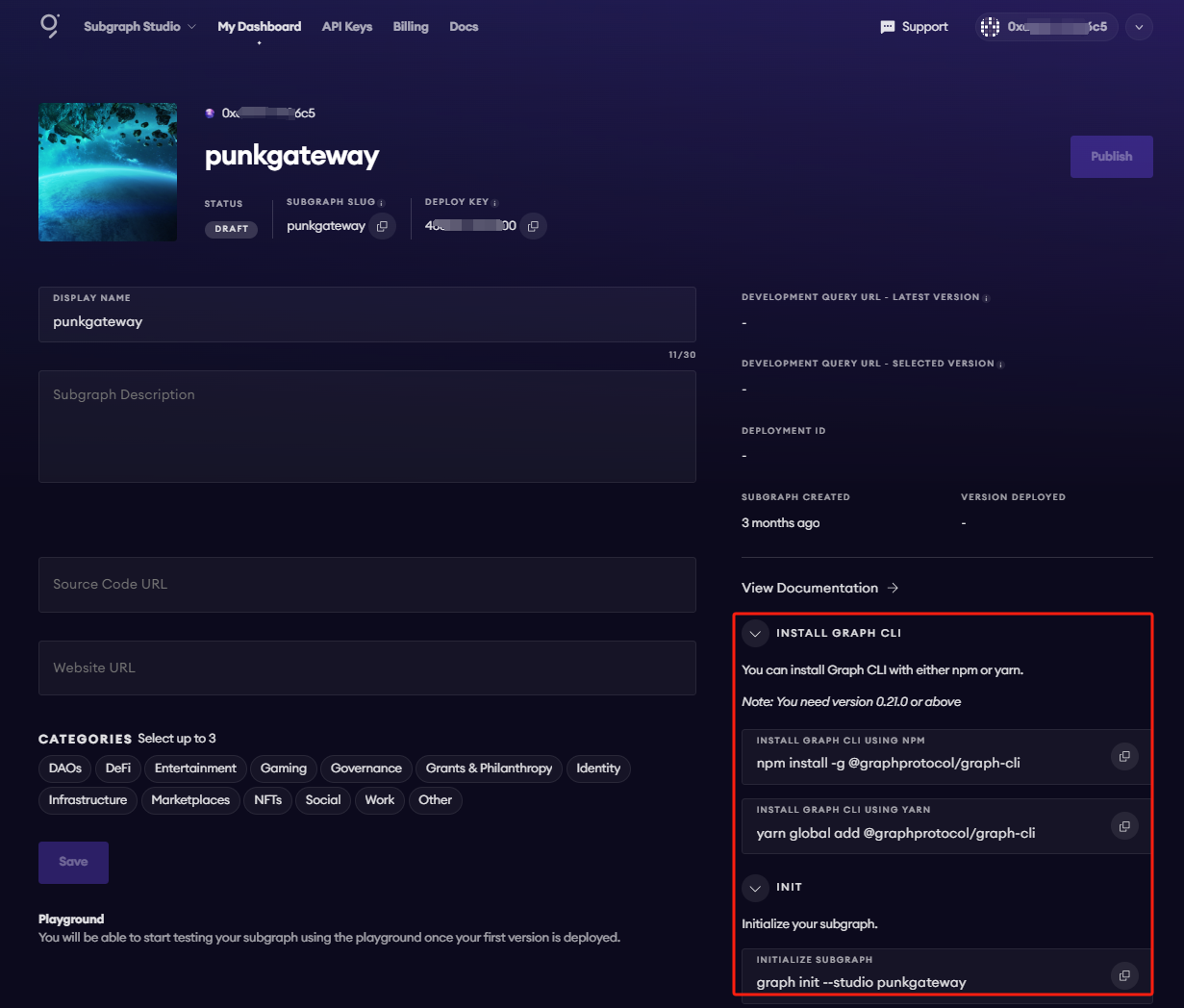
### Install the Graph CLI
On your local machine run the following:
```
npm install -g @graphprotocol/graph-cli
```
### Initialize your Subgraph
You can copy this directly from your subgraph page to include your specific subgraph slug:
```
graph init --studio
```
You’ll be prompted to provide some info on your subgraph like this:
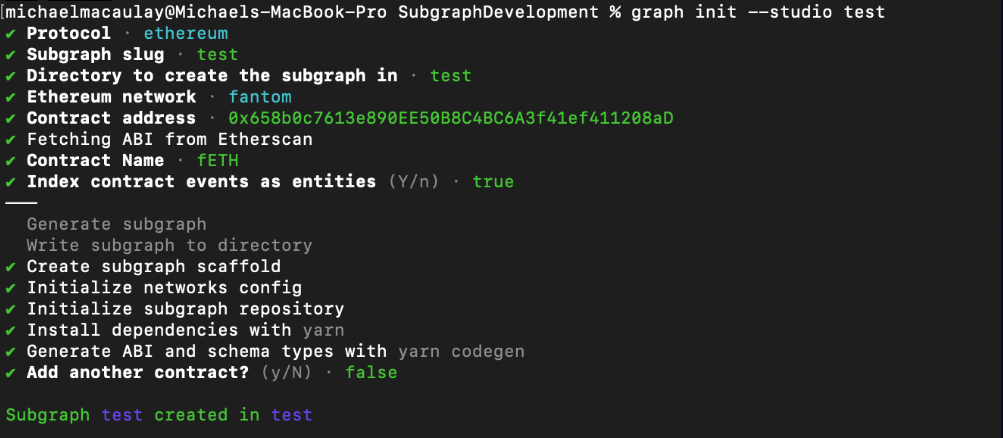
Simply have your contract verified on the block explorer and the CLI will automatically obtain the ABI and set up your subgraph. The default settings will generate an entity for each event.
## 2. Deploy & Publish
### Deploy to Subgraph Studio
First run these commands:
```bash theme={null}
$ graph codegen
$ graph build
```
Then run these to authenticate and deploy your subgraph. You can copy these commands directly from your subgraph’s page in Studio to include your specific deploy key and subgraph slug:
```bash theme={null}
$ graph auth --studio
$ graph deploy --studio
```
You will be asked for a version label. You can enter something like v0.0.1, but you’re free to choose the format.
### Test your subgraph
You can test your subgraph by making a sample query in the playground section. The Details tab will show you an API endpoint. You can use that endpoint to test from your dapp.
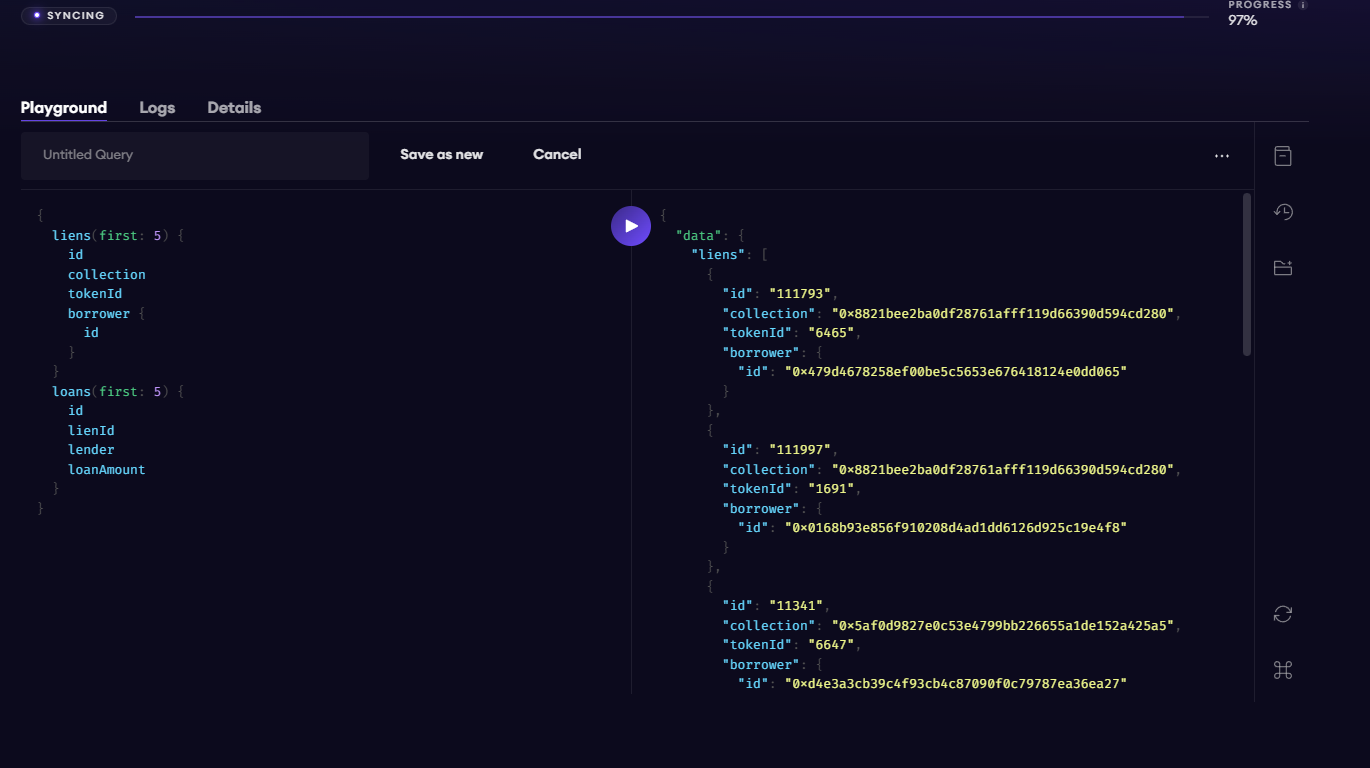
### Publish Your Subgraph to The Graph’s Decentralized Network
Once your subgraph is ready to be put into production, you can publish it to the decentralized network. On your subgraph’s page in Subgraph Studio, click on the Publish button:

Before you can query your subgraph, Indexers need to begin serving queries on it. In order to streamline this process, you can curate your own subgraph using GRT.
When publishing, you’ll see the option to curate your subgraph. As of May 2024, it is recommended that you curate your own subgraph with at least 3,000 GRT to ensure that it is indexed and available for querying as soon as possible.
> **Note:** The Graph's smart contracts are all on Arbitrum One, even though your subgraph is indexing data from Ethereum, BSC or any other [supported chain](https://thegraph.com/docs/en/developing/supported-networks/).
## 3. Query your Subgraph
Congratulations! You can now query your subgraph on the decentralized network!
For any subgraph on the decentralized network, you can start querying it by passing a GraphQL query into the subgraph’s query URL which can be found at the top of its Explorer page.
Here’s an example from the [CryptoPunks Ethereum subgraph](https://thegraph.com/explorer/subgraphs/HdVdERFUe8h61vm2fDyycHgxjsde5PbB832NHgJfZNqK) by Messari:
The query URL for this subgraph is:
[https://gateway-arbitrum.network.thegraph.com/api/\*\*\[api-key\]\*\*/subgraphs/id/HdVdERFUe8h61vm2fDyycHgxjsde5PbB832NHgJfZNqK](https://gateway-arbitrum.network.thegraph.com/api/**\[api-key]**/subgraphs/id/HdVdERFUe8h61vm2fDyycHgxjsde5PbB832NHgJfZNqK)
Now, you simply need to fill in your own API Key to start sending GraphQL queries to this endpoint.
### Getting your own API Key
In Subgraph Studio, you’ll see the “API Keys” menu at the top of the page. Here you can create API Keys.
## Appendix
### Sample Query
This query shows the most expensive CryptoPunks sold.
```graphql theme={null}
{
trades(orderBy: priceETH, orderDirection: desc) {
priceETH
tokenId
}
}
```
Passing this into the query URL returns this result:
```
{
"data": {
"trades": [
{
"priceETH": "124457.067524886018255505",
"tokenId": "9998"
},
{
"priceETH": "8000",
"tokenId": "5822"
},
// ...
```
### Sample code
```jsx theme={null}
const axios = require("axios");
const graphqlQuery = `{
trades(orderBy: priceETH, orderDirection: desc) {
priceETH
tokenId
}
}`;
const queryUrl =
"https://gateway-arbitrum.network.thegraph.com/api/[api-key]/subgraphs/id/HdVdERFUe8h61vm2fDyycHgxjsde5PbB832NHgJfZNqK";
const graphQLRequest = {
method: "post",
url: queryUrl,
data: {
query: graphqlQuery,
},
};
// Send the GraphQL query
axios(graphQLRequest)
.then((response) => {
// Handle the response here
const data = response.data.data;
console.log(data);
})
.catch((error) => {
// Handle any errors
console.error(error);
});
```
### Additional resources:
* To explore all the ways you can optimize & customize your subgraph for a better performance, read more about [creating a subgraph here](https://thegraph.com/docs/en/developing/creating-a-subgraph/).
* For more information about querying data from your subgraph, read more [here](https://thegraph.com/docs/en/querying/querying-the-graph/).
### Popular Subgraphs
* [fuse-nft](https://thegraph.com/explorer/subgraphs/36MBsLQLDobyKmN9NWW5bStUS5GdXjK6mmKytMxcWFbq?view=Query\&chain=arbitrum-one) - all NFTs on the Fuse Network
* [fuse-blocks](https://thegraph.com/explorer/subgraphs/4NdGNtBYVAuWriUfcb58vLmiaendp7v8EQ9tGe3i1RPo?chain=arbitrum-one) - blocks details of the network
* [voltage-dex](https://thegraph.com/explorer/subgraphs/B4BGk9itvmRXzzNRAzBWwQARHRt3ZvLz11aWNVsZPT4?chain=arbitrum-one) - Voltage DEX subgraph for on-chain trading information
* [fuse-ethereum-amb](https://thegraph.com/explorer/subgraphs/8jXFLHnfvzC6SrSYcqMhtfFKrvJkgxSbgXbNrvv4Ripi?chain=arbitrum-one) - subgraph for Fuse -> Ethereum AMB bridge
* [etherem-fuse-amb](https://thegraph.com/explorer/subgraphs/BRLusHAkqsZ6WqQM5XP1fjWopco9nNMJy3Z1TWm229c7?chain=arbitrum-one) - subgraph for Ethereum -> Fuse AMB bridge
# FuseBox APIs Tutorials
Source: https://docs.fuse.io/docs/developers/tutorials/apis/README
| Title | Stack | Repo |
| :------------------------------------------------------------------------------------------------------------------ | :---- | :---------------------------------------------------------------------------------------------------------------------------- |
| [How to Get Token Balances for Address](/docs/developers/tutorials/apis/api-get-address-balance) | API | [GitHub](https://github.com/fuseio/examples/blob/api-address-balance/api-token-balances/pages/index.tsx) |
| [How to Get NFT Balances for Address](/docs/developers/tutorials/apis/api-get-nft-balance) | API | [GitHub](https://github.com/fuseio/examples/blob/api-erc721-balance/erc721/pages/index.js) |
| [How to GET Price Changes for a Token By Intervals](/docs/developers/tutorials/apis/api-get-price-changes-interval) | API | [GitHub](https://github.com/fuseio/examples/blob/api-price-changes-by-interval/api-price-changes-by-interval/pages/index.tsx) |
| [GET Token Trade Quotes](/docs/developers/tutorials/apis/api-trade-quotes) | API | [GitHub](https://github.com/fuseio/examples/blob/rest-api-guide-trade-v2/trade-api/pages/index.tsx) |
# REST API - How to Get Token Balances for Address
Source: https://docs.fuse.io/docs/developers/tutorials/apis/api-get-address-balance
# Introduction
In this tutorial, we'll walk through fetching token balances for an Address using the FuseBox REST API in a Next.js application. We'll utilize React hooks to manage the State and display the token balances in a table format.
## Prerequisites
Before starting, ensure you have the following:
* Node.js installed on your machine.
* Code Editor: Use your preferred code editor. VS Code is recommended.
* An EOA wallet with a private key. You can use an existing one or create a new wallet.
* A basic understanding of React.js and Next.js.
* An API key from the Fuse Console. Get one [here](https://console.fuse.io/build).
## Step 1: Set Up a Next.js Project
If you haven't already set up a Next.js project, you can create one using the following commands:
```bash theme={null}
npx create-next-app my-project
cd my-project
```
Answer the required prompts from NextJS in the terminal. We must note that we use TypeScript and Tailwind CSS for this application.
## Step 2: Update the UI
In this example tutorial, we are going to build a Form element that takes in any External Owned Address or Smart Contract Address and return its balance in a Table. We will use the Fetch API method to call the Fuse REST APIs and return the responses.
The end point that we will use in this tutorial is the [Get Fungible ERC20 Token Balances](/api-reference/erc20-tokens/get-fungible-erc20-token-balances).
The URL takes in the EOA or SCA, below is an example:
[`https://api.fuse.io/api/v0/balances/assets/0x07dc9cb1d2f8e7acf92c856cf43467936203f26a?apiKey=API_KEY`](https://api.fuse.io/api/v0/balances/assets/0x07dc9cb1d2f8e7acf92c856cf43467936203f26a?apiKey=API_KEY)
Replace `API_KEY` with your actual `apiKey` too see the response. [Get an API KEY](https://console.fuse.io/build).
## Step 3: Fetch the API response.
In this step, we will test calling the API and parsing the response to the web browser console. Add the following code to index.tsx before the `return` statement.
```javascript theme={null}
const apiUrl = `https://api.fuse.io/api/v0/balances/assets/0x07dc9cb1d2f8e7acf92c856cf43467936203f26a?apiKey=API_KEY`;
async function fetchData() {
try {
const response = await fetch(apiUrl);
if (!response.ok) {
throw new Error("Network response was not ok");
}
const data = await response.json();
console.log(data);
} catch (error) {
console.error("There was a problem with the fetch operation:", error);
}
}
fetchData();
```
Save the file.
Run the application using the command:
```javascript theme={null}
npm run dev
```
Open your browser go to `http://localhost:3000` and open the developer console, you will find the results logged to the console.
## Step 4: Table UI
To return the response via the UI, we will use a Table. Copy the code below:
```javascript theme={null}
Address: {address}
Token Symbol
Contract Address
Balance
symbol
contractAddress
balance
```
Save the file.
To parse the responses via the UI, we will use React useState to update the UI components. Create an `interface` to handle the Token response object:
```javascript theme={null}
interface Token {
symbol: string
contractAddress: string
balance: number
type: string
}
```
Create a state to store the responses from the Fetch call using the Token interface.
```javascript theme={null}
const [tokenData, setTokenData] = useState([]);
```
Update the FetchData function by parsing the data response to the state:
```javascript theme={null}
setTokenData(data.result);
```
Update the table body by calling the map() method:
```javascript theme={null}
{
tokenData.map((token, index) => (
{token.symbol}
{token.contractAddress}
{token.balance}
));
}
```
Save the file.
## Step 5: Form UI.
In this step, we add a form component with an input where users can enter any address instead of hard coding it to the URL. Add a form component to the application. Copy and paste the following code snippet directly above the `
` component in your `index.tsx` file.
```javascript theme={null}
```
Add an event method to take input from the form:
```javascript theme={null}
const handleReturnBalances = async (e) => {
e.preventDefault();
};
```
Add a state to handle the address from the input. When the `address` is received from the Form input, it will be parsed to the API URL as a parameter `address=${address}` replacing the hardcoded address.
```javascript theme={null}
const [address, setAddress] = useState < string > "";
```
Update the `apiUrl`, use backticks:
```javascript theme={null}
const apiUrl = `https://api.fuse.io/api/v0/balances/assets/${address}?apiKey=API_KEY`;
```
Update the Form Input elements by adding `value` and `onchange` arguments. We will set the state when calling onchange:
```javascript theme={null}
value={address}
onChange={(e) => setAddress(e.target.value)}
```
Update the Form submit argument by parsing `handleReturnBalance`:
```javascript theme={null}
onSubmit = {handleReturnBalances};
```
Before saving the file, move the FetchData call to the handleReturnBalances, so that we can get the response as soon as we hit submit on the Form:
```javascript theme={null}
const handleReturnBalances = async (e) => {
e.preventDefault();
fetchData();
};
```
Save the file.
Run the application using the following command:
```javascript theme={null}
npm run dev
```
Visit `http://localhost:3000` in your browser to see the application in action. You should see a Form. When you enter an address and click Submit, the response will be displayed in a table with the token names, contract addresses, Balance, and token type.
## Code Breakdown:
* State variables `address` and `tokenData` are initialized using the `useState` hook. `address` stores the EOA or SCW address entered by the user, and `tokenData` stores the token data fetched from the API.
* The `apiUrl` variable is dynamically constructed using template literals. It includes the address entered by the user.
* The `handleReturnBalances` function is an asynchronous function called when the form is submitted. It prevents the default form submission behavior, and then calls the `fetchData` function.
* The `fetchData` function is an asynchronous function that sends a **GET** request to the API using the fetch function. It checks if the response is ok, then parses the JSON response and updates the `tokenData` state with the fetched data. If an error occurs during the fetch operation, it is caught and logged.
* The JSX code renders a form with an input field for the user to enter an Ethereum address. Upon submission, the `handleReturnBalances` function is called. The fetched token data is displayed in a table with columns for **Token Symbol, Contract Address, Balance**, and **Token type**.
This example code creates a web application that allows users to enter an address, fetch its balances using a REST API, and display the token data in a table format.
Checkout the complete [code](https://github.com/fuseio/examples/blob/api-address-balance/api-token-balances/pages/index.tsx). 💻
# REST API - How to Get NFT Balances for Address
Source: https://docs.fuse.io/docs/developers/tutorials/apis/api-get-nft-balance
# Introduction
In this tutorial, we'll walk through fetching NFTs held by an Address using the FuseBox REST API.
## Prerequisites
Before starting, ensure you have the following:
* Node.js installed on your machine.
* Code Editor: Use your preferred code editor. VS Code is recommended.
* An EOA wallet with a private key. You can use an existing one or create a new wallet.
* A basic understanding of React.js and Next.js.
* An API key from the Fuse Console. Get one [here](https://console.fuse.io/build).
## Step 1: Set Up a Next.js Project
If you haven't already set up a Next.js project, you can create one using the following commands:
```bash theme={null}
npx create-next-app my-project
cd my-project
```
Answer the required prompts from NextJS in the terminal.
**Note that we use javascript without TypeScript and Tailwind CSS for this application**.
## Step 2: Update the UI
In this example tutorial, we are going to build a Form element that takes in any External Owned Address or Smart Contract Address and return its NFTs collections. We will use the Fetch API method to call the Fuse REST APIs and parse the results to a UI.
The end point that we will use in this tutorial is the [Get Non Fungible NFT Token Balances](/api-reference/nft-tokens/get-non-fungible-nft-token-balances).
The URL takes in the EOA or SCA, below is an example:
[`https://api.fuse.io/api/v0/balances/nft-assets/0x07dc9cb1d2f8e7acf92c856cf43467936203f26a?apiKey=API_KEY`](https://api.fuse.io/api/v0/balances/nft-assets/0x07dc9cb1d2f8e7acf92c856cf43467936203f26a?apiKey=API_KEY)
Replace `API_KEY` with your actual `apiKey` too see the response. [Get an API KEY](https://console.fuse.io/build).
## Step 3: Fetch the API response.
In this step, we will test calling the API and parsing the response to the web browser console. Add the following code to index.tsx before the `return` statement.
```javascript theme={null}
const apiUrl = `https://api.fuse.io/api/v0/balances/nft-assets/0x07dc9cb1d2f8e7acf92c856cf43467936203f26a?apiKey=API_KEY`;
async function fetchNFTData() {
try {
console.log("Fetching NFTs for address:", address);
const response = await fetch(apiUrl);
if (!response.ok) {
throw new Error("Network response was not ok");
}
const data = await response.json();
console.log("NFT Data:", data);
if (
data &&
data.data &&
data.data.account &&
data.data.account.collectibles
) {
setNftData(data.data.account.collectibles);
} else {
setNftData([]); // Ensures nftData is reset to an empty array if no collectibles are found
}
} catch (error) {
console.error("There was a problem with the fetch operation:", error);
setNftData([]); // Reset on error to ensure no invalid data structures are used
}
}
fetchData();
```
Save the file.
Run the application using the command:
```javascript theme={null}
npm run dev
```
Open your browser go to `http://localhost:3000` and open the developer console, you will find the results logged to the console.
## Step 4: Display response via UI.
Create a state to store the responses from the Fetch call.
```javascript theme={null}
const [nftData, setNftData] = useState([]);
```
To display the results on the UI add the map() method inside the return statement:
```javascript theme={null}
```
## Step 5: Form handling.
In this step, we add a form component with an input where users can enter any address instead of hard coding it to the URL. Add a form component to the application. Copy and paste the following code snippet inside the `` component, before the `map` div in the `index.tsx` file.
```javascript theme={null}
```
Add a state to handle the address from the input. When the `address` is received from the Form input, it will be parsed to the API URL as a parameter `address=${address}` replacing the hardcoded address.
```javascript theme={null}
const [address, setAddress] = useState < string > "";
```
Update the `apiUrl`, use backticks:
```javascript theme={null}
const apiUrl = `https://api.fuse.io/api/v0/balances/nft-assets/${address}?apiKey=API_KEY`;
```
Update the Form Input elements by adding `value` and `onchange` arguments. We will set the state when calling onchange:
```javascript theme={null}
value={address}
onChange={(e) => setAddress(e.target.value)}
```
Update the Form submit argument by parsing `handleReturnNFTs`:
```javascript theme={null}
onSubmit = {handleReturnNFTs};
```
Before saving the file, move the FetchData call to the handleReturnBalances, so that we can get the response as soon as we hit submit on the Form:
```javascript theme={null}
const handleReturnNFTs = async (e) => {
e.preventDefault();
fetchNFTData();
};
```
Add a `useEffect` to handle page side-effects:
```javascript theme={null}
useEffect(() => {
if (nftData.length > 0) {
console.log("Sample NFT data:", nftData[0]);
}
}, [nftData]);
```
Save the file.
Run the application using the following command:
```javascript theme={null}
npm run dev
```
Visit `http://localhost:3000` in your browser to see the application in action. You should see a Form. When you enter an address and click Submit, the response will be displayed.
## Complete code
This example code creates a web application that allows users to enter an address, fetch its NFTs balances using a REST API, and display the data.
Checkout the complete [code](https://github.com/fuseio/examples/blob/api-erc721-balance/erc721/pages/index.js). 💻
# REST API - How To GET Price Changes For A Token By Intervals
Source: https://docs.fuse.io/docs/developers/tutorials/apis/api-get-price-changes-interval
## Introduction
In this Tutorial we will build a sample application to display Price Changes for a Token across an Interval. The Changes can be across "ALL","MONTH","WEEK","DAY","HOUR" in Unix timestamp.
## Prerequisites
Before starting, ensure you have the following:
* Node.js installed on your machine.
* Code Editor: Use your preferred code editor; VS Code is recommended.
* An EOA wallet with a private key. You can use an existing one or create a new wallet.
* A basic understanding of React.js and Next.js.
* An API key from the Fuse Console. Get one [here](https://console.fuse.io/build).
## Step 1: Set Up a Next.js Project
If you haven't already set up a Next.js project, you can create one using the following commands:
```javascript theme={null}
npx create-next-app my-project
cd my-project
```
Answer the required prompts from NextJS in the terminal. Note that we use TypeScript and Tailwind CSS for this application.
## Step 2: API Endpoint
In this example tutorial, we are going to build a Dashboard that returns the Price Changes for the LadyBot Token in a Line Chart. We will use the Fetch API method to call the Fuse REST APIs and return the responses.
The end point that we will use in this tutorial is the **[GET Price Change for a Token Over An Interval](https://docs.fuse.io/trade_versioned/1.0.0/get-price-change-for-token-over-an-interval)**.
The base URL `https://api.fuse.io/api/v0/trade/pricechange/interval/:timeFrame/:tokenAddress?apiKey={API_KEY}`
Where `timeFrame` is the Interval for price change. Allowed values are: "ALL", "MONTH", "WEEK", "DAY", "HOUR".
and `tokenAddress` is the Token Contract Address. You can get an API KEY from [Console](https://console.fuse.io/build).
The URL when appended with the parameters for examples:
`https://api.fuse.io/api/v0/trade/pricechange/interval/HOUR/0xDe4b9879B56187D13B2c41Da24c72Ff100A5AC9A?apiKey={API_KEY}`
## Step 3: Understanding the API Response
The URL will return the following response, for example:
```json theme={null}
{
"data": [
{
"timestamp": 0,
"priceChange": "string",
"previousPrice": "string",
"currentPrice": "string"
}
]
}
….
```
Where:
| Param | Type | Description |
| ----------------- | --------- | ----------------------------------------------------------------------- |
| **timeStamp** | `integer` | a Unix timestamp (which is the number of seconds since January 1, 1970) |
| **priceChange** | `string` | The difference between `previousPrice` and `currentPrice` |
| **previousPrice** | `string` | The Previous Price at the timestamp |
| **currentPrice** | `string` | The Current Price at the timestamp |
An example response from calling the URL looks like this:
```json theme={null}
{
data: [
{
timestamp: 1714626000,
priceChange: 0,
previousPrice: 0.22263642188397303,
currentPrice: 0.22263642188397303
},
{
timestamp: 1714626099,
priceChange: 0,
previousPrice: 0.22263642188397303,
currentPrice: 0.22263642188397303
},
{
timestamp: 1714626198,
priceChange: 0.024984737664834156,
previousPrice: 0.22263642188397303,
currentPrice: 0.22269204700992712
},
…
]
}
```
We will track the `timestamp` on the **y-axis** and the `currentPrice` on the **x-axis** of the line chart.
## Step 4: Fetch the API response.
In this step, we will test calling the API and parsing the response to the web browser console. Add the following code to index.tsx before the return statement.
```javascript theme={null}
const apiUrl = `https://api.fuse.io/api/v0/trade/pricechange/interval/HOUR/0xDe4b9879B56187D13B2c41Da24c72Ff100A5AC9A?apiKey={API_KEY}`
async function fetchData() {
try {
const response = await fetch(apiUrl);
if (!response.ok) {
throw new Error('Network response was not ok');
}
const data = await response.json();
console.log(data);
} catch (error) {
console.error('There was a problem with the fetch operation:', error);
}
}
fetchData();
```
Save the file.
Run the application using the command:
```bash theme={null}
npm run dev
```
Open your browser go to [http://localhost:3000](http://localhost:3000) and open the developer console, you will find the results logged to the console.
## Step 5: UI
TO display the response in a Chart using a Line Chart, we will make use of the **react-chartjs-2** Library. A set of React components for Chart.js a JavaScript charting library. Install the following packages:
```javascript theme={null}
npm install chart.js react-chartjs-2
```
To parse the responses via the UI, we will use React useState to update the UI components. Create an interface to handle the Token response object:
```javascript theme={null}
interface Token {
timestamp: number
priceChange: string
previousPrice: string
currentPrice: string
}
```
Add the useState Hook from React
```javascript theme={null}
import { useState, useEffect } from "react";
```
Create a state to store the responses from the Fetch call using the Token interface.
```javascript theme={null}
const [priceData, setPriceData] = useState([]);
```
Update the FetchData function by parsing the data response to the state:
```javascript theme={null}
const response = await fetch(apiUrl);
if (!response.ok) {
throw new Error('Network response was not ok');
}
const data = await response.json();
setPriceData(data.data);
```
To create the Chart import the required methods:
```javascript theme={null}
import {
Chart as ChartJS,
CategoryScale,
LinearScale,
PointElement,
LineElement,
Title,
Tooltip,
Legend,
} from 'chart.js';
import { Line } from 'react-chartjs-2';
ChartJS.register(
CategoryScale,
LinearScale,
PointElement,
LineElement,
Title,
Tooltip,
Legend
);
```
The Chart JS `Line` component takes in a series of parameters, the two most important being `options` and `data`. We are going to create an options and data variables:
```javascript theme={null}
const options = {
responsive: true,
plugins: {
legend: {
position: 'top' as const,
},
},
};
```
```javascript theme={null}
const data = {
labels,
datasets: [
{
label: 'LadyBot Token Price Change Per Hour',
data: priceData.map((token) => token.currentPrice),
borderColor: 'rgb(255, 99, 132)',
backgroundColor: 'rgba(255, 99, 132, 0.5)',
},
],
};
```
The Data object variable has `labels` as a parameter, which the y-axis and `data` going on the x-axis. As mentioned above, we will parse `timeStamp` to the y-axis and `currentPrice` to the x-axis. To do this we will map over the response stored in the `token` state.
For the `timeStamp` we will convert it to human readable date time in “Hours”, “Minutes” and “Seconds”..
```javascript theme={null}
const labels = priceData.map(token => {
const date = new Date(token.timestamp * 1000);
const hours = date.getHours();
const minutes = date.getMinutes();
const seconds = date.getSeconds();
return `${hours < 10 ? '0' : ''}${hours}:${minutes < 10 ? '0' : ''}${minutes}:${seconds < 10 ? '0' : ''}${seconds}`;
});
```
To display the Chart add the Line Component after the “Hello, World!” inside the `return` statement.
```javascript theme={null}
```
Save the file. Run the application using the following command:
```javascript theme={null}
npm run dev
```
Visit `http://localhost:3000` in your browser to see the application in action.
Checkout the complete [code](https://github.com/fuseio/examples/blob/api-price-changes-by-interval/api-price-changes-by-interval/pages/index.tsx). 💻
# REST API - Trade v2 GET Quotes
Source: https://docs.fuse.io/docs/developers/tutorials/apis/api-trade-quotes
Trade v2 API
# Introduction
In this tutorial, we'll walk through using the FuseBox REST API in a Next.js application to consume the Trade v2 API **”[Get a quote for buying or selling any ERC20 token](/api-reference/v2-swap/get-a-quote-for-buying-or-selling-any-erc20-token)”** endpoint. We'll utilize React hooks to manage the State and display the response in a table format.
## Prerequisites
Before starting, ensure you have the following:
Node.js installed on your machine.
* Code Editor: Use your preferred code editor; VS Code is recommended.
* An EOA wallet with a private key. You can use an existing one or create a new wallet.
* A basic understanding of React.js and Next.js.
* An API key from the Fuse Console. Get one [here](https://console.fuse.io/build).
## Step 1: Set Up a Next.js Project
If you haven't already set up a Next.js project, you can create one using the following commands:
```bash theme={null}
npx create-next-app my-project
cd my-project
```
Answer the required prompts from NextJS in the terminal. Note that we use Javascript and Tailwind CSS for this application.
A new NextJS project is created with a pages directory containing an `index.js` file.
## Step 2: API Endpoint
In this example tutorial, we are going to build a Form element that takes in Tokens for BUY and SELL orders and an amount and returns the response in a table. We will use the Axios library to call the Fuse REST APIs and return the responses.
The endpoint that we will use in this tutorial is the Get List of Tokens Owned by Address.
The base URL is [https://api.fuse.io/api/v1/trade/quote](https://api.fuse.io/api/v1/trade/quote), and it takes three required parameters: **buyToken**, **sellToken**, and **amount**. You can get an API key from [Console](https://console.fuse.io/build).
The URL, when appended with the parameters, for example:
[https://api.fuse.io/api/v1/trade/quote?apiKey=YOUR\_API\_KEY\&sellToken=FUSE\&buyToken=0x34Ef2Cc892a88415e9f02b91BfA9c91fC0bE6bD4\&sellAmount=1000000000000000000](https://api.fuse.io/api/v1/trade/quote?apiKey=YOUR_API_KEY\&sellToken=FUSE\&buyToken=0x34Ef2Cc892a88415e9f02b91BfA9c91fC0bE6bD4\&sellAmount=1000000000000000000)
## Step 2: Install Axios
Axios is a promise-based HTTP client for the browser and Node.js. Install Axios to handle the API requests:
```bash theme={null}
npm install axios
```
## Step 3: Fetch the API response.
In this step, we will test calling the API and parsing the response to the web browser console. Add the following code to the `index.js` file inside the `Home() {}` Component.
```javascript theme={null}
const apiUrl = `https://api.fuse.io/api/v1/trade/quote?apiKey=YOUR_API_KEY&sellToken=FUSE&buyToken=0x34Ef2Cc892a88415e9f02b91BfA9c91fC0bE6bD4&sellAmount=1000000000000000000`;
async function fetchData() {
try {
const response = await fetch(apiUrl);
if (!response.ok) {
throw new Error("Network response was not ok");
}
const data = await response.json();
console.log(data);
} catch (error) {
console.error("There was a problem with the fetch operation:", error);
}
}
fetchData();
```
Save the file.
Run the application using the command:
```bash theme={null}
npm run dev
```
Open your browser, go to `http://localhost:3000`, and open the developer console. You will find the results logged to the console.
## Step 4: Implementing the Application
### State Management with React Hooks
We use the `useState` hook to manage the form inputs and API response data. This allows us to keep track of the user inputs and the API results.
```javascript theme={null}
const [inputs, setInputs] = useState({
sellToken: "FUSE",
buyToken: "",
sellAmount: "1000000000000000000",
});
const [result, setResult] = useState(null);
```
* `inputs` stores the values of the form fields.
* `result` will hold the data fetched from the API.
### Handling Form Input Changes
The `handleInputChange` function updates the `input` state whenever a user types into the form fields. This function is triggered on every keystroke, ensuring that the state is always up-to-date with what the user has entered.
```javascript theme={null}
const handleInputChange = (event) => {
const {name, value} = event.target;
setInputs((prevState) => ({
...prevState,
[name]: value,
}));
};
```
We use a function to ensure the new state is based on the correct previous state, which is important in React to prevent state update issues during rapid state changes.
### Submitting the Form
The `handleSubmit` function is called when the user submits the form. It prevents the default form submission event, constructs the API request, and handles the API response.
```javascript theme={null}
const handleSubmit = async (event) => {
event.preventDefault();
const {sellToken, buyToken, sellAmount} = inputs;
const url = `https://api.fuse.io/api/v1/trade/quote`;
const params = {apiKey: "your_api_key", sellToken, buyToken, sellAmount};
try {
const response = await axios.get(url, {params});
setResult(response.data);
} catch (error) {
console.error("Error fetching trade quote:", error);
setResult({error: error.message});
}
};
```
We make an asynchronous API call using Axios. Upon success, the result is stored in the `result` state, and if an error occurs, it is handled.
The next step is to add the returned in the `try/catch` block in the `handleSubmit` function. Update the `try/catch`
```javascript theme={null}
try {
const response = await axios.get(url, { params });
const data = response.data;
// Extracting the specific fields
const extractedData = {
price: data.price,
guaranteedPrice: data.guaranteedPrice,
estimatedPriceImpact: data.estimatedPriceImpact,
to: data.to,
value: data.value,
buyTokenAddress: data.buyTokenAddress,
sellTokenAddress: data.sellTokenAddress,
buyAmount: data.buyAmount,
sellAmount: data.sellAmount,
sources: data.sources.map((source) => ({
name: source.name,
proportion: source.proportion,
})),
orders: data.orders.map((order) => ({
source: order.source,
makerToken: order.makerToken,
takerToken: order.takerToken,
makerAmount: order.makerAmount,
takerAmount: order.takerAmount,
fillData: {
router: order.fillData.router,
tokenAddressPath: order.fillData.tokenAddressPath.join(" -> "),
uniswapPath: order.fillData.uniswapPath,
},
fill: {
input: order.fill.input,
output: order.fill.output,
adjustedOutput: order.fill.adjustedOutput,
},
})),
};
setResult(extractedData);
}
```
## Step 5: Building the User Interface
The user interface uses HTML form elements styled with Tailwind CSS. It includes input fields for the **sellToken**, **buyToken**, and **sellAmount**, and a submit button.
Add the `div` below inside the `return`.
```javascript theme={null}
```
Each input field is linked to the `handleInputChange` function.
The form submission is linked to the `handleSubmit` function.
### Displaying the API Response
Once the API data is fetched, it is displayed in a table format using Tailwind CSS for styling. This part of the UI will render conditionally based on whether the `result` state is populated. Add the code below in the `return`, after the `form` element.
```javascript theme={null}
{result && (
API Response:
API Response:
Field
Value
Price
{result.price}
Guaranteed Price
{result.guaranteedPrice}
Estimated Price Impact
{result.estimatedPriceImpact}
To
{result.to}
Value
{result.value}
Buy Token Address
{result.buyTokenAddress}
Buy Amount
{result.buyAmount}
Sell Token Address
{result.sellTokenAddress}
Sell Amount
{result.sellAmount}
Sources
Source Name
Proportion
{result.sources.map((source, index) => (
{source.name}
{source.proportion}
))}
Orders
{result.orders.map((order, index) => (
Field
Value
Source
{order.source}
Maker Token
{order.makerToken}
Taker Token
{order.takerToken}
Maker Amount
{order.makerAmount}
Taker Amount
{order.takerAmount}
Router
{order.fillData.router}
Token Address Path
{order.fillData.tokenAddressPath}
Uniswap Path
{order.fillData.uniswapPath}
Input
{order.fill.input}
Output
{order.fill.output}
Adjusted Output
{order.fill.adjustedOutput}
))}
)}
```
Save the file.
Run the application using the command:
```bash theme={null}
npm run dev
```
In this example app, we are using Fuse to Buy Volt Tokens. Enter the VOlt Token address in the **Buy Token** input field on the Form: `0x34Ef2Cc892a88415e9f02b91BfA9c91fC0bE6bD4`
The `amount` is 1 Fuse Token to 18 Decimal places. Click the **Get Quote** button to see the reruned results.
## Conclusion
This tutorial covered how to consume the Trade v2 API **”Get a quote for buying or selling any ERC20 token”** endpoint. This basic framework can be expanded to build more complex applications by integrating the other Trade v2 API Endpoints
Checkout the complete [code](https://github.com/fuseio/examples/blob/rest-api-guide-trade-v2/trade-api/pages/index.tsx). 💻.
# FuseBox Mobile SDK Tutorials
Source: https://docs.fuse.io/docs/developers/tutorials/mobile-sdk/README
| Title | Stack | Repo |
| :---------------------------------------------------------------------------------------------------------------------------- | :----- | :----------------------------------------------------------------------------------------------------- |
| [Create Smart Contract Wallets using FuseBox Flutter SDK](/docs/developers/tutorials/mobile-sdk/mobile-app-guide) | Mobile | |
| [Handling Transfers Using the Fuse Wallet SDK in a Flutter App](/docs/developers/tutorials/mobile-sdk/mobile-guide-transfers) | Mobile | [GitHub](https://github.com/fuseio/examples/blob/flutter-demo-app/fusebox_mobile_app/lib/main.dart) |
| [Swap Tokens using FuseBox Flutter Wallet SDK](/docs/developers/tutorials/mobile-sdk/mobile-swap-tokens-guide) | Mobile | [GitHub](https://github.com/fuseio/examples/blob/flutter-swap-tokens-app/swap_token_app/lib/main.dart) |
# Create Smart Contract Wallet Using FuseBox Flutter SDK
Source: https://docs.fuse.io/docs/developers/tutorials/mobile-sdk/mobile-app-guide
In this article, we'll explore making a mobile app that talks to the Fuse blockchain. We'll use the FuseBox Flutter SDK, a toolkit for mobile developers. Flutter makes it easy to build apps for both Android and iOS without learning two different coding languages.
We'll guide you through the steps, from setting up your tools to adding features like wallets and token transfers. Don't worry if you're new to this – we'll explain things step by step, with examples.
Whether you're a pro developer wanting to try out blockchain or someone new to tech, this guide is your friend. Let's dive in and see how we can create mobile apps that bring the power of Fuse blockchain to your fingertips!
## Pre-requites:
* Basic knowledge of Dart/Flutter
* An API Key from [Console](https://console.fuse.io/build)
* PrivateKEY from an Externally Owned Account (EOA)
## Step 1: Set Up Your Project
Create a new project folder and initialize it using Flutter:
```bash theme={null}
flutter create fusebox_mobile_app
cd fusebox_mobile_app
```
Open the project in your favorite code editor, such as VSCode and run it using:
```bash theme={null}
flutter run
```
You will find the default app running:
## Step2: Index
Open your Flutter project and update the default Dart file in the `lib` dir of your app, `main.dart`.
```dart theme={null}
import 'package:flutter/material.dart';
void main() {
runApp(
const Center(
child: Text(
'Hello, world!',
textDirection: TextDirection.ltr,
),
),
);
}
```
This is a basic `Hello, world!` app.
## Step 3: The User Interface
In Flutter, everything is a widget. Widgets are just tiny blocks of UI that you can combine to make a complete app.
In this demo, we are not going to focus on the aesthetics of the application, rather, we are going to focus on the implementation the creation of a Smart Contract Wallet using FuseBox, funding the Wallet and carrying out a Transfer. Here is a Basic UI for the application, update the `main.dart` file:
```dart theme={null}
import 'package:flutter/material.dart';
void main() {
runApp(DApp());
}
class DApp extends StatelessWidget {
@override
Widget build(BuildContext context) {
return MaterialApp(
title: 'My first DApp',
home: MyHomePage(),
);
}
}
class MyHomePage extends StatelessWidget {
@override
Widget build(BuildContext context) {
return Scaffold(
appBar: AppBar(
title: Text('FuseBox Mobile App'),
),
body: Center(
child: Text(
'Welcome to my First FuseBox App!',
style: TextStyle(fontSize: 24),
),
),
);
}
}
```
## Step 4: Create a Smart Contract Wallet
Install the required dependencies [fuse\_wallet\_sdk](https://pub.dev/packages/fuse_wallet_sdk)
Open the `pubspec.yaml` file located inside the app folder, and `fuse_wallet_sdk: ^0.2.20` under **dependencies**.
Run, `flutter pub get` to install the package.
Add the imported file at the top of your `main.dart` file:
```dart theme={null}
import 'package:fuse_wallet_sdk/fuse_wallet_sdk.dart';
```
There are 2 primary functions for this demo: Creating Smart Contract Wallets and Transfers. Both actions will be carried out using the FuseBox Flutter SDK.
## Step 5: Create a Smart Contract Wallet:
To create a Smart Contract Wallet, we are going to be using Stateful Flutter Widgets. A widget that changes when a user interacts with it is called a stateful widget. For example, a button action to return a Smart Contract Wallet.
We will change the `MyHomePage` Stateless widget to a Stateful widget and create a state where we carry out a change (creating) a Smart Contract Wallet at the click of a Button. Update the code:
```dart theme={null}
import 'package:flutter/material.dart';
import 'package:fuse_wallet_sdk/fuse_wallet_sdk.dart';
void main() {
runApp(DApp());
}
class DApp extends StatelessWidget {
@override
Widget build(BuildContext context) {
return MaterialApp(
title: 'FuseBox mobile App',
home: MyHomePage(),
);
}
}
class MyHomePage extends StatefulWidget {
@override
State createState() => _MyHomePageState();
}
class _MyHomePageState extends State {
@override
Widget build(BuildContext context) {
return Scaffold(
appBar: AppBar(
title: const Text('FuseBox mobile App'),
),
body: Center(
child: Column(
mainAxisAlignment: MainAxisAlignment.center,
children: [
const Text(
'Create a Wallet',
),
const SizedBox(
height: 15,
),
GestureDetector(
onTap: () async {
const apiKey = 'API_KEY';
final privateKey = EthPrivateKey.fromHex(
'EOA_PRIVATE_KEY’);
final fuseSDK = await FuseSDK.init(apiKey, privateKey);
print(
'Smart contract wallet address: ${fuseSDK.wallet.getSender()}');
},
child: Container(
height: 45,
width: 130,
decoration: BoxDecoration(
gradient: const LinearGradient(
colors: [Color(0xff9DCEFF), Color(0xff92A3FD)]),
borderRadius: BorderRadius.circular(50)),
child: const Center(
child: Text(
'Connect',
style: TextStyle(
color: Colors.white,
fontWeight: FontWeight.w600,
fontSize: 14),
),
),
),
)
],
),
),
);
}
}
```
Run the application.
Click the **Connect** button, you will see the Smart Contract Wallet Address logged to the console.
***Note: If you are experiencing problems, open the `macos` directory, open `Runner` and open the `DebugProfile.entitlements` add the line:***
```flutter theme={null}
com.apple.security.network.client
```
Restart your file, click “Connect” and you will see the Smart Contract Wallet logged to the Console. The next step will be to update the UI and change the State to display the address via the UI.
To update the UI, we have to `setState` of the Flutter app so that we can change the Button from “Create” to “Transfer” and Display the created Smart Contract Account to the UI.
Update the code:
```dart theme={null}
class _MyHomePageState extends State {
String walletAddress = ''; // Variable to hold the wallet address
@override
Widget build(BuildContext context) {
// Determine the text content based on walletAddress
String buttonText = walletAddress.isEmpty ? 'Create' : 'Transfer';
return Scaffold(
appBar: AppBar(
title: const Text('FuseBox Mobile App'),
),
body: Center(
child: Column(
mainAxisAlignment: MainAxisAlignment.center,
children: [
GestureDetector(
onTap: () async {
print("OKKK");
const apiKey = 'API_KEY';
final privateKey = EthPrivateKey.fromHex(
'EOA_PRIVATE_KEY’);
final fuseSDK = await FuseSDK.init(apiKey, privateKey);
String address = fuseSDK.wallet.getSender();
print('Smart contract wallet address: $address');
setState(() {
// Update the walletAddress variable with the obtained address
walletAddress = address;
});
},
child: Container(
height: 45,
width: 130,
decoration: BoxDecoration(
gradient: const LinearGradient(
colors: [Color(0xff9DCEFF), Color(0xff92A3FD)]),
borderRadius: BorderRadius.circular(50)),
child: Center(
child: Text(
buttonText,
style: TextStyle(
color: Colors.white,
fontWeight: FontWeight.w600,
fontSize: 14),
),
),
),
),
const SizedBox(
height: 15,
),
Container(
height:50,
width: 300,
decoration: BoxDecoration(
color: Colors.green, borderRadius: BorderRadius.circular(4)),
child: Center(
child: Text(
'SCW: $walletAddress',
style: TextStyle(
color: Colors.white,
fontWeight: FontWeight.w100,
fontSize: 12),
),
),
),
],
),
),
);
}
}
```
Re-run the code!
Click the “Create" Button, you will see the Smart Contract Address displayed on your screen, and the Button is now ready for carrying out Transfers.
## Conclusion
This is a beginner guide on creating Smart Contract Wallets using the Fuse Wallet SDK. Developers can build Mobile Apps where users can authentication using Social Methods and get assinged a Smart Contract Wallet address which they can use to carry out UserOperations according to the ERC-4337 standard. In the next guide, we will walk through sending "Transfers" to the Fuse Blockchain from Mobile App powered by the Fuse Wallet SDK.
# Handling Transfers Using the Fuse Wallet SDK in a Flutter App
Source: https://docs.fuse.io/docs/developers/tutorials/mobile-sdk/mobile-guide-transfers
## Pre-requites:
* Basic knowledge of Dart/Flutter
* An API Key from [Console](https://console.fuse.io/build)
* PrivateKEY from an Externally Owned Account (EOA)
## Step 1: Set Up Your Flutter Project
Create a new Flutter project using the following command:
```bash theme={null}
flutter create fuse_wallet_app
cd fuse_wallet_app
```
Open the project in your favorite code editor, such as VSCode and run it using:
```bash theme={null}
flutter run
```
You will find the default app running.
## Step 2: Add Dependencies
In your pubspec.yaml file, add the required dependencies:
```yaml theme={null}
dependencies:
fuse_wallet_sdk: ^0.3.1
flutter_hooks: ^0.20.5
```
Run flutter pub get to install the dependencies.
## Step 3: Implement the Wallet Creation Screen
Open your Flutter project and open the default Dart file in the `lib` dir of your app, `main.dart`. Update it with the following code:
```dart theme={null}
import 'package:flutter/material.dart';
import 'package:flutter_hooks/flutter_hooks.dart';
import 'package:fuse_wallet_sdk/fuse_wallet_sdk.dart';
void main() {
runApp(MyApp());
}
class MyApp extends StatelessWidget {
@override
Widget build(BuildContext context) {
return MaterialApp(
title: 'Smart Contract Wallet',
theme: ThemeData(
primarySwatch: Colors.blue,
),
home: WalletCreationScreen(),
);
}
}
class WalletCreationScreen extends HookWidget {
@override
Widget build(BuildContext context) {
final createWallet = useState(null);
Future _createSmartContractWallet() async {
const apiKey = 'pk_KEY';
final privateKey = EthPrivateKey.fromHex('0xEOA_PRIVATE_KEY');
try {
final fuseSDK = await FuseSDK.init(apiKey, privateKey);
String address = fuseSDK.wallet.getSender();
createWallet.value = address;
print('Smart contract wallet address: ${createWallet.value}');
Navigator.push(
context,
MaterialPageRoute(
builder: (context) => TransferScreen(fuseSDK: fuseSDK, walletAddress: address),
),
);
} catch (e) {
// Handle initialization error
print('Error during wallet creation: $e');
}
}
return Scaffold(
appBar: AppBar(
title: Text('FuseBox Mobile App'),
),
body: Center(
child: Column(
mainAxisAlignment: MainAxisAlignment.center,
children: [
ElevatedButton(
onPressed: () {
_createSmartContractWallet();
},
child: Text('Create Smart Contract Wallet'),
),
SizedBox(height: 20),
if (createWallet.value != null)
Text('Wallet Address: ${createWallet.value}'),
],
),
),
);
}
}
```
In the Screen above, we implemented a Basic Screen when you can click a Button, and create a Smart Contract Wallet. The screen navigates to a Transfer Screen where the created Smart Contract Wallet is displayed.
## Step 4: Implement the Transfer
Create a new file named transfer\_screen.dart and implement the Transfer Screen.
```dart theme={null}
class TransferScreen extends HookWidget {
final FuseSDK fuseSDK;
final String walletAddress;
TransferScreen({required this.fuseSDK, required this.walletAddress});
Future _transferFunds() async {
try {
final res = await fuseSDK.transferToken(
EthereumAddress.fromHex('0xEeeeeEeeeEeEeeEeEeEeeEEEeeeeEeeeeeeeEEeE'), // Replace with your token address
EthereumAddress.fromHex('0xd8da6bf26964af9d7eed9e03e53415d37aa96045'), // for 'vitalik.eth'. Replace with recipient's address.
BigInt.parse('1000000000000000000'), // Replace with the amount in Wei
);
print('UserOpHash: ${res.userOpHash}');
print('Waiting for transaction...');
final ev = await res.wait();
print('Transaction successful... Hash ${ev}');
// Handle success, you can show a success message or navigate to another screen
} catch (e) {
// Handle the error, you can show an error message or log it
print('Error during transfer: $e');
}
}
@override
Widget build(BuildContext context) {
return Scaffold(
appBar: AppBar(
title: Text('Transfer Screen'),
),
body: Center(
child: Column(
mainAxisAlignment: MainAxisAlignment.center,
children: [
Text('Wallet Address: ${walletAddress}'),
Text('Transfer funds here'),
ElevatedButton(
onPressed: () {
_transferFunds();
},
child: Text('Transfer Funds'),
),
],
),
),
);
}
}
```
At the top of the `main.dart` file, import the Transfer implementation by adding the import file alongside the other packages:
```javascript theme={null}
import 'package:myapp/transfer_screen.dart';
```
Run your app using:
```bash theme={null}
flutter run
```
You should now have a basic Flutter app that allows users to create a Smart Contract Wallet and perform token transfers using the Fuse Wallet SDK. Please replace the placeholder values with your actual API key, private key, token address, recipient address, and transfer amount.
## Conclusion
In this tutorial, we've created a simple Flutter app that leverages the Fuse Wallet SDK to demonstrate the process of creating a Smart Contract Wallet and initiating a token transfer on the Fuse Blockchain. While this example serves as a basic introduction to integrating blockchain functionality into a mobile app, developers can expand upon this foundation to build more robust and feature-rich applications.
### Use Cases for Expansion
* User Authentication and Security: Enhance the app by implementing authentication mechanisms to secure user accounts and wallet access. Integrate biometrics or PIN-based authentication for an added layer of security.
* Token Balance and Transaction History: Extend the app to display the user's token balance and transaction history. Utilize the Fuse Wallet SDK's functionalities to retrieve and present this information in a user-friendly manner.
* Advanced Token Transfer Features: Explore advanced token transfer features such as handling different token types, adding transfer notes, or implementing recurring transfers. This can enhance the app's versatility for various use cases.
* Integration with External APIs: Integrate the app with external APIs or services to retrieve real-time market data, token prices, or additional information relevant to the user's financial activities.
* Smart Contract Interactions: Explore smart contract interactions beyond simple transfers. Implement features like voting, decentralized finance (DeFi) integrations, or participation in decentralized applications (DApps).
Remember, this example is a starting point, and developers can tailor the app to meet specific use cases and business requirements. Fuse Wallet SDK provides a powerful toolkit to explore various blockchain-related functionalities, and integrating these features can result in a versatile and powerful mobile app for users interested in decentralized finance and blockchain technology.
# Swap Tokens using FuseBox Flutter Wallet SDK
Source: https://docs.fuse.io/docs/developers/tutorials/mobile-sdk/mobile-swap-tokens-guide
In this article, we will use the Fuse Wallet SDK **[Swap Tokens SDK](/docs/developers/fusebox/sdk/7-swap-tokens)** method to create an App where users can swap tokens to the native FUSE token. In this example App, users can select USDC, USDT, and VOLT to swap to FUSE tokens.
Pre-requites:
* Basic knowledge of Dart/Flutter
* An API Key from the [Console](https://console.fuse.io/build)
## Step 1: Set Up Your Project
Create a new project folder and initialize it using Flutter:
```bash theme={null}
flutter create fusebox_mobile_app
cd fusebox_mobile_app
```
Open the project in your favorite code editor, such as VSCode, and run it using:
```dart theme={null}
flutter run
```
You will find the default app running:
## Step 2: Hello, World!
Open your Flutter project and update the default `main.dart` file in your app's lib dir.
```dart theme={null}
import 'package:flutter/material.dart';
void main() {
runApp(
const Center(
child: Text(
'Hello, world!',
textDirection: TextDirection.ltr,
),
),
);
}
```
This is a basic Hello, world! app.
## Step 3: Set Up Dependencies:
Install the FuseBox Wallet SDK by running the command with Flutter:
```dart theme={null}
$ flutter pub add fuse_wallet_sdk
```
This will add a line like this to your package's `pubspec.yaml` (and run an implicit dart pub get):
```dart theme={null}
dependencies:
fuse_wallet_sdk: ^0.3.2
```
Add the Fuse Wallet SDK to your `main.dart` file.
```dart theme={null}
import 'package:fuse_wallet_sdk/fuse_wallet_sdk.dart';
```
## Step 4: SWAP Implementation
The app's basic functionality is to swap from one token to another, in this first example, from FUSE to USDC. The method is:
```dart theme={null}
final nativeTokenAddress = "0xEeeeeEeeeEeEeeEeEeEeeEEEeeeeEeeeeeeeEEeE";
final usdcTokenAddress = "0x28C3d1cD466Ba22f6cae51b1a4692a831696391A";
final res = await fuseSDK.swapTokens(
TradeRequest(
inputToken: nativeTokenAddress,
outputToken: usdcTokenAddress,
inputAmount: BigInt.parse('100000000000000000'),
exactIn: true,
),
);
print('UserOpHash: ${res.userOpHash}');
print('Waiting for transaction...');
final ev = await res.wait();
print('Transaction hash: ${ev?.transactionHash}');
```
The `swapTokens` method takes in three parameters: `inputToken`, `outputToken` and `inputAmount`. It then performs the conversion and, if successful, returns the UserOperation Hash.
Copy the code below where the SWAP functionality is hardcoded and paste it into the `main.dart` file.
```dart theme={null}
import 'package:flutter/material.dart';
import 'dart:async';
import 'package:fuse_wallet_sdk/fuse_wallet_sdk.dart';
void main() {
runApp(MyApp());
}
class MyApp extends StatelessWidget {
@override
Widget build(BuildContext context) {
return MaterialApp(
title: 'Token Swap App',
theme: ThemeData(
primarySwatch: Colors.blue,
),
home: TokenSwapScreen(),
);
}
}
class TokenSwapScreen extends StatefulWidget {
@override
_TokenSwapScreenState createState() => _TokenSwapScreenState();
}
class _TokenSwapScreenState extends State {
bool _isLoading = false;
String _swapStatus = '';
Future _swapTokens() async {
setState(() {
_isLoading = true;
});
final credentials = EthPrivateKey.fromHex('WALLET_PRIVATE_KEY');
final publicApiKey = 'YOUR_PUBLIC_API_KEY';
final fuseSDK = await FuseSDK.init(
publicApiKey,
credentials,
);
final nativeTokenAddress = '0xEeeeeEeeeEeEeeEeEeEeeEEEeeeeEeeeeeeeEEeE';
final usdcTokenAddress = '0x28C3d1cD466Ba22f6cae51b1a4692a831696391A';
try {
final res = await fuseSDK.swapTokens(
TradeRequest(
inputToken: nativeTokenAddress,
outputToken: usdcTokenAddress,
inputAmount: BigInt.parse('100000000000000000'),
exactIn: true,
),
);
setState(() {
_swapStatus = 'UserOpHash: ${res.userOpHash}';
});
final ev = await res.wait();
setState(() {
_swapStatus = 'Transaction hash: ${ev?.transactionHash}';
});
print('UserOpHash: ${res.userOpHash}');
} catch (error) {
setState(() {
_swapStatus = 'Error: $error';
});
} finally {
setState(() {
_isLoading = false;
});
}
}
@override
Widget build(BuildContext context) {
return Scaffold(
appBar: AppBar(
title: Text('Token Swap'),
),
body: Center(
child: Column(
mainAxisAlignment: MainAxisAlignment.center,
children: [
_isLoading
? CircularProgressIndicator()
: ElevatedButton(
onPressed: _swapTokens,
child: Text('Swap Tokens'),
),
SizedBox(height: 20),
Text(_swapStatus),
],
),
),
);
}
}
```
**Replace the `WALLET_PRIVATE_KEY` and the `YOUR_PUBLIC_API_KEY` with your EOA Keys and API Keys.**
## Code Breakdown
### **\_TokenSwapScreenState Class**
```dart theme={null}
class _TokenSwapScreenState extends State {
bool _isLoading = false;
String _swapStatus = '';
```
`_TokenSwapScreenState` is a state class associated with `TokenSwapScreen`. It contains two member variables: `_isLoading` to track the loading state and `_swapStatus` to display the status of the token swap operation.
### **\_swapTokens Method**
```dart theme={null}
Future _swapTokens() async {
setState(() {
_isLoading = true;
});
final credentials = EthPrivateKey.fromHex('WALLET_PRIVATE_KEY');
final publicApiKey = 'YOUR_PUBLIC_API_KEY';
final fuseSDK = await FuseSDK.init(
publicApiKey,
credentials,
);
final nativeTokenAddress = '0xEeeeeEeeeEeEeeEeEeEeeEEEeeeeEeeeeeeeEEeE';
final usdcTokenAddress = '0x28C3d1cD466Ba22f6cae51b1a4692a831696391A';
```
`_swapTokens` is an asynchronous method for performing the token swap operation. We set `_isLoading` to `true` to indicate that the operation is in progress. We initialize credentials and Fuse SDK using provided private and public API keys. `nativeTokenAddress` and `usdcTokenAddress` represent the native and USDC token addresses, respectively.
### **Perform Token Swap**
```dart theme={null}
try {
final res = await fuseSDK.swapTokens(
TradeRequest(
inputToken: nativeTokenAddress,
outputToken: usdcTokenAddress,
inputAmount: BigInt.parse('100000000000000000'),
exactIn: true,
),
);
setState(() {
_swapStatus = 'UserOpHash: ${res.userOpHash}';
});
final ev = await res.wait();
setState(() {
_swapStatus = 'Transaction hash: ${ev?.transactionHash}';
});
print('UserOpHash: ${res.userOpHash}');
} catch (error) {
setState(() {
_swapStatus = 'Error: $error';
});
} finally {
setState(() {
_isLoading = false;
});
}
}
```
We perform the token swap operation inside the `try` block using `fuseSDK.swapTokens()`. We set the `_swapStatus` based on the result of the operation. The result contains `userOpHash`, which is printed to the console. If an error occurs during the operation, we update `_swapStatus` with the error message. Finally, we set `_isLoading` to `false` to indicate that the operation is complete.
### **UI Build Method**
```dart theme={null}
@override
Widget build(BuildContext context) {
return Scaffold(
appBar: AppBar(
title: Text('Token Swap'),
),
body: Center(
child: Column(
mainAxisAlignment: MainAxisAlignment.center,
children: [
_isLoading
? CircularProgressIndicator()
: ElevatedButton(
onPressed: _swapTokens,
child: Text('Swap Tokens'),
),
SizedBox(height: 20),
Text(_swapStatus),
],
),
),
);
}
}
```
In the `build` method, we return a `Scaffold` widget, which provides the basic structure for the screen. The `AppBar` contains the title 'Token Swap'. The `body` consists of a `Center` widget containing a `Column` with a `CircularProgressIndicator` or an `ElevatedButton` based on the `_isLoading` state. Below the button, we display the `_swapStatus` using a `Text` widget.
Save the file. Run the application using the command
```bash theme={null}
flutter run
```
At this point, you can confirm that the SWAP functionality works!
## BONUS SECTION
The next step is a bonus step to improve the User Experience, and we will update the code to include a Dropdown for selecting currencies and an input field to specify a particular amount.
Update the `TokenSwapScreenState` by adding a `_formKey` for handling Form events, and a controller `_amountController` and update the `_swapTokens`:
```dart theme={null}
final _formKey = GlobalKey();
TextEditingController _amountController = TextEditingController();
bool _isLoading = false;
String _swapStatus = '';
String _selectedToken = 'usdc'; // Set initial value
@override
void dispose() {
_amountController.dispose();
super.dispose();
}
Future _swapTokens() async {
if (!_formKey.currentState!.validate()) {
return;
}
setState(() {
_isLoading = true;
});
```
Add the Token address variables:
```dart theme={null}
final amount = BigInt.parse(_amountController.text.trim());
final nativeTokenAddress = '0xEeeeeEeeeEeEeeEeEeEeeEEEeeeeEeeeeeeeEEeE';
final usdcTokenAddress = '0x28C3d1cD466Ba22f6cae51b1a4692a831696391A';
final usdtTokenAddress = '0xFaDbBF8Ce7D5b7041bE672561bbA99f79c532e10';
final voltTokenAddress = '0x34Ef2Cc892a88415e9f02b91BfA9c91fC0bE6bD4';
String outputTokenAddress;
switch (_selectedToken) {
case 'usdc':
outputTokenAddress = usdcTokenAddress;
break;
case 'usdt':
outputTokenAddress = usdtTokenAddress;
break;
case 'volt':
outputTokenAddress = voltTokenAddress;
break;
default:
outputTokenAddress = usdcTokenAddress; // Default to usdc
}
```
Update the `InputAmount` to take the value from `amount`
```dart theme={null}
inputAmount: amount,
```
Update the `body` component to include the Dropdown:
```dart theme={null}
body: Padding(
padding: const EdgeInsets.all(16.0),
child: Form(
key: _formKey,
child: Column(
crossAxisAlignment: CrossAxisAlignment.start,
children: [
DropdownButtonFormField(
value: _selectedToken,
onChanged: (value) {
setState(() {
_selectedToken = value!;
});
},
items: [
DropdownMenuItem(
value: 'usdc',
child: Text('USDC'),
),
DropdownMenuItem(
value: 'usdt',
child: Text('USDT'),
),
DropdownMenuItem(
value: 'volt',
child: Text('VOLT'),
),
],
decoration: InputDecoration(labelText: 'Token'),
),
SizedBox(height: 20),
TextFormField(
controller: _amountController,
keyboardType: TextInputType.number,
decoration: InputDecoration(labelText: 'Amount'),
validator: (value) {
if (value!.isEmpty) {
return 'Please enter an amount';
}
return null;
},
),
SizedBox(height: 20),
_isLoading
? CircularProgressIndicator()
: ElevatedButton(
onPressed: _swapTokens,
child: Text('Swap Tokens'),
),
SizedBox(height: 20),
Text(_swapStatus),
],
),
),
),
```
Save the file. Run the application using the command:
```bash theme={null}
flutter run
```
## Complete Code
Check out the complete [code](https://github.com/fuseio/examples/blob/flutter-swap-tokens-app/swap_token_app/lib/main.dart). 💻
# Send a gasless transaction
Source: https://docs.fuse.io/docs/developers/tutorials/send-your-first-gasless-transaction
This tutorial guides you through the process of creating a user operation, obtaining sponsorship from FuseBox's verifying paymaster, and submitting this sponsored user operation on-chain using the bundler. By leveraging FuseBox's capabilities, you can execute on-chain transactions efficiently and without the need for gas.
### Obtain an API Key
Start by visiting our [Operator Dashboard](https://console.fuse.io/build) to generate an API key, a crucial step for accessing our services.
### Clone the FuseBox Tutorial Template Repository
We've prepared a [FuseBox tutorial template repository](https://github.com/fuseio/tutorial-template) with Typescript, viem, and @fuseio/fusebox-web-sdk to help you get started. Clone the repository and prepare your development environment by executing the following commands:
```bash theme={null}
git clone https://github.com/fuseio/tutorial-template.git fusebox-tutorial
cd fusebox-tutorial
npm install
```
The primary file you'll be working with is `index.ts`. Verify your setup by running `npm start`; you should see `Hello world!` in the console.
### Generate a Private Key
Securely generate and store a private key using the code snippet below in `index.ts`:
```typescript theme={null}
const privateKey =
process.env.PRIVATE_KEY ??
(() => {
const pk = generatePrivateKey();
writeFileSync(".env", `PRIVATE_KEY=${pk}`);
return pk;
})();
```
### Initialize the SDK
With FuseSDK, you can create User Operations for ERC-4337 Etherspot Smart Accounts, Bundler services, or Paymasters. It is open source and MIT licensed for maximum flexibility. Ensure you replace `YOUR_FUSEBOX_API_KEY` with your actual API key:
```typescript theme={null}
const apiKey = "YOUR_FUSEBOX_API_KEY";
const credentials = new ethers.Wallet(privateKey);
const fuseSDK = await FuseSDK.init(apiKey, credentials, {
withPaymaster: true,
});
```
### Create a Smart Contract Wallet
Use the SDK and your private key to initialize the Etherspot Smart Account. Display the smart account address by running:
```typescript theme={null}
console.log(
`Smart account address: https://explorer.fuse.io/address/${fuseSDK.wallet.getSender()}`
);
```
This smart account is counterfactual, meaning it will be deployed on-chain with your first transaction.
### Submit a Transaction
Submit a transaction from the smart account to `0xd8da6bf26964af9d7eed9e03e53415d37aa96045` (`vitalik.eth`) using `0x1234` as the call data. The FuseSDK will facilitate this operation, including obtaining sponsorship and submission:
```typescript theme={null}
const to = "0xd8da6bf26964af9d7eed9e03e53415d37aa96045"; // for vitalik.eth
const value = ethers.utils.parseEther("0");
const data = new TextEncoder().encode("0x1234");
const res = await fuseSDK.callContract(to, value, data);
console.log(`UserOpHash: ${res?.userOpHash}`);
console.log("Waiting for transaction...");
const receipt = await res?.wait();
console.log(
`User operation included: https://explorer.fuse.io/tx/${receipt?.transactionHash}`
);
```
Running this will display the transaction hash and confirm your operation is on-chain.
Congratulations! You've executed a gasless transaction, deployed a smart account, verified its signature, had the operation sponsored, and performed a transaction to `vitalik.eth` - all seamlessly with a few lines of code.
Should you have any questions or wish to share your project, please [reach out to us](https://t.me/fuseio).
# Send your first transaction
Source: https://docs.fuse.io/docs/developers/tutorials/send-your-first-transaction
## Introduction
In this tutorial, you will learn how to submit your first transaction using a smart contract wallet. You'll be guided through setting up the necessary client with @fuseio/fusebox-web-sdk, creating a user operation, obtaining sponsorship from FuseBox's verifying paymaster, and finally submitting it on-chain using FuseBox's bundler.
### Obtain an API Key
To begin, navigate to our [Operator Dashboard](https://console.fuse.io/build) and generate an API key. This key is essential for accessing our services.
### Clone the FuseBox Tutorial Template Repository
To facilitate your start, we've prepared a [FuseBox tutorial template repository](https://github.com/fuseio/tutorial-template) equipped with Typescript, viem, and @fuseio/fusebox-web-sdk. Follow these steps to clone the repository and set up your environment:
```bash theme={null}
git clone https://github.com/fuseio/tutorial-template.git fusebox-tutorial
cd fusebox-tutorial
```
Proceed by installing the dependencies:
```bash theme={null}
npm install
```
We'll mainly work with the `index.ts` file. Test your setup by running:
```bash theme={null}
npm start
```
If set up correctly, you should see `Hello world!` printed in the console.
### Generate a Private Key
Generate a private key and store it securely. Use the following code snippet in `index.ts`:
```typescript theme={null}
const privateKey =
process.env.PRIVATE_KEY ??
(() => {
const pk = generatePrivateKey();
writeFileSync(".env", `PRIVATE_KEY=${pk}`);
return pk;
})();
```
### Initialize the SDK
FuseSDK enables the creation of User Operations for ERC-4337 Etherspot Smart Account, Bundler service, or Paymaster. It's open source and MIT licensed, offering flexibility and no lock-in. Replace `YOUR_FUSEBOX_API_KEY` with your actual API key:
```typescript theme={null}
const apiKey = "YOUR_FUSEBOX_API_KEY";
const credentials = new ethers.Wallet(privateKey);
const fuseSDK = await FuseSDK.init(apiKey, credentials);
```
### Create a smart contract wallet
Initialize the SDK with the previously generated private key to create the Etherspot Smart Account:
```typescript theme={null}
console.log(
`Smart account address: https://explorer.fuse.io/address/${fuseSDK.wallet.getSender()}`
);
```
Running this code will display the smart account address in the console. Note that the smart account is counterfactual and will be deployed on-chain when you send a transaction.
### Submit a Transaction
Now, let's submit a transaction from the smart account. We'll send a transaction to `0xd8da6bf26964af9d7eed9e03e53415d37aa96045` (`vitalik.eth`) with `0x1234` as example call data. FuseSDK will handle the operations (but you need to fund the account with some FUSE yourself first):
```typescript theme={null}
const to = "0xd8da6bf26964af9d7eed9e03e53415d37aa96045"; // for vitalik.eth
const value = ethers.utils.parseEther("0");
const data = new TextEncoder().encode("0x1234");
const res = await fuseSDK.callContract(to, value, data);
console.log(`UserOpHash: ${res?.userOpHash}`);
console.log("Waiting for transaction...");
const receipt = await res?.wait();
console.log(
`User operation included: https://explorer.fuse.io/tx/${receipt?.transactionHash}`
);
```
Upon running, you'll see the transaction hash and confirmation that your operation is on-chain.
Congratulations! You've successfully sent a transaction, deploying a smart account, verifying its signature, having the operation sponsored, and executing a transaction—all with just a few lines of code.
For any questions or to share your projects, please [contact us](https://t.me/fuseio).
# Tutorials
Source: https://docs.fuse.io/docs/developers/tutorials/tutorials
| Title | Stack | Repo |
| :---------------------------------------------------------------------------------------------------------------------------- | :----- | :---------------------------------------------------------------------------------------------------------------------------- |
| [Send your first transaction](/docs/developers/tutorials/send-your-first-transaction) | NodeJS | [GitHub](https://github.com/fuseio/tutorial-template) |
| [Send your first gasless transaction](/docs/developers/tutorials/send-your-first-gasless-transaction) | NodeJS | [GitHub](https://github.com/fuseio/tutorial-template) |
| [FuseBox Web SDK Demo App](/docs/developers/tutorials/web-sdk/web-sdk-demo-guide) | Web | [GitHub](https://github.com/fuseio/examples/blob/web-sdk-demo/demo-app/pages/index.tsx) |
| [How to Get Token Balances for a Smart Contract Wallet](/docs/developers/tutorials/web-sdk/get-scw-token-balance) | Web | [GitHub](https://github.com/fuseio/examples/blob/scw-token-balance/scw-token-balance/pages/index.tsx) |
| [How to Retrieve Token information using FuseBox Web SDK](/docs/developers/tutorials/web-sdk/get-token-info) | Web | |
| [Mint ERC 721 Tokens with FuseBox Web SDK - User Interface](/docs/developers/tutorials/web-sdk/mint-erc721-aa-part2) | Web | [Docs](https://docs.fuse.io/fuse-box/tutorials/web-sdk/mint-erc721-aa-part2#complete-code) |
| [Create Smart Contract Wallets using FuseBox Flutter SDK](/docs/developers/tutorials/mobile-sdk/mobile-app-guide) | Mobile | |
| [Handling Transfers Using the Fuse Wallet SDK in a Flutter App](/docs/developers/tutorials/mobile-sdk/mobile-guide-transfers) | Mobile | [GitHub](https://github.com/fuseio/examples/blob/flutter-demo-app/fusebox_mobile_app/lib/main.dart) |
| [Swap Tokens using FuseBox Flutter Wallet SDK](/docs/developers/tutorials/mobile-sdk/mobile-swap-tokens-guide) | Mobile | [GitHub](https://github.com/fuseio/examples/blob/flutter-swap-tokens-app/swap_token_app/lib/main.dart) |
| [How to Get Token Balances for Address](/docs/developers/tutorials/apis/api-get-address-balance) | API | [GitHub](https://github.com/fuseio/examples/blob/api-address-balance/api-token-balances/pages/index.tsx) |
| [How to Get NFT Balances for Address](/docs/developers/tutorials/apis/api-get-nft-balance) | API | [GitHub](https://github.com/fuseio/examples/blob/api-erc721-balance/erc721/pages/index.js) |
| [How to GET Price Changes for a Token By Intervals](/docs/developers/tutorials/apis/api-get-price-changes-interval) | API | [GitHub](https://github.com/fuseio/examples/blob/api-price-changes-by-interval/api-price-changes-by-interval/pages/index.tsx) |
| [GET Token Trade Quotes](/docs/developers/tutorials/apis/api-trade-quotes) | API | [GitHub](https://github.com/fuseio/examples/blob/rest-api-guide-trade-v2/trade-api/pages/index.tsx) |
# How to Unstake FUSE Tokens from an Offline Validator
Source: https://docs.fuse.io/docs/developers/tutorials/validators/How-to-Unstake-FUSE-Tokens-from-an-Offline-Validator
If you cannot find the validator you have staked with, this can mean that the validator is offline.
If you have staked your FUSE tokens on [https://staking.fuse.io/](https://staking.fuse.io/) and cannot find the validator you have staked with, this can mean that the validator is offline.
To unstake your tokens from an offline validator, please follow the guide below:
1. Search for your wallet address on [explorer.fuse.io](http://explorer.fuse.io) and find the last ‘delegate’ transaction on the ‘transactions’ list that you made to the validator address that went offline.\\
2. Expand the transaction and scroll down until you see the validator address section. Copy this validator address.\\
3. Navigate to the staking consensus contract on Fuse Explorer: [https://explorer.fuse.io/address/0x3014ca10b91cb3D0AD85fEf7A3Cb95BCAc9c0f79
](https://explorer.fuse.io/address/0x3014ca10b91cb3D0AD85fEf7A3Cb95BCAc9c0f79)
4. Click on the ‘write proxy’ section on the consensus contract address.
5. Scroll down to section ‘12. Withdraw’, paste the validator address and the amount of FUSE to withdraw in WEI denomination.
a. To calculate the amount of FUSE in WEI = x \* 10^18, where x is the amount of FUSE tokens you want to withdraw.
b. You can also use this [WEI converter](https://eth-converter.com/). Just plug in the FUSE tokens amount instead of Ether and copy the amount in WEI.
c. For example, if you want to withdraw 1000 FUSE, write 1000 \* 10^18 = 1000000000000000000000\
6. Click write and approve the transaction in your wallet. You’re all done!
# How to update Validator Metadata
Source: https://docs.fuse.io/docs/developers/tutorials/validators/How-to-update-Validator-Metadata
# How to update Validator Metadata
Successfully running a node? Follow these steps to update your metadata to be displayed on [Staking App](https://console.fuse.io/staking "Staking App"):
### Step 1: Fork the Repository:
Start by forking the [repository](https://github.com/fuseio/console-dapp) to your own GitHub account. This will create a copy of the repository under your account that you can work with.
### Step 2: Clone the Repository:
Once you have forked the repository, clone it to your local machine using a Git client. This will create a local copy of the repository that you can modify.
To clone the repository run this command in your terminal:
`git clone `
### Step 3: Create a New Branch:
Create a new branch in your local repository to work on the changes. It's recommended to create a branch specifically for this update, such as `update--data(image/website/description/name)`
To create a new branch, navigate to the cloned repository and run
`git checkout -b `
### Step 4: Make the Necessary Changes:
Navigate to `validators/validators.json`
* If you want to update your metadata, search for your node address, and make changes to the attribute next to it, currently 4 attributes are supported:
1. **name**:- Name of your validating node
2. **image**:- Location of your node's image, all images are located in `public/logos` you are required to update/add the logo in the same directory, and your image attribute should look like `logos/` , The recommended image size is\*\* 64px\*64px or 128px\*128px in jpg/png\*\* format.
3. **website**:- the website for your validating node
4. **description**:- description to be displayed for your node
* If you are adding a new node, add an entry at the **end** of the JSON object with your node's address as the key and follow the above instruction.
Please note that all the attributes are **optional**, but we encourage you to provide all the details as this increases trust among users.
### Step 5: Commit and Push the changes:
Once you have made the necessary changes, commit them to your local branch. First, add all the files that you have changed and then provide a meaningful commit message that describes the purpose of the changes. for eg
```shell theme={null}
git add
git commit -m "[VALIDATOR] Update Voltage Image"
```
Push the changes from your local branch to the corresponding branch in your forked repository on GitHub.
```shell theme={null}
git push origin
```
### Step 6: Open a Pull Request:
On the [original repository](https://github.com/fuseio/console-dapp) page, you should see an option to compare and open a new pull request. Click on it, and select your branch as the source branch and the target branch as `fuseio/console-dapp master` where we want it merged, provide a short description, and ask for a review. If the review is a success, your PR will be merged and changes will be live within a few minutes of merging.
For live support, contact us on [Telegram](https://t.me/fuseio) or [Discord](https://discord.gg/tz7ArR). Good luck, and happy validating!
# Upgrading Fuse Node to Nethermind v1.36.2
Source: https://docs.fuse.io/docs/developers/tutorials/validators/Upgrading-Fuse-Node-to-Nethermind-v1.36.2
# **Upgrading Your Fuse Node to Nethermind v1.36.2**
Fuse nodes are being upgraded from Nethermind v1.29.0 to v1.36.2 — the biggest node upgrade the network has seen in a while. The new version brings meaningfully faster block processing, lower resource usage, built-in monitoring, and smarter disk management. It also brings Fuse in line with the Fusaka Ethereum fork and the broader improvements the Ethereum ecosystem has been building toward.
The upgrade has been running cleanly on[ Spark testnet](https://explorer.fusespark.io/) since rollout, with state sync completing in under two hours. Validators should follow the steps below when rolling out to mainnet.
***
## **What's New**
**Faster block processing** Block processing is significantly quicker across the board. RPC responses are snappier, and the node handles high traffic more efficiently under load. Under the hood, parallelised in-memory pruning no longer blocks the block processing thread, and new payload processing now averages under 20ms end-to-end.
**Built-in monitoring dashboard** Node operators now get a real-time interface to track sync status, logs, and network activity without any additional setup. You can also configure extended monitoring via[ Grafana and Prometheus](https://docs.nethermind.io/monitoring/metrics/grafana-and-prometheus).
**Smarter disk management** New history pruning tools keep storage growth under control at runtime, reducing disk usage by approximately 30%. That makes it cheaper and simpler to run a node long-term.
**Expanded developer tooling** This release includes eth\_simulate for multi-block transaction simulation, and Era1 import/export as groundwork for Ethereum's long-term data management standards (EIP-4444).
**Improved stability** DB corruption now triggers a clean exit instead of a hard crash. Memory regressions have been fixed, and numerous sync and RPC reliability improvements have landed across the release cycle.
\\
## **Before You Begin**
**Note:** The upgrade instructions below apply to nodes launched using the official [quickstart.sh](http://quickstart.sh) script. If you set up your node manually, refer to the[ Nethermind documentation](https://docs.nethermind.io/) for equivalent steps.
**System requirements:** Review the minimum[ hardware requirements](https://docs.nethermind.io/validators/#hardware-configurations) and[ required disk speed](https://docs.nethermind.io/get-started/system-requirements/#disk-speed) before proceeding.
**Database resync required:** Starting with Nethermind v1.33.0, the internal database structure changed. Any node running a version prior to v1.33.0 — which includes all nodes currently on Fuse mainnet — must perform a full resync. Thanks to improvements to Nethermind's state sync, this process typically takes **2–6 hours** depending on hardware. To speed it up, you can use the[ DB snapshot](https://claude.ai/chat/1c9bbd69-0303-42bb-a5bf-40a02a7dd98b#optional-use-a-db-snapshot-to-speed-up-sync) instead of syncing from scratch.
***
## **Upgrade Steps**
***Important:***\_ Please upgrade in a staggered fashion - do not upgrade all nodes at the same time. You can coordinate with other validators in the [Fuse Validators Telegram group](https://t.me/+VBCF_UHqUwYHlf6m) to sequence your upgrades and maintain network stability throughout the rollout.\_\\
### **1. Back up your keystore**
Before making any changes, back up the keystore folder. This contains your node's identity and should be preserved regardless of what happens to the database.
cp -r fusenet/keystore fusenet/keystore\_backup
### **2. Stop the running node**
sudo docker stop fuse
### **3. Remove or move the existing database**
The old database is incompatible with v1.36.2 and must be cleared before resyncing.
**Option A — Delete (faster):**
rm -rf fusenet/database
**Option B — Move aside (if you have disk space and want to keep a backup):**
mv fusenet/database fusenet/database\_backup
### **4. Re-run the quickstart script**
Re-running the script with your original arguments will pull the updated version tags from GitHub and download the new containers from Docker Hub.
wget -O [quickstart.sh](http://quickstart.sh) [https://raw.githubusercontent.com/fuseio/fuse-network/master/nethermind/quickstart.sh](https://raw.githubusercontent.com/fuseio/fuse-network/master/nethermind/quickstart.sh)
chmod 755 [quickstart.sh](http://quickstart.sh)
./[quickstart.sh](http://quickstart.sh) -r \[node\_role] -n \[network\_name] -k \[node\_key]
**Examples:**
# Validator on Fuse mainnet
./[quickstart.sh](http://quickstart.sh) -r validator -n fuse -k my-fuse-validator
# Standard node on Fuse mainnet
./[quickstart.sh](http://quickstart.sh) -r node -n fuse -k my-fuse-node
# Node on Spark testnet
./[quickstart.sh](http://quickstart.sh) -r node -n spark -k my-spark-node
**Tip:** If you already have [quickstart.sh](http://quickstart.sh) on your machine, re-running it with the same arguments is sufficient to pull the latest version — no need to re-download unless you want the freshest copy of the script itself.
### **5. Monitor the sync**
Once the node restarts, confirm it is syncing correctly:
sudo docker logs fuse -f
You should see the node progressing through state sync. Sync typically completes in 2–6 hours. You can also monitor your node on the[ Fuse health dashboard](https://health.fuse.io/) (or[ Spark health dashboard](https://health.fusespark.io/) for testnet).
***
## **Troubleshooting**
**Node not appearing on the health dashboard** Allow a few minutes after startup. If the node still doesn't appear after 10–15 minutes, check the logs for sync errors:
sudo docker logs fuse --tail 100
**Sync appears stuck** State sync can appear slow during the initial peer discovery phase. Wait at least 30 minutes before concluding there's an issue. Check your firewall rules if peers are not connecting.
**DB corruption error on startup** This is expected if the old database was not fully cleared. Confirm fusenet/database is empty or removed, then restart the node.
***
## **Resources**
* [Fuse Network GitHub — Nethermind README](https://github.com/fuseio/fuse-network/blob/master/nethermind/README.md)
* [Nethermind Documentation](https://docs.nethermind.io/)
* [Nethermind Monitoring with Grafana & Prometheus](https://docs.nethermind.io/monitoring/metrics/grafana-and-prometheus)
# Getting Started As A Validator On Fuse Mainnet
Source: https://docs.fuse.io/docs/developers/tutorials/validators/getting-started-as-a-validator-on-fuse-mainnet
# Getting started as a validator on Fuse Mainnet
## Pre-requirements
To be a Fuse validator, you first must see that you meet the pre-requirements:
* You know what it means to be a Fuse validator - How to become a validator
* You have at least 100K FUSE tokens, or you will have an aggregated delegation of at least 100K FUSE tokens (you can purchase FUSE tokens on [Uniswap](https://v2.info.uniswap.org/token/0x970b9bb2c0444f5e81e9d0efb84c8ccdcdcaf84d)).
* You have an always-on hardware that meets the pre-requisites -[How to run network nodes](https://docs.fuse.io/docs/developers/tutorials/validators/run-a-node)
## How to become a Fuse validator
To quickly become a validator, follow these steps:
### Step 1: Download the \`quickstart.sh\` script and an \`.env\` example file:
```text theme={null}
mkdir fuse-validator
cd fuse-validator
wget -O quickstart.sh https://raw.githubusercontent.com/fuseio/fuse-network/master/nethermind/quickstart.sh
chmod 755 quickstart.sh
```
### Step 2: Run the script as a validator:
```text theme={null}
./quickstart.sh
```
:::tip
After running the script successfully, you will see your address in the [health](https://health.fuse.io/) site. :::
### Step 3: Stake and/or delegate!
#### Stake
To stake FUSE tokens, all you should do is send your FUSE tokens to the Fuse Consensus contract address over the Fuse network from the validator address.
:::tip
The Fuse Consensus contract address: `0x3014ca10b91cb3D0AD85fEf7A3Cb95BCAc9c0f79` :::
The easiest way is to import your private key or key-store file to your favorite wallet (for example, Metamask), switch the network to Fuse, and send the FUSE tokens (native tokens) to the Consensus contract address.
:::info You can find your key-store (containing your private key) and the password for the created account in:
`$HOME/fusenet/config/keys/FuseNetwork/UTC--xxxx`
`$HOME/fusenet/config/pass.pwd` :::
#### Delegate
To delegate, send the FUSE tokens from any address to the Consensus contract address with the data: `0x5c19a95c000000000000000000000000`.
:::tip
Example:
For the address: `0xb8ce4a040e8aa33bbe2de62e92851b7d7afd52de`\
Use: `0x5c19a95c000000000000000000000000b8ce4a040e8aa33bbe2de62e92851b7d7afd52de` as the data.
`5c19a95c` is for the `delegate(address)` function signature.
`b8ce4a040e8aa33bbe2de62e92851b7d7afd52de`in this example, is an address you're delegating to (without the `0x` prefix) :::
### Step 4: Wait for one cycle (approximately 48 hours).
Wait until the next cycle is started.
:::tip
You can see that you are validating both in the [health](https://health.fuse.io/) and explorer sites. :::
For live support, contact us on [Telegram](https://t.me/fuseio) or [Discord](https://discord.gg/tz7ArR). Good luck, and happy validating!
# Getting Started As A Validator On Spark Testnet
Source: https://docs.fuse.io/docs/developers/tutorials/validators/getting-started-as-a-validator-on-spark-testnet
# Getting started as a validator on Spark testnet
## Pre-requirements
To be a Spark validator, you first must see that you meet the pre-requirements:
* You know what it means to be a Spark validator.
* You have at least 100K SPARK tokens, or you will have an aggregated delegation of at least 100K SPARK tokens - To apply for SPARK test tokens, kindly send an email to [emmanuel.oaikhenan@fuse.io](mailto:emmanuel.oaikhenan@fuse.io) and [hesham@fuse.io](mailto:hesham@fuse.io)
* You have an always-on hardware that meets the pre-requisites - [How to run network nodes](./run-a-node.mdx)
## How to become a Spark validator
To quickly become a validator, follow these steps:
### Step 1: Download the \`quickstart.sh\` script and an \`.env\` example file:
```
mkdir fuse-validator
cd fuse-validator
wget -O quickstart.sh https://raw.githubusercontent.com/fuseio/fuse-network/master/nethermind/quickstart.sh
chmod 755 quickstart.sh
```
### Step 2: Run the script as a validator:
```
./quickstart.sh
```
:::tip
After running the script successfully, you will see your address on the [health](https://health.fuse.io/) site.
:::
### Step 3: Stake and/or delegate!
#### Stake
To stake SPARK tokens, all you should do is send your SPARK tokens to the Spark Consensus contract address over the Spark Network from the validator address.
:::tip
The Spark Consensus contract address: 0xC8c3a332f9e4CE6bfFFcf967026cB006Db2311c7
:::
The easiest way is to import your private key or key-store file to your favorite wallet (for example, Metamask), switch the network to Spark, and send the SPARK tokens (native testnet tokens) to the Consensus contract address.
:::info
You can find your key-store (containing your private key) and the password for the created account in:
`$HOME/fusenet/config/keys/FuseNetwork/UTC--xxxx`
`$HOME/fusenet/config/pass.pwd`
:::
#### Delegate
To delegate, send the SPARK tokens from any address to the Consensus contract address with the data: `0x5c19a95c000000000000000000000000`.
:::tip
Example:
For the address: `0xb8ce4a040e8aa33bbe2de62e92851b7d7afd52de`\
Use: `0x5c19a95c000000000000000000000000b8ce4a040e8aa33bbe2de62e92851b7d7afd52de` as the data.
`5c19a95c` is for the `delegate(address)` function signature.
`b8ce4a040e8aa33bbe2de62e92851b7d7afd52de`in this example, is an address you're delegating to (without the `0x` prefix)
:::
### Step 4: Wait for one cycle (approximately 1 hour).
Wait until the next cycle is started.
:::tip
You can see that you are validating both on the[ health](https://health.fusespark.io) site
:::
For live support, contact us on [Telegram](https://t.me/fuseio) or [Discord](https://discord.gg/tz7ArR). Good luck, and happy validating!
# How To Unjail Your Validator Nodes
Source: https://docs.fuse.io/docs/developers/tutorials/validators/how-to-unjail-your-validator-node
When your validator is jailed, follow these instructions
# How to Unjail Your Validator Node
## **Prerequisites**
* Make sure your validator node is back to online
* Make sure your validator node is fully synced
## **Instructions**
1. Go to the [Proxy Consensus Smart Contract](https://explorer.fuse.io/address/0x3014ca10b91cb3D0AD85fEf7A3Cb95BCAc9c0f79?tab=write_proxy#address-tabs).
2. Connect to the Smart Contract with your Validator MetaMask address.
3. Call the `unJail` function. It is a `write` function.
4. This will move the node to the pending list and it will be released at the start of the next cycle.
# Run a Fuse Validator Node
Source: https://docs.fuse.io/docs/developers/tutorials/validators/run-a-node
# Run a Fuse Node
## Fuse Network - Nethermind Node Bootstrap Script
This custom script is designed to help you easily bootstrap your own node for either the Fuse mainnet or the Spark testnet.
Before proceeding, please ensure you have checked the [minimum system requirements for Nethermind](https://docs.nethermind.io/get-started/system-requirements) and the [required disk speed](https://docs.nethermind.io/get-started/system-requirements#hardware-requirements).
Additionally, it is crucial to review the [Security Considerations for Nethermind nodes](https://docs.nethermind.io/fundamentals/security), if you plan to run a validator using the Nethermind client.
### Description
**Note:** Currently, the script supports the following roles: `node`, `bootnode`, `explorer` and `validator`.
### ./quickstart.sh
**The Fuse Client - Bootstrap Your Own Node**
**Description:**
This script allows you to run your own Fuse node locally based on a specified role.
**Note:**
`quickstart.sh` supports the following Linux/Unix-based distributions: Ubuntu, Debian, Fedora, CentOS, RHEL.
**Usage:**
```bash theme={null}
./quickstart.sh [-r|-n|-k||-v|-h|-u|-m]
```
**Options:**
* `-r` Specify the node role. Available roles: `node`, `bootnode`, `explorer`, `validator`
* `-n` Network (mainnet or testnet). Available values: `fuse` and `spark`
* `-k` Node key name for [https://health.fuse.io](https://health.fuse.io). Example: `my-own-fuse-node`
* `-v` Script version
* `-u` Unjail a node (Validator only)
* `-m` Flag a node for maintenance (Validator only)
* `-h` Help page
### How to run
```bash theme={null}
wget -O quickstart.sh https://raw.githubusercontent.com/fuseio/fuse-network/master/nethermind/quickstart.sh
chmod 755 quickstart.sh
./quickstart.sh -r [node_role] -n [network_name] -k [node_key]
```
**Note:** If the node is already configured, repeating this step with the same arguments will update the client if a new version is available.
### Examples
**Run node for Fuse (Mainnet)**
```bash theme={null}
./quickstart.sh -r node -n fuse -k fusenet-node
```
**Run bootnode for Spark (Testnet)**
```bash theme={null}
./quickstart.sh -r bootnode -n spark -k fusenet-spark-bootnode
```
**Unjail a node**
```bash theme={null}
./quickstart.sh -u
```
**Flag a node for maintenance**
```bash theme={null}
./quickstart.sh -m
```
### Health Dashboard
The node should appear on the health dashboard and can be monitored there.
For testnet: [Spark health dashboard](https://health.fuse.io/spark)
Additionally, configure Nethermind monitoring by following the instructions [here](https://docs.nethermind.io/monitoring/metrics).
# Staking Tutorials
Source: https://docs.fuse.io/docs/developers/tutorials/validators/staking-tutorials
This tutorial will explain how to delegate/stake/unstake your FUSE.
Note: You can only stake FUSE which is on Fuse network. Please make sure you have changed into Fuse network in Metamask while doing any transactions on staking UI.
How to Stake Fuse:
**Step 1:**
Navigate to staking.fuse.io and connect to your wallet through MetaMask. Make sure you are on the Fuse network.
**Step 2:**
Once you connected in you can see your address on the right-hand bottom corner.
You can also see various parameters like
* Your wallet balance
* Amount Staked
* Total amount staked
* List of validators with details like fees, uptime, total amount staked by individual validators etc.
**Step 3:**
Select the Validator node where you want to delegate your tokens by considering various factors like fees, uptime etc.
You should see the name of the validator you selected. Enter the amount you want to stake and click on “**Stake**”. Approve the transaction on Metamask and wait for the confirmation on-chain.
You will also see the APY on staking when you enter the amount of FUSE you want to stake.
You can see the staked amount right next to the validator name to whom you have delegated you stake to.
**How to Unstake FUSE:**
Click on the Validator name and you should see the validator name with address on the right-hand side. Click on “**Unstake**” and enter the amount you want to unstake and click on “**Unstake**”. Confirm the transaction on Metamask and wait for the on-chain confirmation. Once the transaction is confirmed the unstaked amount is transferred back to your address.
# Upgrade Guide
Source: https://docs.fuse.io/docs/developers/tutorials/validators/upgrade-guide
For Nodes, Bootnodes and Validators
# Upgrade Guide
### Step 1 - CD to the location of quickstart.sh and update quickstart
```
cd
wget -O quickstart.sh https://raw.githubusercontent.com/fuseio/fuse-network/master/nethermind/quickstart.sh
```
### Step 2 - Run quickstart and agree to upgrade
```
sudo ./quickstart.sh -n fuse -r validator -k
Agree [Y] when prompted to upgrade
Wait for script to complete
```
### Step 3 - Verify Upgrade
Check your node on our [health site ](https://health.fuse.io)It should be online, and the client should be "1.29.0" ensure your node is connected to peers and syncing/ in sync.
# Why Is My Validator Node Jailed
Source: https://docs.fuse.io/docs/developers/tutorials/validators/why-is-my-validator-node-jailed
Everything you need to know about jailing and strike counts.
# Why is my validator node jailed
## **Summary**
* As part of the [FIP11](https://github.com/fuseio/FIPs/blob/master/FIPS/fip-11.md), jailing was introduced when a validator node misbehaved and became offline.
* When a validator node is down and not actively participating in the consensus process, it negatively affects the block processing timing and network throughput.
* [FIP11](https://github.com/fuseio/FIPs/blob/master/FIPS/fip-11.md) introduced the auto-removal of an offline validator node from the pending validator list and added a jailing period depending on the node's offline cycles.
* At cycle's end, the consensus checks to see if a validator has validated at least 70% of their projected number of blocks; if they haven't, they're removed from the list of pending validators, moved to the list of jailed Validators, and given a strike.
* To calculate the total jail time, add `(endOfTheNewCycle + (numberOfBlocksPerCycle * strike count)).`
* To prevent operators from failing to keep up with node operation, a strike system was implemented for those who repeatedly break the rule.
* 1st strike - 1 cycle min jail time
* 2nd strike - 2 cycle min jail time
* 3rd strike - 3 cycle min jail time
* 4th strike - 4 cycle min jail time
* 5th (max) strike - 5 cycle min jail time
* Strikes get reset after 50 cycles of not being jailed.
* When you are in jail, your validator node will not be visible in the UI but will still be included in the list of old validators.
* A node's jail time is primarily to maintain network stability rather than as a form of punishment. While in jail, a user's ability to run nodes will be taken away, but they will still be able to receive rewards. Although restaking a large portion of one's fuse to another node after being jailed may result in losing delegators and voting rights, it will allow the node to continue collecting rewards (minus a 15% fee).
* For full details about the strike system and jail time period, look at the [FIP11](https://github.com/fuseio/FIPs/blob/master/FIPS/fip-11.md).
## **Node Maintenance**
* As part of FIP11, a new function named `maintenance()` was introduced; it temporarily jails a validator without increasing the strike count while moving it from the pending list to the jailed list for one cycle. That way, Validators can do maintenance without fear of sanctions or adverse effects on the network.
## How to free your validator node
You can refer to the [document](/docs/developers/tutorials/validators/how-to-unjail-your-validator-node) to [unjail](/docs/developers/tutorials/validators/how-to-unjail-your-validator-node) your validator node.
\{% embed url="[https://github.com/fuseio/FIPs/blob/master/FIPS/fip-11.md](https://github.com/fuseio/FIPs/blob/master/FIPS/fip-11.md)" %}\\
# FuseBox Web SDK Tutorials
Source: https://docs.fuse.io/docs/developers/tutorials/web-sdk/README
| Title | Stack | Repo |
| :------------------------------------------------------------------------------------------------------------------- | :---- | :---------------------------------------------------------------------------------------------------- |
| [FuseBox Web SDK Demo App](/docs/developers/tutorials/web-sdk/web-sdk-demo-guide) | Web | [GitHub](https://github.com/fuseio/examples/blob/web-sdk-demo/demo-app/pages/index.tsx) |
| [How to Get Token Balances for a Smart Contract Wallet](/docs/developers/tutorials/web-sdk/get-scw-token-balance) | Web | [GitHub](https://github.com/fuseio/examples/blob/scw-token-balance/scw-token-balance/pages/index.tsx) |
| [How to Retrieve Token information using FuseBox Web SDK](/docs/developers/tutorials/web-sdk/get-token-info) | Web | |
| [Mint ERC 721 Tokens with FuseBox Web SDK - User Interface](/docs/developers/tutorials/web-sdk/mint-erc721-aa-part2) | Web | [Docs](https://docs.fuse.io/fuse-box/tutorials/web-sdk/mint-erc721-aa-part2#complete-code) |
| [Swap Tokens Using The FuseBox Web SDK](/docs/developers/tutorials/web-sdk/swap-tokens) | Web | |
# How to Get Token Balances for a Smart Contract Wallet
Source: https://docs.fuse.io/docs/developers/tutorials/web-sdk/get-scw-token-balance
# Introduction
In this tutorial, we'll walk through fetching token balances for a Smart Contract Wallet using the Fusebox Web SDK in a Next.js application. We'll utilize React hooks to manage the State and display the token balances in a table format.
## Prerequisites
Before starting, ensure you have the following:
* Node.js installed on your machine.
* Code Editor: Use your preferred code editor; VS Code is recommended.
* An EOA wallet with a private key. You can use an existing one or create a new wallet.
* A basic understanding of React.js and Next.js.
* An API key from the Fuse Console. Get one [here](https://console.fuse.io/build).
## Step 1: Set Up a Next.js Project
If you haven't already set up a Next.js project, you can create one using the following commands:
```bash theme={null}
npx create-next-app my-project
cd my-project
```
Answer the required prompts from NextJS in the terminal. We must note that we use TypeScript and Tailwind CSS for this application.
## Step 2: Install Required Packages
Install the necessary packages by running the following command in your project directory:
```bash theme={null}
npm install @fuseio/fusebox-web-sdk ethers
```
## Step 3: Import Libraries
Open the index.tsx file, delete the default code from NextJS. Edit index.tsx file by adding the code below and save it to see the updated result in your browser. First, import the required libraries and put up a default \`Hello, World!’ text:
```javascript theme={null}
import { FuseSDK } from "@fuseio/fusebox-web-sdk";
import { ethers } from "ethers";
export default function Home() {
return (
Hello, World!
);
}
```
## Step 4: Run the Development Server
Run npm run dev to start the development server. Visit [http://localhost:3000](http://localhost:3000) to view your application.
## Step 5: Initialize the App State
We are going to first get the Smart Contract Wallet, and it's owned Tokens and their respective balances, excluding Fuse native token balance. We will handle these information in various state and set/call each as required. We will also implement an App Loading state while waiting for the Promise methods to be resolved.
Import the useState method:
```javascript theme={null}
import { useState, useEffect } from 'react'
```
Set the state variables:
```javascript theme={null}
const [smartAccount, setSmartAccount] = useState('')
const [tokenNames, setTokenNames] = useState([])
const [balances, setBalances] = useState>({})
const [loading, setLoading] = useState(true)
```
The `Token` type interface is:
```javascript theme={null}
interface Token {
name: string
address: string
}
```
## Step 6: implement methods
We will implement the methods: `init`, `getSender`, `getTokenList` and `getTokenBalance` in one method call. Declare the method as `smartWalletBalance`. Update the `smartWalletBalance` method with the following code:
```javascript theme={null}
// pages/index.js
const smartWalletBalance = async () => {
setLoading(true)
try {
const apiKey = 'API_KEY'
const credentials = new ethers.Wallet(
`0xPrivateKey`
)
const fuseSDK = await FuseSDK.init(apiKey, credentials, {
withPaymaster: true,
})
const sender = fuseSDK.wallet.getSender()
console.log('Sender Address:', sender)
if (!sender) {
console.error('No sender address available')
setLoading(false)
return
}
setSmartAccount(sender)
const tokenListResponse = await fuseSDK.explorerModule.getTokenList(
sender
)
console.log('Token List Response:', tokenListResponse)
if (!Array.isArray(tokenListResponse)) {
console.error(
'Token list fetch returned a non-array response:',
tokenListResponse
)
setLoading(false)
return
}
setTokenNames(tokenListResponse)
const fetchedBalances = {}
for (const token of tokenListResponse) {
const balance = await fuseSDK.explorerModule.getTokenBalance(
token.address,
sender
)
fetchedBalances[token.address] = balance
}
setBalances(fetchedBalances)
} catch (error) {
console.error('Error fetching data:', error)
} finally {
setLoading(false)
}
}
```
Replace `"YOUR_API_KEY"` and `"YOUR_PRIVATE_KEY"` with your actual API key and private key.
## Step 7: Update the UI
Update the UI to a Dashboard that displays the information from calling the `smartWalletBalance`. Paste the following code in the `return` section.
```javascript theme={null}
)}
```
## Step 8: Run Your Next.js Application
Call the `smartWalletBalance` in a useEffect Hook:
```javascript theme={null}
useEffect(() => {
smartWalletBalance()
}, [])
```
Run your Next.js application using the following command:
```bash theme={null}
npm run dev
```
Visit `http://localhost:3000` in your browser to see the application in action. You should see a table displaying the token names, addresses, and amounts associated with the Smart Contract Wallet.
That's it! Using the Fusebox Web SDK, you've successfully fetched and displayed token balances for a Smart Contract Wallet in a Next.js application. You can further customize the UI or add additional features per your requirements.
## Step 9: Code breakdown
Let's break down the `smartWallet` function and explain the usage of the `getTokenList` and `getTokenBalance` methods:
```javascript theme={null}
const smartWalletBalance = async () => {
setLoading(true)
try {
// Initialize FuseSDK with API key and credentials
const apiKey = "YOUR_API_KEY"; // Replace with your API key
const credentials = new ethers.Wallet(`YOUR_PRIVATE_KEY`); // Replace with your private key
const fuseSDK = await FuseSDK.init(apiKey, credentials, {
withPaymaster: true,
});
// Get the Smart Account Address
const sender = fuseSDK.wallet.getSender()
console.log('Sender Address:', sender)
if (!sender) {
console.error('No sender address available')
setLoading(false)
return
}
setSmartAccount(sender)
// Get the list of tokens held by the Smart Contract Wallet
const tokenListResponse = await fuseSDK.explorerModule.getTokenList(sender)
console.log('Token List Response:', tokenListResponse)
if (!Array.isArray(tokenListResponse)) {
console.error(
'Token list fetch returned a non-array response:',
tokenListResponse
)
setLoading(false)
return
}
setTokenNames(tokenListResponse)
// Extract token addresses from the token list
const tokenAddresses = tokenList.map((x) => x.address);
// Fetch balances for each token
const fetchedBalances = {}
for (const token of tokenListResponse) {
const balance = await fuseSDK.explorerModule.getTokenBalance(
token.address,
sender
)
fetchedBalances[token.address] = balance
}
// Update the balances state with the fetched balances
setBalances(fetchedBalances);
};
}
```
Now let's explain each part of the `smartWallet` function:
1. **Initialization**:
* We initialize the FuseSDK using the provided API key and credentials using `FuseSDK.init()`.
* The `withPaymaster: true` option enables the use of a paymaster.
2. **Getting Smart Account Address**:
* We retrieve the address of the Smart Account using `fuseSDK.wallet.getSender()` and set it to the `smartAccount` state variable.
3. **Getting Token List**:
* We use `fuseSDK.explorerModule.getTokenList(smartAccount)` to fetch the list of tokens held by the Smart Contract Wallet.
* This method returns an array of objects, each containing information about a token, such as symbol, name, and address.
* We set this array of token objects to the `tokenNames` state variable.
4. **Extracting Token Addresses**:
* We extract the token addresses from the `tokenList` array using the `map()` function and store them in the `tokenAddresses` array.
5. **Fetching Balances**:
* We initialize an empty object, `fetchedBalances`, to store the token balances.
* We iterate over each `tokenAddress` in the `tokenAddresses` array.
* For each `tokenAddress`, we use `fuseSDK.explorerModule.getTokenBalance(tokenAddress, smartAccount)` to fetch the balance of that token held by the Smart Contract Wallet.
* We store each balance in the `fetchedBalances` object with the `tokenAddress` as the key.
6. **Updating State**:
* Finally, we update the `balances` state variable with the `fetchedBalances` object containing token balances.
This breakdown explains how each part of the `smartWallet` function works and utilizes the `getTokenList` and `getTokenBalance` methods to fetch token information and balances for a Smart Contract Wallet.
Checkout the complete [code](https://github.com/fuseio/examples/blob/scw-token-balance/scw-token-balance/pages/index.tsx). 💻
# How to Retrieve Token information using FuseBox Web SDK
Source: https://docs.fuse.io/docs/developers/tutorials/web-sdk/get-token-info
In this tutorial, we'll explore using the FuseBox Web SDK to build a Next.js application to display **Token Address information**. This is a prerequisite to building applications where developers can read Token information from the Blockchain and build Dashboards and visualizers. This guide can be relied on for all interactions involving `GET` requests, which do not cause state changes on the Fuse Blockchain.
### Prerequisites
Before we begin, ensure you have the following:
* Node.js installed on your machine.
* Code Editor: Use your preferred code editor; VS Code is recommended.
* An EOA wallet with a private key. You can use an existing one or create a new wallet.
* A basic understanding of React.js and Next.js.
* An API key from the Fuse Console. Get one [here](https://console.fuse.io/build).
### Step 1: Set Up Your Project
Create a new project folder and initialize it using Node.js:
```bash theme={null}
mkdir new-project && cc new-project
npm init -y
```
### Step 2: Set Up Your Next.js App
Create a new Next.js app:
```bash theme={null}
npx create-next-app my-fuse-nft-app
cd my-fuse-nft-app
```
Answer the required prompts from NextJS in the terminal. We must note that we use TypeScript and Tailwind CSS for this application.
### Step 3: Install Dependencies
Install the required dependencies:
```bash theme={null}
npm install @fuseio/fusebox-web-sdk
```
The application has two primary functions: [`GET Token`](/docs/developers/fusebox/sdk/10-get-token-details) and [`Token Price`](/docs/developers/fusebox/sdk/15-get-token-price) details. Both actions will be carried out using the FuseBox Web SDK. We will also use the EthersJS Library for particular Wallet methods. Install the EthersJS library; we will use v6.
```bash theme={null}
npm install ethers
```
### Step 4: Import Libraries
Open the index.tsx file, delete the default code from NextJS. First, import the required libraries and put up a default \`Hello, World!’ text:
```javascript theme={null}
import {useState, useEffect} from "react";
import {FuseSDK} from "@fuseio/fusebox-web-sdk";
import {ethers} from "ethers";
export default function Home() {
return (
Hello, World!
);
}
```
### Step 5: Dashboard
This is a guide to `GET` requests using the FuseBox SDK. In this example, we are using the **[GET Token Details](/docs/developers/fusebox/sdk/10-get-token-details)** and **[GET Token Price](/docs/developers/fusebox/sdk/15-get-token-price)** methods to illustrate how a developer can call the methods and build a simple interactive user interface.
To interact with the FuseBox Web SDK, you need to initialize the SDK by parsing an API Key and the Private Key of an EOA. You can get an API Key [here](https://console.fuse.io/build).
To parse the Data, we will write an asynchronous function called `tokenInfo` where we await the responses for each token price, as it is a promise. To mount the state and prevent reloads, we will use the `useEffect` hook.
Start with USDT.
```javascript theme={null}
export default function Home() {
const [usdt, setUSDT] = useState({});
const [usdtP, setUsdtP] = useState(0);
const tokenInfo = async () => {
console.log("Hello world!");
const apiKey = "API_KEY";
const credentials = new ethers.Wallet(`0xPrivateKey`);
const fuseSDK = await FuseSDK.init(apiKey, credentials, {
withPaymaster: true,
});
//USDC
//USDT
const usdtTokenAddress = "0x68c9736781E9316ebf5c3d49FE0C1f45D2D104Cd";
const usdtTokenDetails = await fuseSDK.explorerModule.getTokenDetails(
usdtTokenAddress
);
console.log(usdtTokenDetails);
setUSDT(usdtTokenDetails);
const usdtPrice = await fuseSDK.tradeModule.price(usdtTokenAddress);
console.log(`Token: ${usdtTokenAddress} price: ${usdtPrice}`);
setUsdtP(usdtPrice);
console.log(usdtPrice);
};
useEffect(() => {
tokenInfo();
console.log(usdc);
}, []);
}
```
Save the file. Go to the tab where the app is running and check the console. You will see the USDC Token Information and Price logged into the console.
To display more token information, we can use a Table to display the User Interface.
In this example we add more tokens `usdc`, `volt` and `fuse`:
```javascript theme={null}
const [usdc, setUSDC] = useState({});
const [fuse, setFUSE] = useState({});
const [volt, setVOLT] = useState({});
const [usdcP, setUsdcP] = useState(0);
const [fuseP, setFuseP] = useState(0);
const [voltP, setVoltP] = useState(0);
//USDC
const usdcTokenAddress = "0x28C3d1cD466Ba22f6cae51b1a4692a831696391A";
const tokenDetails = await fuseSDK.explorerModule.getTokenDetails(
usdcTokenAddress
);
setUSDC(tokenDetails);
const usdcPrice = await fuseSDK.tradeModule.price(usdcTokenAddress);
setUsdcP(usdcPrice);
//FUSE
const fuseTokenAddress = "0xEeeeeEeeeEeEeeEeEeEeeEEEeeeeEeeeeeeeEEeE";
const fuseTokenDetails = await fuseSDK.explorerModule.getTokenDetails(
fuseTokenAddress
);
setFUSE(fuseTokenDetails);
const fusePrice = await fuseSDK.tradeModule.price(fuseTokenAddress);
setFuseP(fusePrice);
//VOLT
const voltTokenAddress = "0x34Ef2Cc892a88415e9f02b91BfA9c91fC0bE6bD4";
const voltTokenDetails = await fuseSDK.explorerModule.getTokenDetails(
voltTokenAddress
);
setVOLT(voltTokenDetails);
const voltPrice = await fuseSDK.tradeModule.price(voltTokenAddress);
setVoltP(voltPrice);
```
### Step 6: The UI
Upate the `return` statement:
```javascript theme={null}
return (
Token Name
Token Symbol
Price
Contract Address
{usdc.name}
{usdc.symbol}
{usdcP}
{usdc.address}
{usdt.name}
{usdt.symbol}
{usdtP}
{usdt.address}
{fuse.name}
{fuse.symbol}
{fuseP}
{fuse.address}
{volt.name}
{volt.symbol}
{voltP}
{volt.address}
);
```
### Conclusion
In this tutorial, we've demonstrated how to retrieve token information using the FuseBox Web SDK in a Next.js application. With this knowledge, you can build powerful decentralized applications on the Fuse blockchain that interact seamlessly with tokens. Expand on this code and explore further possibilities for adding token information into your projects, and other non-state changing methods available via the [SDK](/docs/developers/fusebox/sdk/README).
# Mint ERC 721 Tokens with FuseBox Web SDK - User Interface
Source: https://docs.fuse.io/docs/developers/tutorials/web-sdk/mint-erc721-aa-part2
In this tutorial, we'll explore how to use the FuseBox Web SDK to build a Next.js application that interacts with the Fuse blockchain. We'll cover connecting to MetaMask, initializing a Smart Contract Wallet, and minting NFT Tokens on the Fuse blockchain.
To build an NFT DApp with Hardhat and a frontend powered by Account Abstraction on the Fuse blockchain, we'll create a simple NFT smart contract using Hardhat and integrate it with the Fuse web SDK for account abstraction. This guide is divided into 2 parts:
Part 1: The NFT Smart Contract
Part 2: The User Interface.
Part 2: The User Interface.
## Prerequisites
Before we begin, ensure you have the following:
1. Node.js installed on your machine. You can download it from [here](https://nodejs.org/).
2. Code Editor: Use your preferred code editor; VS Code is recommended.
3. An EOA wallet with a private key. You can use an existing one or create a new wallet.
4. Basic Understanding of JavaScript: Familiarity with JavaScript will be helpful.
## Step 1: Set Up Your Project
Create a new project folder and initialize it using Node.js:
```bash theme={null}
mkdir new-project && cc new-project
npm init -y
```
## Step 2: Set Up Your Next.js App
Create a new Next.js app:
```bash theme={null}
npx create-next-app my-fuse-nft-app
cd my-fuse-nft-app
```
Answer the required prompts from NextJS in the terminal. It is important to note that we use TypeScript for this application and Tailwind CSS.
## Step 3: Install Dependencies
Install the required dependencies:
```bash theme={null}
npm install @fuseio/fusebox-web-sdk
```
There are 2 primary functions for the application: Authentication and Minting. Both actions will be carried out using the FuseBox Web SDK. We will also use the EthersJS Library for particular RPC methods. Also, install the EthersJS library; we will use v6.
```bash theme={null}
npm install ethers
```
## Step 4: Import Libraries
Open the index.tsx file, delete the default code from NextJS. First import the required libraries:
```typescript theme={null}
import { FuseSDK } from "@fuseio/fusebox-web-sdk";
import { ethers } from "ethers";
export default function Home() {
return (
Hello
);
}
```
## Step 5: Authentication
To manage Authentication, we have to set up a useState to confirm if a user is logged in or not.
```javascript theme={null}
import { useState } from "react";
const [loggedIn, setLoggedIn] = useState(false);
const connect = async () => {
let signer = null;
let provider;
if (window.ethereum == null) {
console.log("MetaMask not installed; using read-only defaults");
provider = ethers.getDefaultProvider();
} else {
provider = new ethers.BrowserProvider(window.ethereum);
signer = await provider.getSigner();
const apiKey = "API_KEY";
const fuseSDK = await FuseSDK.init(apiKey, signer);
console.log(`logged in, ${fuseSDK.wallet.getSender()}`);
setLoggedIn(true);
console.log(loggedIn);
}
};
```
The `Connect ` function is used to set up the Authetication state, the next step is to add the function call in the return as a button, and implement a Loggedin state using a tenary operator. In the return statement inside the main div, add the following code:
```javascript theme={null}
{loggedIn ? (
<>
Logged In
) : (
)}
```
Save, and run the code using the command:
```bash theme={null}
npm run dev
```
The app will be running on `localhost:3000` in the web browser.
Click on Login, you will be prompted to Login to the App by using your MetaMask to provide a Signature, this will parse your EOA as a Signer to the Fusebox SDK, which will use the information to create a Smart Wallet Account for the EOA. This happens in the section of the `Connect` method;
```javascript theme={null}
provider = new ethers.BrowserProvider(window.ethereum);
signer = await provider.getSigner();
const apiKey = "API_KEY";
const fuseSDK = await FuseSDK.init(apiKey, signer);
console.log(`logged in, ${fuseSDK.wallet.getSender()}`);
```
Open the console, to see the Smart Contract Wallet logged to the console.
## Step 6: Mint an NFT
In part 1 of this guide, we wrote and deployed a Smart Contract for an NFT. We have the Smart Contract address, and we will use the FuseBox SDK to interact with the Smart Contract. Update the index.tsx file by adding the `Mint` method:
```javascript theme={null}
const mint = async () => {
try {
const mintTx = new ethers.Interface(["function mint()"]);
const txData = mintTx.encodeFunctionData("mint");
const to = "NFT_Smart_Contract_Address";
const value = ethers.parseEther("0");
const data = Uint8Array.from([txData]);
console.log(data);
const provider = new ethers.BrowserProvider(window.ethereum);
const signer = await provider.getSigner();
const apiKey = "API_KEY";
const fuseSDK = await FuseSDK.init(apiKey, signer);
const res = await fuseSDK.callContract(to, value, data);
console.log(`UserOpHash: ${res?.userOpHash}`);
console.log("Waiting for transaction...");
console.log("Transaction Hash:", receipt?.transactionHash);
} catch (error) {
console.log(error);
}
};
```
The `Mint` method can be explained in 2 parts, the first part set up the Transaction structure.
```javascript theme={null}
const mintTx = new ethers.Interface(["function mint()"]);
const txData = mintTx.encodeFunctionData("mint");
const to = "NFT_Smart_Contract_Address";
const value = ethers.parseEther("0");
const data = Uint8Array.from([txData]);
console.log(data);
```
The ethers library has the `interface` method for interacting with Smart Contracts. We use the `encodeFunctionData` to parse the function and where available, it’s arguments.
The second part initiates the call to the FuseBox method of creating UserOperations using the `callContract`.
```javascript theme={null}
const provider = new ethers.BrowserProvider(window.ethereum);
const signer = await provider.getSigner();
const apiKey = "API_KEY";
const fuseSDK = await FuseSDK.init(apiKey, signer);
const res = await fuseSDK.callContract(to, value, data);
const receipt = await res?.wait()
console.log(`UserOpHash: ${res?.userOpHash}`);
console.log("Waiting for transaction...");
console.log("Transaction Hash:", receipt?.transactionHash);
```
Update the return statement LoggedIn state with a button to call the `Mint` to mint an NFT.
```javascript theme={null}
```
Click the Mint Button. Open the console and you will see the UserOperation hash and the Transaction hash logged to the Console. You have successfully minted an NFT.
## Complete Code
We added the React Toastify Library so you can see the Transaction state from an alert in the UI.
```javascript theme={null}
import { Inter } from "next/font/google";
const inter = Inter({ subsets: ["latin"] });
import { FuseSDK } from "@fuseio/fusebox-web-sdk";
import { ethers } from "ethers";
import { useState, useEffect } from "react";
import { useRouter } from "next/router";
import { ToastContainer, toast, Slide } from "react-toastify";
import "react-toastify/dist/ReactToastify.css";
export default function Home() {
const [loggedIn, setLoggedIn] = useState(false);
const connect = async () => {
let signer = null;
let provider;
if (window.ethereum == null) {
console.log("MetaMask not installed; using read-only defaults");
provider = ethers.getDefaultProvider();
} else {
provider = new ethers.BrowserProvider(window.ethereum);
signer = await provider.getSigner();
const apiKey = "API_KEY";
const fuseSDK = await FuseSDK.init(apiKey, signer);
console.log(`logged in, ${fuseSDK.wallet.getSender()}`);
setLoggedIn(true);
console.log(loggedIn);
}
};
const mint = async () => {
try {
const mintTx = new ethers.Interface(["function mint()"]);
const txData = mintTx.encodeFunctionData("mint");
const to = "NFT_Smart_Contract";
const value = ethers.parseEther("0");
const data = Uint8Array.from([txData]);
console.log(data);
const provider = new ethers.BrowserProvider(window.ethereum);
const signer = await provider.getSigner();
const apiKey = "API_KEY";
const fuseSDK = await FuseSDK.init(apiKey, signer);
const res = await fuseSDK.callContract(to, value, data);
console.log(`UserOpHash: ${res?.userOpHash}`);
console.log("Waiting for transaction...");
toast("Waiting for Transaction!", {
position: "top-center",
autoClose: 5000,
hideProgressBar: false,
closeOnClick: true,
pauseOnHover: true,
draggable: true,
progress: undefined,
theme: "light",
transition: Slide,
});
const receipt = await res?.wait();
console.log("Transaction Hash:", receipt?.transactionHash);
toast("Transaction Completed!", {
position: "top-center",
autoClose: 5000,
hideProgressBar: false,
closeOnClick: true,
pauseOnHover: true,
draggable: true,
progress: undefined,
theme: "light",
transition: Slide,
});
} catch (error) {
console.log(error);
}
};
return (
{loggedIn ? (
<>
Logged In
) : (
)}
);
}
```
# Swap Tokens Using the FuseBox Web SDK.
Source: https://docs.fuse.io/docs/developers/tutorials/web-sdk/swap-tokens
# Introduction
In this tutorial, we will walk through how to create a simple token swap feature in a Next.js application using the Fuse SDK. By the end of this tutorial, you'll have a working Next.js app that allows users to swap tokens seamlessly.
## Prerequisites
Before starting, ensure you have the following:
* Node.js installed on your machine.
* Code Editor: Use your preferred code editor; VS Code is recommended.
* An EOA wallet with a private key. You can use an existing one or create a new wallet.
* A basic understanding of React.js and Next.js.
* An API key from the Fuse Console. Get one [here](https://console.fuse.io/build).
## Step 1: Set Up a Next.js Project
If you haven't already set up a Next.js project, you can create one using the following commands:
```bash theme={null}
npx create-next-app my-project
cd my-project
```
Answer the required prompts from NextJS in the terminal. We must note that we use TypeScript and Tailwind CSS for this application.
## Step 2: Install Required Packages
Install the necessary packages by running the following command in your project directory:
```bash theme={null}
npm install @fuseio/fusebox-web-sdk ethers
```
## Step 3: Import Libraries
Open the index.tsx file, delete the default code from NextJS. Edit index.tsx file by adding the code below and save it to see the updated result in your browser. First, import the required libraries and put up a default \`Hello, World!’ text:
```javascript theme={null}
import { FuseSDK } from "@fuseio/fusebox-web-sdk";
import { ethers } from "ethers";
export default function Home() {
return (
Hello, World!
);
}
```
Run `npm run dev` to start the development server. Visit `http://localhost:3000` to view your application.
We are going to use the `TradeRequest` FuseBox Web SDK methods to build the application.
## Step 4: Initialize the App State
We are going to first get the Smart Contract Wallet, and it's owned Tokens and their respective balances, excluding Fuse native token balance. We will handle these information in various state and set/call each as required. We will also implement an App Loading state while waiting for the Promise methods to be resolved.
Import the `useState` method:
```javascript theme={null}
import { useState, useEffect } from "react";
```
Set the state variables:
```javascript theme={null}
const [amount, setAmount] = useState < string > "";
const [swapResult, setSwapResult] = useState < any > null;
const [loading, setLoading] = useState < boolean > false;
```
## Step 5: Implement The Swap Function
We will implement the methods: init, getSender, getTokenList and getTokenBalance in one method call. Declare the method as smartWalletBalance. Add the following code:
```javascript theme={null}
const apiKey = "pk_YOUR_KEY"; // Replace with your API key
const privateKey = "YOUR_PRIVATE_KEY"; // // Replace with your Private key
const nativeTokenAddress = "0xEeeeeEeeeEeEeeEeEeEeeEEEeeeeEeeeeeeeEEeE";
const usdcTokenAddress = "0x28C3d1cD466Ba22f6cae51b1a4692a831696391A";
const handleSwap = async (e: React.FormEvent) => {
e.preventDefault();
setLoading(true);
try {
const credentials = new ethers.Wallet(privateKey);
const fuse = await FuseSDK.init(apiKey, credentials, {
withPaymaster: true,
});
const smartContractAddress = fuse.wallet.getSender();
console.log(`Sender Address is ${smartContractAddress}`);
const tradeRequest = new TradeRequest(
nativeTokenAddress,
usdcTokenAddress,
ethers.parseUnits(amount, 18),
true
);
const resSwap = await fuse.swapTokens(tradeRequest);
setSwapResult(resSwap);
} catch (error) {
console.error("Swap failed:", error);
setSwapResult("Swap failed");
} finally {
setLoading(false);
}
};
```
### Code Breakdown
* The `handleSwap` function is the core of our token swap operation. It’s an asynchronous function that handles the entire process when the user submits the form. Here’s what each part does:
* `setLoading(true)`: We set the loading state to true to indicate that the swap process has started.
* Fuse SDK Initialization: We initialize the Fuse SDK by creating a credentials object using the `ethers` and then calling `FuseSDK.init` with the **API key** and **credentials**. This gives us access to the Fuse SDK’s methods.
* `tradeRequest`: This object defines the swap details, including the input and output tokens and the amount to swap.
* `Swap Execution`: The fuse.swapTokens(tradeRequest) method initiates the swap. The result is stored in the swapResult state.
* `Error Handling`: If something goes wrong during the swap, we catch the error and update swapResult to inform the user.
* `setLoading(false)`: Finally, we reset the loading state to false, regardless of whether the swap succeeded or failed.
Replace **"YOUR\_API\_KEY"** and **"YOUR\_PRIVATE\_KEY"** with your actual API key and Private Key.
## Step 6: Update the UI
```javascript theme={null}
{swapResult && (
Swap Result
{JSON.stringify(swapResult, null, 2)}
)}
```
Run your Next.js application using the following command:
```bash theme={null}
npm run dev
```
Visit `http://localhost:3000` in your browser to see the application in action.
Congratulations! You have successfully implemented a token swap feature in a Next.js app using the Fuse SDK and styled it with Tailwind CSS. This simple yet powerful feature can be extended and integrated into larger applications where token swaps are necessary.
Checkout the complete [code](https://github.com/fuseio/examples/blob/swap-tokens-sdk-tutorial/swap-sdk-method/pages/index.tsx). 💻
# FuseBox Web SDK Demo App - Smart Contract Wallet, Transfer Token and View Balance
Source: https://docs.fuse.io/docs/developers/tutorials/web-sdk/web-sdk-demo-guide
# Introduction
This is a code lab on building a simple application where you can create a Smart Contract Wallet and start sending and receiving tokens without paying any Gas Fees!
At the end of this code lab, we will build an application that returns your Smart Contract Wallet Address, a Form that you can use to send tokens, and a display of the Tokens owned by the Smart Contract Wallet with their respective balances.
FuseBox leverages Account Abstraction out of the Box. It is an Open Source Wallet-As-A-Service platform and is ERC-4337 complaint. Providing Developers the ability to use a Bundler for collacting UserOperations, and also a Paymaster to sponsor Gas payments for their users to provide a Gasless experience.
## Prerequisites
Before we begin, ensure you have the following:
* Node.js is installed on your machine.
* Code Editor: Use your preferred code editor; VS Code is recommended.
* An EOA wallet with a private key. You can use an existing one or create a new wallet.
* A basic understanding of React.js and Next.js.
* An API key from the Fuse Console. Get one [here](https://console.fuse.io/build).
## Step 1: Set Up Your Next.js App
Create a new Next.js app:
```bash theme={null}
npx create-next-app my-fuse-demo-app
cd my-fuse-demo-app
```
Answer the required prompts from NextJS in the terminal. We must note that we use TypeScript and Tailwind CSS for this application.
## Step 2: Install Dependencies
Install the required dependencies:
```bash theme={null}
npm install @fuseio/fusebox-web-sdk
npm install ethers
```
## Step 3: Run the Development Server
Run npm run dev to start the development server. Visit `http://localhost:3000` to view your application.
## Step 4: Import Libraries
Open the index.tsx file, delete the default code from NextJS. Edit `index.tsx` file by adding the code below and save it to see the updated result in your browser. First, import the required libraries and put up a default \`Hello, World!’ text:
```javascript theme={null}
import { FuseSDK } from "@fuseio/fusebox-web-sdk";
import { ethers } from "ethers";
export default function Home() {
return (
Hello, World!
);
}
```
We are going to use the following FuseBox Web SDK methods to build the application:
Create a Smart Contract Wallet.
Transfer Token.
GET List of Tokens Owned by Address.
GET Token Balance.
## Step 5: Create a Smart Contract Wallet.
To use the SDK in your project, you must create an instance of the FuseSDK class. This class is the key to interacting with the Fuse API using the SDK.
The init method sets up a wallet and authenticates the user's provided credentials. It requires a API\_KEY from FuseBox. Create an Account and get the API\_KEY in the Fuse Developer Console [here](https://console.fuse.io/build). When you send a request to the server using this method, it verifies the credentials. If the credentials are valid, developers can use the `getSender()` to return an address.
To create the Smart Contract Wallet, we will update the code by adding a `smartWallet` function, and parsing the returned Smart Contract Address to a state variable.
Inside the `Home` Component, import the useState method:
```javascript theme={null}
import { useState, useEffect } from 'react'
```
Set the state variable to manage the state of the Smart Contract Account that will be created:
```javascript theme={null}
const [smartAccount, setSmartAccount] = useState("")
```
Add the `smartWallet` function:
```javascript theme={null}
const smartWallet = async() => {
const apiKey = "API_KEY";
const credentials = new ethers.Wallet(`0xPrivateKey`);
const fuseSDK = await FuseSDK.init(apiKey, credentials, {
withPaymaster: true,
});
setSmartAccount(fuseSDK.wallet.getSender());
console.log(
`Smart account address: https://explorer.fuse.io/address/${fuseSDK.wallet.getSender()}`
);
}
```
To call the function and render the response in the application UI, we have to use the setEffect hook to prevent too many re-renders, add the useEffect hook:
```javascript theme={null}
import { useState, useEffect } from ’react’;
```
Add the useEffect Hook:
```javascript theme={null}
useEffect(()=> {
smartWallet()
}, [])
```
Reload the app and open the console. The newly created Smart Contract Address will be logged into the Console!
To return the Smart Contract Address to the UI, you can parse the stored state variable:
```javascript theme={null}
return (
Hello, World!
{smartAccount}
);
```
## Step 6: Token Transfers
Transfer Transactions which happen on the Blockchain are state-changing. In Account Abstraction these “Transactions” are called “UserOperations” because they are first sent to an alternate Mempool where they are then Bundled and sent on-chain. FuseBox uses the `transferToken` method to carry out a **UserOperation** of transferring a Token from one Address to another.
Add another Function `transferToken`:
```javascript theme={null}
const transferToken = async() => {
const tokenAddress = "0x28C3d1cD466Ba22f6cae51b1a4692a831696391A"
const apiKey = "API_KEY";
const credentials = new ethers.Wallet(`0xPrivateKey`);
const fuseSDK = await FuseSDK.init(apiKey, credentials, {
withPaymaster: true,
});
const recipient = "Enter ANY EOA or SCA address";
const amount = ethers.parseUnits(amountValue, 6)
const res = await fuseSDK.transferToken(tokenAddress, recipient, amount);
console.log(`UserOpHash: ${res?.userOpHash}`);
console.log("Waiting for transaction...");
const receipt = await res?.wait();
console.log(
`User operation hash: https://explorer.fuse.io/tx/${receipt?.transactionHash}`
);
}
```
The `transferToken` method takes in three arguments: `tokenAddress`, `recipient`, `amount`.
The `tokenAddress` is the address of the Token which we are sending a specific `amount` to a receiving address `recipient`. You can find a list of Token Addresses here: [https://explorer.fuse.io/tokens](https://explorer.fuse.io/tokens)
It is important to mention that when sending a Token, you will parse the token in units to the number of the decimal places which the Token is defined. For example, USDC has 6 decimal places. To send 1 USDC, you parse it thus:
```javascript theme={null}
ethers.parseUnits(“1”, 6)
```
Where the string “1” is the amount, and 6 the number of decimal places.
## Step 7: Form UI.
To carryout Token Transfer, the next step is to build a Form component where we can enter the recipient and amount values we want to transfer to.
Update the UI:
```javascript theme={null}
```
The Form above has two labels and a button. To use the form, we have to take the input data and pass it as arguments to the `transferToken` method.
Let’s write the state variables to store the `recipient` and `amount` values. In this example, we will keep the `tokenAddress` static as USDC.
```javascript theme={null}
const [toValue, setToValue] = useState(' ');
const [amountValue, setAmountValue] = useState(' ');
```
Add a handle method to take the input data
```javascript theme={null}
const handleTo = (e) => {
setToValue(e.target.value);
};
const handleAmount = (e) => {
setAmountValue(e.target.value)
};
```
The values are set in the state: recipient == toValue, amount == amountValue
Update the Form UI to handle the data and submit it:
```javascript theme={null}
```
Add a `handleSubmit` method:
```javascript theme={null}
const handleSubmit = (e) => {
e.preventDefault();
console.log("Input value:", toValue, amountValue);
transferToken();
};
```
Update the `transferToken` function to read the values stored in the state:
```javascript theme={null}
const res = await fuseSDK.transferToken(tokenAddress, toValue, amountValue);
```
You can carry out Token Transfers via the UI. Note that you have to get some USDC Token, or you can put the number ‘0’ in the amount field to see the success of the UserOperation. You can open the console to see the UserOperation logged.
To see the response returned via the UI, you can use the React Toastify Library. Below is a UI update parsing the Transaction to the UI using the React Toastify library:
First, install the Library:
```javascript theme={null}
npm install --save react-toastify
```
Import the Library:
```
import { ToastContainer, toast } from 'react-toastify';
```
Render the Component in the UI at the close of the `Form` Component
```javascript theme={null}
…
…
```
Add the toast method to the `transferToken` function.
```javascript theme={null}
…
toast("Waiting for transaction...")
console.log("Waiting for transaction...");
const receipt = await res?.wait();
console.log(
`User operation hash: https://explorer.fuse.io/tx/${receipt?.transactionHash}`
);
toast(`User operation hash: https://explorer.fuse.io/tx/${receipt?.transactionHash}`)
…
```
## Conclusion
This tutorial has provided a comprehensive guide on utilizing the FuseBox Web SDK to develop a Demo App for creating Smart Wallet Accounts and executing transfers, all seamlessly integrated with the NextJS UI framework. Throughout the tutorial, we've explored the fundamentals of integrating the FuseBox Web SDK into a Next.js project, including initializing the SDK, managing smart wallet accounts, and implementing transfer functionalities.
This tutorial is a valuable resource for developers looking to harness the power of FuseBox and NextJS to create innovative blockchain-based applications. With the knowledge gained from this tutorial, developers can confidently embark on their journey to build cutting-edge solutions that empower users to interact with digital assets securely and efficiently. To stretch your knowledge, you can use the `GET Smart Wallet Token Balance` to implement viewing the Balance of the Smart Contract Wallet.
Checkout the complete [code](https://github.com/fuseio/examples/tree/master?tab=readme-ov-file#example-projects). 💻
# Key Smart Contracts
Source: https://docs.fuse.io/docs/developers/web3-tools/Key-Smart-Contracts
List of key smart contracts
This page lists key smart contracts that have been deployed within the Fuse ecosystem.
## Core
* Core Consensus - Fuse: 0x3014ca10b91cb3D0AD85fEf7A3Cb95BCAc9c0f79
* BlockReward - Fuse: 0x63D4efeD2e3dA070247bea3073BCaB896dFF6C9B
* Voting - Fuse: 0x4c889f137232E827c00710752E86840805A70484
## Tokens
* Fuse (FUSE) - Ethereum: 0x970b9bb2c0444f5e81e9d0efb84c8ccdcdcaf84d
* Fuse (FUSE) - BSC: 0x5857c96DaE9cF8511B08Cb07f85753C472D36Ea3
* Wrapped Fuse (WFUSE) - Fuse: 0x0BE9e53fd7EDaC9F859882AfdDa116645287C629
* Fuse Dollar (FUSD) - Fuse: 0x249BE57637D8B013Ad64785404b24aeBaE9B098B
## Bridges
Do not send funds directly to the bridge contracts. Please use [Voltage](https://voltage.finance/), or read the [manual](https://github.com/fuseio/fuse-docs/blob/c3de557b34437d389a85dba6ddffaadbe042fa8f/docs/basics/bridge/bridge-to-fuse.mdx).
### Ethereum \< - > Fuse Gooddollar bridge
* Home bridge - Fuse: 0xD39021DB018E2CAEadb4B2e6717D31550e7918D0
* Foreign bridge - Ethereum: 0xD5D11eE582c8931F336fbcd135e98CEE4DB8CCB0
* Home AMB bridge - Fuse: 0x2CA5411c4bf447Cc27CD6E6d1d046f922A27C399
* Foreign AMB bridge - Ethereum: 0x63C47c296B63bE888e9af376bd927C835014039f
### Ethereum \< - > Fuse Erc20 Tokens bridge
* Home bridge - Fuse: 0xc2220646E1E76D5fF3a441eDd9E8EFF0e4A8EF03
* Foreign bridge - Ethereum: 0xf301d525da003e874DF574BCdd309a6BF0535bb6
* Home AMB bridge - Fuse: 0x2CA5411c4bf447Cc27CD6E6d1d046f922A27C399
* Foreign AMB bridge - Ethereum: 0x63C47c296B63bE888e9af376bd927C835014039f
### Ethereum \< - > Fuse Native bridge
* Home bridge - Fuse: 0xd617774b9708F79187Dc7F03D3Bdce0a623F6988
* Foreign bridge - Ethereum: 0x3014ca10b91cb3D0AD85fEf7A3Cb95BCAc9c0f79
### BSC \< - > Fuse Erc20 Tokens bridge
* Home bridge - Fuse: 0x93B477BA32092F5Db932003639DD5d875B2EfC94
* Foreign bridge - BSC: 0xc461e59276a2B03B9ebb1289C2c9Cd020677c3A9
* Home AMB bridge - Fuse: 0x1ee6E3E3d2DE779858728E157B3B9C488bA7b706
* Foreign AMB bridge - BSC: 0x3A5A320a2f98a3Fe39c9040e7e3E9caA7F0D5bd6
### BSC \< - > Fuse BNB bridge
* Home bridge - BSC: 0x51849F05090b222FFc329DC8825de0D7e26F84A1
* Foreign bridge - Fuse: 0xA3C59198c10cB1ba9A3Ab924A23253072b393f25
* Home AMB bridge - BSC: 0x3A5A320a2f98a3Fe39c9040e7e3E9caA7F0D5bd6
* Foreign AMB bridge - Fuse: 0x1ee6E3E3d2DE779858728E157B3B9C488bA7b706
### BSC \< - > Fuse Native bridge
* Home bridge - Fuse: 0xf9b276A1A05934ccD953861E8E59c6Bc428c8cbD
* Foreign bridge - BSC: 0x61A8287fA7a9f4D10F4699BC2aE77f962DC508B6
* Home AMB bridge - Fuse: 0x1ee6E3E3d2DE779858728E157B3B9C488bA7b706
* Foreign AMB bridge - BSC: 0x3A5A320a2f98a3Fe39c9040e7e3E9caA7F0D5bd6
## Safe
### Version 1.3.1
* CompatibilityFallbackHandler: 0xf48f2B2d2a534e402487b3ee7C18c33Aec0Fe5e4
* CreateCall: 0x7cbB62EaA69F79e6873cD1ecB2392971036cFAa4
* GnosisSafe: 0xd9Db270c1B5E3Bd161E8c8503c55cEABeE709552
* GnosisSafeL2: 0x3E5c63644E683549055b9Be8653de26E0B4CD36E
* MultiSend: 0xA238CBeb142c10Ef7Ad8442C6D1f9E89e07e7761
* MultiSendCallOnly: 0x40A2aCCbd92BCA938b02010E17A5b8929b49130D
* GnosisSafeProxyFactory: 0xa6B71E26C5e0845f74c812102Ca7114b6a896AB2
* SignMessageLib: 0xA65387F16B013cf2Af4605Ad8aA5ec25a2cbA3a2
* SimulateTxAccessor: 0x59AD6735bCd8152B84860Cb256dD9e96b85F69Da
### Version 1.4.1
* CompatibilityFallbackHandler: 0xfd0732dc9e303f09fcef3a7388ad10a83459ec99
* CreateCall: 0x9b35af71d77eaf8d7e40252370304687390a1a52
* MultiSend: 0x38869bf66a61cf6bdb996a6ae40d5853fd43b526
* MultiSendCallOnly: 0x9641d764fc13c8b624c04430c7356c1c7c8102e2
* Safe: 0x41675c099f32341bf84bfc5382af534df5c7461a
* SafeL2: 0x29fcb43b46531bca003ddc8fcb67ffe91900c762
* SafeProxyFactory: 0x4e1dcf7ad4e460cfd30791ccc4f9c8a4f820ec67
* SignMessageLib: 0xd53cd0ab83d845ac265be939c57f53ad838012c9
* SimulateTxAccessor: 0x3d4ba2e0884aa488718476ca2fb8efc291a46199
# dApp Development Tools
Source: https://docs.fuse.io/docs/developers/web3-tools/dapp-development-tools
Here you will find a growing list of dapp management and development tools that you can use on Fuse network.
# dApp Development Tools
[Thirdweb](https://portal.thirdweb.com): smart contracts and SDKs to build on Fuse.
[Remix IDE](https://remix-project.org/): It's easy to deploy on Fuse with Remix. Choose injected Web3 and add the Fuse custom RPC to your Metamask.
[JustSmartContracts](https://justsmartcontracts.dev/): another smart contract deployment tool for EVM chains.
[OpenZeppelin Defender](https://defender.openzeppelin.com): Manage smart contract administration, including access controls, upgrades, and pausing.
# Using Grove
Source: https://docs.fuse.io/docs/developers/web3-tools/grove
[Grove](https://www.grove.city) streamlines connecting to the decentralized web, offering developers seamless blockchain interaction right from the start. This quickstart guide is your roadmap to acquiring an endpoint, enabling your projects to communicate with Fuse effortlessly.
## Step 1: Sign Up
[Sign up](https://portal.grove.city) for a Grove account.
## Step 2: Create Your Application
Creating an application is your first step towards active interaction with the Fuse Blockchain.
On the Grove Dashboard, in the left navigation bar, you will see the “New Application” Button. Click the **New Application** button to create a new App.
Fill in the fields
* **Name Your Application:** Assign a name to identify your application in your account uniquely.
* **Describe Your Application:** Provide a concise description to outline your application’s
* **Select an Appmoji:** Choose an Appmoji for a fun visual representation of your application.
## Step 3: Make Your First RPC Call
Type in Fuse in the Search Bar to find your unique RPC for making calls to the Fuse Mainnet from your Project.
Explore the Grove [Fuse API](https://docs.grove.city/fuse-api/intro) for detailed documentation on making specific RPC calls.
🎉 Congratulations! You've successfully set up your Grove account and application for Fuse Mainnet.
# Using ShareMint
Source: https://docs.fuse.io/docs/developers/web3-tools/sharemint
ShareMint makes it easy for Web3 projects to launch an affiliate or referral marketing program. A strong referral and affiliate program incentivizes people to share your project. ShareMint makes it straightforward to run affiliate programs, utilizing on-chain activity and rewarding affiliates in tokens.
An affiliate program in Web3 can be used for NFT sales campaigns and other efforts where affiliates can earn a reward for referring others. In this article we will walk through the steps where you can deploy an NFT contract and set up a Revenue Sharing affiliate program, where users who refer others who buy can earn a reward.
To start, visit [https://sharemint.xyz/](https://sharemint.xyz/) and click on “**Get Started**”
Seeing it is your first time signing up, the ShareMint team will collect information about your project, in a series of steps. After completing the steps, you will be redirected to a screen where you can select if you are a signing up as a “**Project**” or as an “**Affiliate**”.
Select “**Project**” and you will be taken to a page listing your projects. If there’s no project, you can create one
In this example, we are creating an NFT project
In the next step, select “**Fuse**” as the Blockchain where the NFT Contract is deployed.
It is the first time this is being set up on Sharemint, answer “**No**” to the question: “Has the project already started minting?”
Fill in the project details
In the next step where you fill in the affiliates' rewards share, set a percentage and use the “**Revenue Share**” model as an example.
Note the following:
* You can choose "**Fixed amount**" option which is setting a fixed amount of tokens as rewards for each referral, for example 1 USDT for a successful referral. It can be your custom token as well, or you can even reward affiliates with NFTs
* You can also choose the "**Tiered**" option, which allows for the creation of Tiers in the program. For example, if you invite have 1 successful referral you will get 10% revenue share. If you have 5 successful referral you will get 5 USDT, or NFTs.
Sharemint can create a page where users can opt into your affiliate program. In this next step on Integration, select “ShareMint Page.”
You can leave the rest of the steps on Logo and Socials and complete them on the Project profile later.
Alternatively, developers can use the "**Direct link to website**". This allows you to integrate ShareMint into your website. User A sends a URL that leads to the minting website to user B. When user B connects their wallet in the website, the affiliation triggers. This requires adding the ShareMint SDK into the website. The integration is simple and takes 5 minutes.
The SDK docs: [https://www.npmjs.com/package/@sharemint/sdk](https://www.npmjs.com/package/@sharemint/sdk)
Your dashboard now looks like this:
Click on the “**Affiliate sign up page**” link to see the page that was created by Sharemint for your project. For this example, the page is at [https://sharemint.xyz/fuse-demo/sharer](https://sharemint.xyz/fuse-demo/sharer)
Here affiliates can sign up to join your project and then be issued unique referral IDs.
The next step is to update your project's “**Settings**” section and add the Contract Address of the deployed NFT collection. Find the “**Tracking**” section under “**Settings**.”
Once this step is completed, you have successfully set up an affiliate marketing campaign for your NFT project which is deployed on Fuse. To maximize your program's reach, list it on the ShareMintMarketplace, where affiliates from the Web3 network can discover, join, and commence promoting your offering.
# Using Hardhat
Source: https://docs.fuse.io/docs/developers/web3-tools/using-hardhat
# Using Hardhat
Hardhat is a development environment for Ethereum software. It consists of different components for editing, compiling, debugging and deploying your smart contracts and dApps, all of which work together to create a complete development environment.
This Guide will walk you through the steps on how to deploy an ERC-20 token contract to the Fuse blockchain using Hardhat.
## Prerequisites
* Solidity programming knowledge
* JavaScript knowledge
Open a new terminal and run these commands to create a new folder:
```bash theme={null}
mkdir hardhat-fuse-guide && cd hardhat-fuse-guide
```
Inside the folder, initialize a project by running:
```bash theme={null}
npm init -y
```
In the same directory where you installed Hardhat run:
```bash theme={null}
npx hardhat init
```
Follow the prompts. A `package.json` file is added to the project dir, and we can then install Hardhat by running:
Note:
\*\*Do you want to install this sample project's dependencies with npm (hardhat @nomicfoundation/hardhat-toolbox)? (Y/n) › y \*\*
```bash theme={null}
npm install --save-dev hardhat
```
Next install the Hardhat toolbox. The `@nomicfoundation/hardhat-toolbox` plugin bundles all the commonly used packages and Hardhat plugins to start developing with Hardhat.
```bash theme={null}
npm install --save-dev @nomicfoundation/hardhat-toolbox
```
If you are using VS Code Editor, you can add the folder and look at the contents. In this guide, we will focus on the `hardhat.config.js` file, `Contracts` and `Scripts` directories. Open the Contract folder, delete the default `Lock.sol` file and add a new file `Token.sol`. Update the contents of `Token.sol` with the following code:
```solidity theme={null}
// SPDX-License-Identifier: MIT
pragma solidity ^0.8.0;
import "@openzeppelin/contracts@4.0.0/token/ERC20/ERC20.sol";
import "@openzeppelin/contracts@4.0.0/token/ERC20/extensions/ERC20Burnable.sol";
import "@openzeppelin/contracts@4.0.0/access/Ownable.sol";
contract MyToken is ERC20, ERC20Burnable, Ownable {
constructor(address initialOwner)
ERC20("MyToken", "MTK")
Ownable()
{}
function mint(address to, uint256 amount) public onlyOwner {
_mint(to, amount);
}
}
```
To compile your contracts run:
```bash theme={null}
$ npx hardhat compile
```
It will return the response:
```bash theme={null}
Compiling...
Compiled 1 contract successfully
```
The compiled artifacts will be saved in the artifacts/ directory by default. If you need to customize the Solidity compiler options, then you can do so through the solidity field in your `hardhat.config.js`
The next step is to deploy the contracts to the Fuse Blockchain. In Hardhat, deployments are defined through Ignition Modules. These modules are abstractions to describe a deployment; that is, JavaScript functions that specify what you want to deploy.
Open ignition inside the project root's directory, then, enter the directory named modules. Create a `deploy.js` and paste the following code:
```javascript theme={null}
const { buildModule } = require("@nomicfoundation/hardhat-ignition/modules");
const Token = buildModule("Token", (m) => {
const contract = m.contract("Token");
return { contract };
});
module.exports = Token;
```
## Deploy Contract
Open the `hardhat.config.js` file and update the information on Fuse Network
```typescript theme={null}
module.exports = {
// ...
networks: {
fuse: {
url: "https://rpc.fuse.io/",
accounts: [`0xPRIVATE_KEY`], // put dev menomonic or PK here,
},
spark: {
url: "https://rpc.fusespark.io/",
accounts: [`0xPRIVATE_KEY`], // put dev menomonic or PK here,
},
},
// ...
};
```
Please note: The `0xPRIVATE_KEY` is used to sign the Transaction from your EOA without the need to request permission. You must ensure the EOA that owns the Private Key is funded with some Fuse Tokens to pay for Gas when deploying the Smart Contract.
Open a new terminal and deploy the smart contract to the Fuse network
```bash theme={null}
npx hardhat ignition deploy ./ignition/modules/deploy.js --network fuse
```
## How to verify contracts
To verify contracts with hardhat the [hardhat-etherscan](https://hardhat.org/hardhat-runner/plugins/nomicfoundation-hardhat-verify) is used. This sounds counterintuitive and wrong, but the `hardhat-etherscan` plugin verifies contracts in the blockscout explorer.
Add the following property to `hardhat.config.js`
```typescript theme={null}
etherscan: {
apiKey: {
fuse: "YOUR_KEY_IF_YOU_HAVE_ONE",
spark: "YOUR_KEY_IF_YOU_HAVE_ONE"
},
customChains: [
{
network: "fuse",
chainId: 122,
urls: {
apiURL: "https://explorer.fuse.io/api",
browserURL: "https://explorer.fuse.io"
}
},
{
network: "spark",
chainId: 123,
urls: {
apiURL: "https://explorer.fusespark.io/api",
browserURL: "https://explorer.fusespark.io"
}
}
]
}
```
## Verify the contract on Fuse
```bash theme={null}
npx hardhat verify --network fuse DEPLOYED_CONTRACT_ADDRESS "Constructor argument 1"
```
# Using Remix And Metamask
Source: https://docs.fuse.io/docs/developers/web3-tools/using-remix-and-metamask
# Using Remix and Metamask
Remix is an IDE for smart contract development, including compilation, deployment, testing, and debugging.
Check out the [official documentation](https://remix-ide.readthedocs.io/en/latest/) to learn more about setting up and using Remix.
For help setting up MetaMask, please visit [the official documentation](https://metamask.zendesk.com/hc/en-us).
### Connecting Remix to Fuse via MetaMask
Remix supports the following environments for contract deployment via Fuse:
* Javascript VM
* Injected Web3
* Web3 Provider
Using MetaMask with Remix is an example of Injected Web3, which is illustrated in this guide.
* To start, go to [https://remix-project.org/](https://remix-project.org/)
Create a Folder or a File where you want to write your Smart Contract, in this guide we will code and deploy an ERC-20 Token. Create a file called `Token.sol` and add the code:
```solidity theme={null}
// SPDX-License-Identifier: MIT
pragma solidity ^0.8.0;
import "@openzeppelin/contracts@4.0.0/token/ERC20/ERC20.sol";
import "@openzeppelin/contracts@4.0.0/token/ERC20/extensions/ERC20Burnable.sol";
import "@openzeppelin/contracts@4.0.0/access/Ownable.sol";
contract MyToken is ERC20, ERC20Burnable, Ownable {
constructor(address initialOwner)
ERC20("MyToken", "MTK")
Ownable()
{}
function mint(address to, uint256 amount) public onlyOwner {
_mint(to, amount);
}
}
```
The next step is to compile your Smart Contract Code to ensure there are no bugs or syntax errors.
Click the Compile button and select a **Compiler** version. In this example, it is `0.8.0`
If your code compiles successfully, you will see the **Solidity** logo with a green tick. After a successful Smart Contract compile, you can also copy the abi code which is used for interacting with your Smart Contract methods via a UI.
The next step is to deploy the Smart Contract. Remix IDE provides an environment where you can deploy and interact with a deployed Smart Contract via its UI. It can be used for Testing purposes and also for deploying actual production ready contratcs both to mainnet and testnets. Remix provides a list of **ENVIRONMENTS** enabling deployments. To deploy to Fuse Blockchain, you have to connect your MetaMask Wallet to Remix.
Go to the deploy tab. Select the **ENVIRONMENT** dropdown and select the option **Injected Provider**
This will prompt you to sign into your MetaMask, if you are already signed in, it will display your Wallet Address information and the Fuse Network information: mainnet or testnet.
After you have connected your MetaMask, the next step is to deploy the Smart Contract. Go to the deploy tab, and simply click the button **Deploy**. This will prompt an interaction with MetaMask which requires your approval. Approve the Transaction and it will deploy the Smart Contract to the Blockchain.
You can view your deployed Smart Contract by copying the Transaction Hash and looking it up in the Fuse explorers.
Fuse Mainnet Explorer is at [https://explorer.fuse.io/](https://explorer.fuse.io/)
Fuse Testnet Spark is at [https://explorer.fusespark.io/](https://explorer.fusespark.io/)
# Using Thirdweb
Source: https://docs.fuse.io/docs/developers/web3-tools/using-thirdweb
# Using Thirdweb
## Create contract
To create a new smart contract using Thirdweb CLI, follow these steps:
1. In your CLI run the following command:
```
npx thirdweb create contract
```
2. Input your preferences for the command line prompts:
1. Give your project a name
2. Choose your preferred framework: Hardhat or Foundry
3. Name your smart contract
4. Choose the type of base contract: Empty, [ERC20](https://portal.thirdweb.com/solidity/base-contracts/erc20base), [ERC721](https://portal.thirdweb.com/solidity/base-contracts/erc721base), or [ERC1155](https://portal.thirdweb.com/solidity/base-contracts/erc1155base)
5. Add any desired [extensions](https://portal.thirdweb.com/solidity/extensions)
3. Once created, navigate to your project’s directory and open in your preferred code editor.
4. If you open the `contracts` folder, you will find your smart contract; this is your smart contract written in Solidity.
The following is code for an ERC721Base contract without specified extensions. It implements all of the logic inside the [`ERC721Base.sol`](https://github.com/thirdweb-dev/contracts/blob/main/contracts/base/ERC721Base.sol) contract; which implements the [`ERC721A`](https://github.com/thirdweb-dev/contracts/blob/main/contracts/eip/ERC721A.sol) standard.
```solidity theme={null}
// SPDX-License-Identifier: MIT
pragma solidity ^0.8.0;
import "@thirdweb-dev/contracts/base/ERC721Base.sol";
contract Contract is ERC721Base {
constructor(
string memory _name,
string memory _symbol,
address _royaltyRecipient,
uint128 _royaltyBps
) ERC721Base(_name, _symbol, _royaltyRecipient, _royaltyBps) {}
}
```
This contract inherits the functionality of ERC721Base through the following steps:
* Importing the ERC721Base contract
* Inheriting the contract by declaring that our contract is an ERC721Base contract
* Implementing any required methods, such as the constructor.
5. After modifying your contract with your desired custom logic, you may deploy it to Fuse using [Deploy](https://portal.thirdweb.com/deploy).
***
Alternatively, you can deploy a prebuilt contract for NFTs, tokens, or marketplace directly from the thirdweb Explore page:
1. Go to the Thirdweb Explore page: [https://thirdweb.com/explore](https://thirdweb.com/explore)
2. Choose the type of contract you want to deploy from the available options: NFTs, tokens, marketplace, and more.
3. Follow the on-screen prompts to configure and deploy your contract.
> For more information on different contracts available on Explore, check out [thirdweb’s documentation.](https://portal.thirdweb.com/pre-built-contracts)
## Deploy contract
Deploy allows you to deploy a smart contract to any EVM compatible network without configuring RPC URLs, exposing your private keys, writing scripts, and other additional setup such as verifying your contract.
1. To deploy your smart contract using deploy, navigate to the root directory of your project and execute the following command:
```bash theme={null}
npx thirdweb deploy
```
Executing this command will trigger the following actions:
* Compiling all the contracts in the current directory.
* Providing the option to select which contract(s) you wish to deploy.
* Uploading your contract source code (ABI) to IPFS.
2. When it is completed, it will open a dashboard interface to finish filling out the parameters.
* `_name`: contract name
* `_symbol`: symbol or "ticker"
* `_royaltyRecipient`: wallet address to receive royalties from secondary sales
* `_royaltyBps`: basis points (bps) that will be given to the royalty recipient for each secondary sale, e.g. 500 = 5%
3. Select Fuse as the network
4. Manage additional settings on your contract’s dashboard as needed such as uploading NFTs, configuring permissions, and more.
For additional information on Deploy, please reference [thirdweb’s documentation](https://portal.thirdweb.com/deploy).
If you have any further questions or encounter any issues during the process, please reach out to thirdweb support at [support.thirdweb.com](http://support.thirdweb.com/).
# Using WalletConnect
Source: https://docs.fuse.io/docs/developers/web3-tools/walletconnect-on-fuse
# Working with WalletConnect
[WalletConnect](https://walletconnect.com) is an open-source protocol that allows for a seamless connection between decentralized applications ("dApps") and mobile wallets. It provides a secure way for users to interact with dApps directly from their mobile phones, ensuring that their sensitive information remains protected. This is especially important when compared to desktop or browser extension wallets, which can be more vulnerable to security breaches. Additionally, WalletConnect-enabled wallets offer greater convenience, as users can easily scan QR codes or use deep linking to connect to dApps. With WalletConnect, users can experience the benefits of decentralized finance without having to sacrifice security or ease of use.
Our smart contract wallets are fully compatible with the WalletConnect protocol.
When integrating WalletConnect into your dApp, it is important to consider how smart contract wallets are affected. Specifically, pay attention to how accounts are exposed in the session, how message signatures are returned, and how transactions are broadcasted.
When you build your project using FuseBox, you can also use WalletConnect. See FuseBox Guides [here](/docs/developers/fusebox/fusebox).
### Accounts
When connecting your dApp to a smart contract wallet, you will be provided with the actual contract address for the wallet. It is important to note that this should not be confused with delegate keys, which are utilized for message and transaction signing (i.e. the `ownerAddress` of the Smart Wallet).
Smart contract wallets can be detected by on-chain verification to determine if the given address has any associated code deployed.
The below code examples can be used in order to check if a given address is a smart contract or a regular address.
```jsx theme={null}
const rpcUrl = "";
// with ethers
import {providers, utils} from "ethers";
const provider = new providers.JsonRpcProvider(rpcUrl);
const bytecode = await provider.getCode(address);
const isSmartContract = bytecode && utils.hexStripZeros(bytecode) !== "0x";
// with web3
import Web3 from "web3";
const web3 = new Web3(rpcUrl);
const bytecode = await web3.eth.getCode(address);
const isSmartContract = bytecode && utils.hexStripZeros(bytecode) !== "0x";
```
Smart contract wallets are essentially multi-signature wallets that use multiple keys to authorize operations on behalf of these smart contract accounts. As you develop your dApp, it is important to carefully consider how messages and transactions are handled, to ensure smooth and secure operations.
### Messages
When verifying messages from signatures of "normal" accounts, which are Externally Owned Accounts (EOA), the ECDSA method called `ecrecover()` is usually used. This method returns the corresponding public key, which can then be mapped to an address.
However, if you are dealing with Smart Contract Wallets, you cannot sign a message with the smart contract account. In this case, the standard [EIP-1271](https://eips.ethereum.org/EIPS/eip-1271) was defined to outline a validation method that can be called on-chain and is labeled `isValidSignature()`.
Overall, using `ecrecover()` for normal accounts and `isValidSignature()` for Smart Contract Wallets can help ensure secure and accurate message verification.
```solidity theme={null}
contract ERC1271 {
bytes4 constant internal MAGICVALUE = 0x1626ba7e;
function isValidSignature(
bytes32 _hash,
bytes memory _signature
)
public
view
returns (bytes4 magicValue);
}
```
This method requires a single parameter, `_hash`, which must comply with [EIP-191](https://eips.ethereum.org/EIPS/eip-191) and may be calculated using:
```jsx theme={null}
// ethers
import {utils} from "ethers";
const hash = utils.hashMessage(message);
// web3
import Web3 from "web3";
const web3 = new Web3(rpcUrl);
const hash = web3.eth.accounts.hashMessage(message);
```
### Transactions
Smart Contract wallets, such as the [Fuse Smart Contract Wallets](https://github.com/fuseio/fuse-wallet-contracts), assertively employ the concept of meta-transactions. These transactions, which are signed by one or more key pairs, are elegantly submitted to the Fuse network by a relayer.
The wallet owner has the authority to sign an amount, and the relayer is solely responsible for paying the gas fee (in FUSE). The wallet will then refund the relayer (in FUSE or ERC20 tokens) up to the authorized amount.
Your dApp manages this seamlessly with the mobile wallet application. Simply submit a regular `{ to, value, data }` transaction to the Web3 provider, which will then be transmitted to the mobile wallet application through WalletConnect.
The mobile wallet will convert the data into a meta transaction with the following parameters:
* `to` will be the address of the `RelayerManager` contract
* `data` will be the encoded data of the `execute()` method call with the relevant parameters
Your dApp will receive the transaction hash for monitoring the transaction status, and events will be emitted as usual.
The relayer can confidently replay a transaction with a higher gas price, which is necessary due to the ever-changing network conditions. This is done by modifying the transaction hash, which the dApp will not be able to detect.
A straightforward solution would be for your dApp to observe a specific event being emitted instead of relying on transaction status. It is worth noting there is ongoing work on standardizing events for transaction replies, which has been proposed with [EIP-2831](https://eips.ethereum.org/EIPS/eip-2831). Rest assured that we will keep improving our SDKs to accommodate this standard in the future.
# Web3 tools
Source: https://docs.fuse.io/docs/developers/web3-tools/web3-tools
# Web3 Developers Guide
Welcome to Fuse, the blockchain platform that empowers developers to build decentralized applications (dApps) with ease. Fuse provides Web3 developers with the tools and resources needed to bring your ideas to life. In this document, we will walk you through the various ways you can build on Fuse, providing links to tutorials to help you get started.
Web3 developers seeking to deploy smart contracts on Fuse have multiple options. Fuse supports popular development frameworks, making it easy for you to choose your preferred tool:
### 1. Remix
Remix is a powerful open-source web and desktop application that helps you write, deploy, and manage smart contracts. Fuse seamlessly integrates with Remix, enabling you to deploy your smart contracts directly onto the Fuse blockchain.
**Get started with Remix on Fuse:**
[Tutorial: Deploying Smart Contracts with Remix on Fuse](./using-remix-and-metamask)
### 2. Hardhat
Hardhat is a popular development environment for Ethereum that allows you to compile, deploy, and test your smart contracts.
**Get started with Hardhat on Fuse:**
[Tutorial: Using Hardhat for Smart Contract Development on Fuse](#)
### 3. Thirdweb
Thirdweb is another excellent option for Web3 developers interested in deploying smart contracts on Fuse. It provides a user-friendly interface and supports seamless integration with the Fuse blockchain.
**Get started with Thirdweb on Fuse:**
[Tutorial: Deploying Smart Contracts with Thirdweb on Fuse](#)
No matter your background or expertise, Fuse offers the flexibility and tools you need to bring your decentralized vision to life. Explore the tutorials provided to dive deeper into each development option and start building on Fuse today. Welcome to the future of decentralized applications!