> ## Documentation Index
> Fetch the complete documentation index at: https://docs.fuse.io/llms.txt
> Use this file to discover all available pages before exploring further.

# Swap Tokens Using the FuseBox Web SDK.

# Introduction

In this tutorial, we will walk through how to create a simple token swap feature in a Next.js application using the Fuse SDK. By the end of this tutorial, you'll have a working Next.js app that allows users to swap tokens seamlessly.

## Prerequisites

Before starting, ensure you have the following:

* Node.js installed on your machine.
* Code Editor: Use your preferred code editor; VS Code is recommended.
* An EOA wallet with a private key. You can use an existing one or create a new wallet.
* A basic understanding of React.js and Next.js.
* An API key from the Fuse Console. Get one [here](https://console.fuse.io/build).

## Step 1: Set Up a Next.js Project

If you haven't already set up a Next.js project, you can create one using the following commands:

```bash theme={null}
npx create-next-app my-project
cd my-project
```

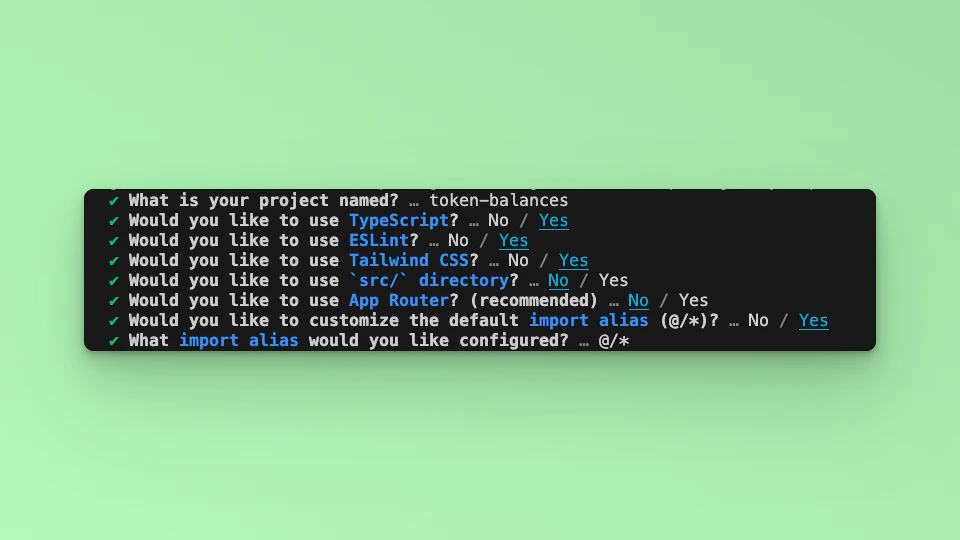
Answer the required prompts from NextJS in the terminal. We must note that we use TypeScript and Tailwind CSS for this application.

<img src="https://mintcdn.com/fuse-43a2bc2e/Hch9AMV8356iwZNK/img/tutorials/nextjs-init.png?fit=max&auto=format&n=Hch9AMV8356iwZNK&q=85&s=2d861dad269fc12900475b8958b1495d" width="960" height="540" data-path="img/tutorials/nextjs-init.png" />

## Step 2: Install Required Packages

Install the necessary packages by running the following command in your project directory:

```bash theme={null}
npm install @fuseio/fusebox-web-sdk ethers
```

## Step 3: Import Libraries

Open the index.tsx file, delete the default code from NextJS. Edit index.tsx file by adding the code below and save it to see the updated result in your browser. First, import the required libraries and put up a default \`Hello, World!’ text:

```javascript theme={null}
import { FuseSDK } from "@fuseio/fusebox-web-sdk";
import { ethers } from "ethers";

export default function Home() {
  return (
    <main className={`flex flex-col items-center p-24 ${inter.className}`}>
      Hello, World!
    </main>
  );
}
```

Run `npm run dev` to start the development server. Visit `http://localhost:3000` to view your application.

We are going to use the `TradeRequest` FuseBox Web SDK methods to build the application.

## Step 4: Initialize the App State

We are going to first get the Smart Contract Wallet, and it's owned Tokens and their respective balances, excluding Fuse native token balance. We will handle these information in various state and set/call each as required. We will also implement an App Loading state while waiting for the Promise methods to be resolved.

Import the `useState` method:

```javascript theme={null}
import { useState, useEffect } from "react";
```

Set the state variables:

```javascript theme={null}
const [amount, setAmount] = useState < string > "";
const [swapResult, setSwapResult] = useState < any > null;
const [loading, setLoading] = useState < boolean > false;
```

## Step 5: Implement The Swap Function

We will implement the methods: init, getSender, getTokenList and getTokenBalance in one method call. Declare the method as smartWalletBalance. Add the following code:

```javascript theme={null}
const apiKey = "pk_YOUR_KEY"; // Replace with your API key
const privateKey = "YOUR_PRIVATE_KEY"; // // Replace with your Private key

const nativeTokenAddress = "0xEeeeeEeeeEeEeeEeEeEeeEEEeeeeEeeeeeeeEEeE";
const usdcTokenAddress = "0x28C3d1cD466Ba22f6cae51b1a4692a831696391A";

const handleSwap = async (e: React.FormEvent) => {
  e.preventDefault();
  setLoading(true);

  try {
    const credentials = new ethers.Wallet(privateKey);
    const fuse = await FuseSDK.init(apiKey, credentials, {
      withPaymaster: true,
    });

    const smartContractAddress = fuse.wallet.getSender();
    console.log(`Sender Address is ${smartContractAddress}`);

    const tradeRequest = new TradeRequest(
      nativeTokenAddress,
      usdcTokenAddress,
      ethers.parseUnits(amount, 18),
      true
    );

    const resSwap = await fuse.swapTokens(tradeRequest);
    setSwapResult(resSwap);
  } catch (error) {
    console.error("Swap failed:", error);
    setSwapResult("Swap failed");
  } finally {
    setLoading(false);
  }
};
```

### Code Breakdown

* The `handleSwap` function is the core of our token swap operation. It’s an asynchronous function that handles the entire process when the user submits the form. Here’s what each part does:

* `setLoading(true)`: We set the loading state to true to indicate that the swap process has started.

* Fuse SDK Initialization: We initialize the Fuse SDK by creating a credentials object using the `ethers` and then calling `FuseSDK.init` with the **API key** and **credentials**. This gives us access to the Fuse SDK’s methods.

* `tradeRequest`: This object defines the swap details, including the input and output tokens and the amount to swap.

* `Swap Execution`: The fuse.swapTokens(tradeRequest) method initiates the swap. The result is stored in the swapResult state.

* `Error Handling`: If something goes wrong during the swap, we catch the error and update swapResult to inform the user.

* `setLoading(false)`: Finally, we reset the loading state to false, regardless of whether the swap succeeded or failed.

Replace **"YOUR\_API\_KEY"** and **"YOUR\_PRIVATE\_KEY"** with your actual API key and Private Key.

## Step 6: Update the UI

```javascript theme={null}
<main className="flex min-h-screen flex-col p-24">
  <form onSubmit={handleSwap} className="flex max-w-md flex-col gap-4">
    <div className="mt-3">
      <label
        htmlFor="amount-input"
        className="block mb-2 text-sm font-medium text-gray-900 dark:text-white"
      >
        Amount to Swap
      </label>
      <input
        type="text"
        id="amount-input"
        value={amount}
        onChange={(e) => setAmount(e.target.value)}
        placeholder="Enter amount in ETH"
        className="bg-gray-50 border border-gray-300 text-gray-900 text-sm rounded-lg focus:ring-blue-500 focus:border-blue-500 block w-full p-2.5 dark:bg-gray-700 dark:border-gray-600 dark:placeholder-gray-400 dark:text-white dark:focus:ring-blue-500 dark:focus:border-blue-500"
        required
      />
    </div>
    <button
      type="submit"
      className="focus:outline-none text-white bg-green-700 hover:bg-green-800 focus:ring-4 focus:ring-green-300 font-medium rounded-lg text-sm px-5 py-2.5 me-2 mb-2 dark:bg-green-600 dark:hover:bg-green-700 dark:focus:ring-green-800"
      disabled={loading}
    >
      {loading ? "Swapping..." : "Swap"}
    </button>
  </form>

  {swapResult && (
    <div className="mt-12 relative overflow-x-auto shadow-md sm:rounded-lg">
      <table className="w-full text-sm text-left rtl:text-right text-gray-500 dark:text-gray-400">
        <thead className="text-xs text-gray-700 uppercase bg-gray-50 dark:bg-gray-800 dark:text-gray-400">
          <tr>
            <th scope="col" className="px-6 py-3">
              Swap Result
            </th>
          </tr>
        </thead>
        <tbody>
          <tr className="border-b border-gray-200 dark:border-gray-700">
            <td className="px-6 py-4 bg-gray-50 dark:bg-gray-800">
              <pre className="text-gray-900 dark:text-white">
                {JSON.stringify(swapResult, null, 2)}
              </pre>
            </td>
          </tr>
        </tbody>
      </table>
    </div>
  )}
</main>
```

Run your Next.js application using the following command:

```bash theme={null}
npm run dev
```

Visit `http://localhost:3000` in your browser to see the application in action.

Congratulations! You have successfully implemented a token swap feature in a Next.js app using the Fuse SDK and styled it with Tailwind CSS. This simple yet powerful feature can be extended and integrated into larger applications where token swaps are necessary.

Checkout the complete [code](https://github.com/fuseio/examples/blob/swap-tokens-sdk-tutorial/swap-sdk-method/pages/index.tsx). 💻
