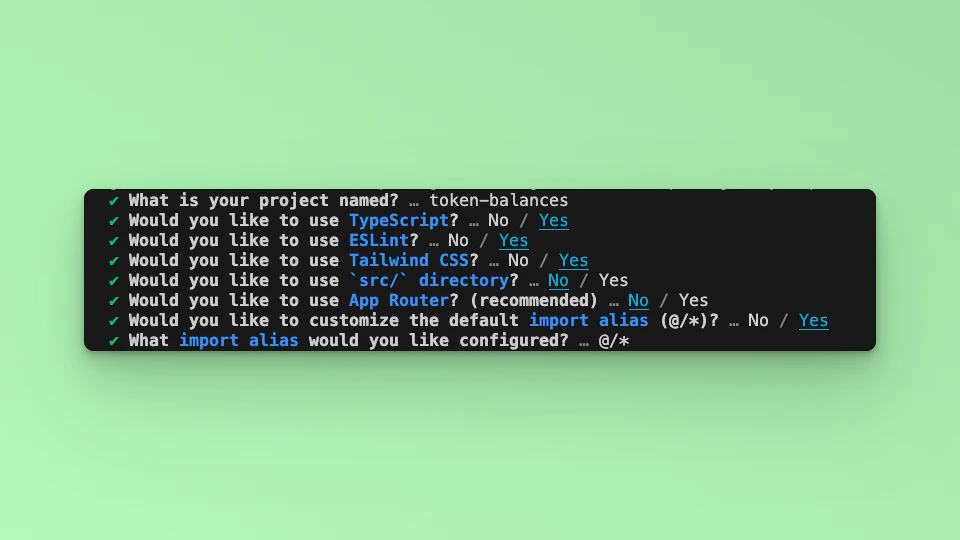
 ## Step 2: Install Required Packages
Install the necessary packages by running the following command in your project directory:
```bash theme={null}
npm install @fuseio/fusebox-web-sdk ethers
```
## Step 3: Import Libraries
Open the index.tsx file, delete the default code from NextJS. Edit index.tsx file by adding the code below and save it to see the updated result in your browser. First, import the required libraries and put up a default \`Hello, World!’ text:
```javascript theme={null}
import { FuseSDK } from "@fuseio/fusebox-web-sdk";
import { ethers } from "ethers";
export default function Home() {
return (
## Step 2: Install Required Packages
Install the necessary packages by running the following command in your project directory:
```bash theme={null}
npm install @fuseio/fusebox-web-sdk ethers
```
## Step 3: Import Libraries
Open the index.tsx file, delete the default code from NextJS. Edit index.tsx file by adding the code below and save it to see the updated result in your browser. First, import the required libraries and put up a default \`Hello, World!’ text:
```javascript theme={null}
import { FuseSDK } from "@fuseio/fusebox-web-sdk";
import { ethers } from "ethers";
export default function Home() {
return (
Hello, World!
Smart account address: {smartAccount}
{loading ? (Loading...
) : (| Token Name | Token Address | Amount |
|---|---|---|
| {token.name} | {token.address} | {balances[token.address] ? Number(balances[token.address]).toString() : '0'} |
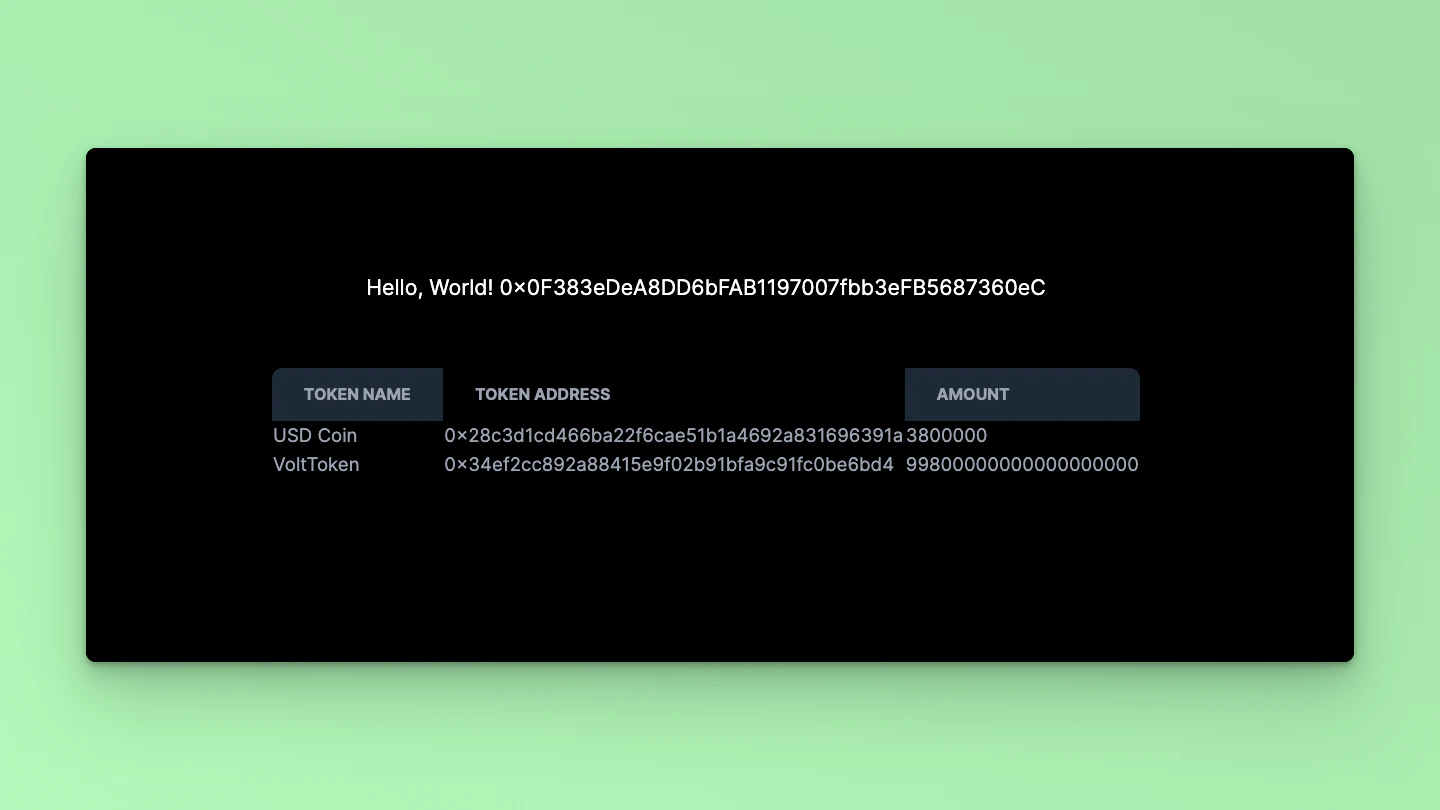 That's it! Using the Fusebox Web SDK, you've successfully fetched and displayed token balances for a Smart Contract Wallet in a Next.js application. You can further customize the UI or add additional features per your requirements.
## Step 9: Code breakdown
Let's break down the `smartWallet` function and explain the usage of the `getTokenList` and `getTokenBalance` methods:
```javascript theme={null}
const smartWalletBalance = async () => {
setLoading(true)
try {
// Initialize FuseSDK with API key and credentials
const apiKey = "YOUR_API_KEY"; // Replace with your API key
const credentials = new ethers.Wallet(`YOUR_PRIVATE_KEY`); // Replace with your private key
const fuseSDK = await FuseSDK.init(apiKey, credentials, {
withPaymaster: true,
});
// Get the Smart Account Address
const sender = fuseSDK.wallet.getSender()
console.log('Sender Address:', sender)
if (!sender) {
console.error('No sender address available')
setLoading(false)
return
}
setSmartAccount(sender)
// Get the list of tokens held by the Smart Contract Wallet
const tokenListResponse = await fuseSDK.explorerModule.getTokenList(sender)
console.log('Token List Response:', tokenListResponse)
if (!Array.isArray(tokenListResponse)) {
console.error(
'Token list fetch returned a non-array response:',
tokenListResponse
)
setLoading(false)
return
}
setTokenNames(tokenListResponse)
// Extract token addresses from the token list
const tokenAddresses = tokenList.map((x) => x.address);
// Fetch balances for each token
const fetchedBalances = {}
for (const token of tokenListResponse) {
const balance = await fuseSDK.explorerModule.getTokenBalance(
token.address,
sender
)
fetchedBalances[token.address] = balance
}
// Update the balances state with the fetched balances
setBalances(fetchedBalances);
};
}
```
Now let's explain each part of the `smartWallet` function:
1. **Initialization**:
* We initialize the FuseSDK using the provided API key and credentials using `FuseSDK.init()`.
* The `withPaymaster: true` option enables the use of a paymaster.
2. **Getting Smart Account Address**:
* We retrieve the address of the Smart Account using `fuseSDK.wallet.getSender()` and set it to the `smartAccount` state variable.
3. **Getting Token List**:
* We use `fuseSDK.explorerModule.getTokenList(smartAccount)` to fetch the list of tokens held by the Smart Contract Wallet.
* This method returns an array of objects, each containing information about a token, such as symbol, name, and address.
* We set this array of token objects to the `tokenNames` state variable.
4. **Extracting Token Addresses**:
* We extract the token addresses from the `tokenList` array using the `map()` function and store them in the `tokenAddresses` array.
5. **Fetching Balances**:
* We initialize an empty object, `fetchedBalances`, to store the token balances.
* We iterate over each `tokenAddress` in the `tokenAddresses` array.
* For each `tokenAddress`, we use `fuseSDK.explorerModule.getTokenBalance(tokenAddress, smartAccount)` to fetch the balance of that token held by the Smart Contract Wallet.
* We store each balance in the `fetchedBalances` object with the `tokenAddress` as the key.
6. **Updating State**:
* Finally, we update the `balances` state variable with the `fetchedBalances` object containing token balances.
This breakdown explains how each part of the `smartWallet` function works and utilizes the `getTokenList` and `getTokenBalance` methods to fetch token information and balances for a Smart Contract Wallet.
Checkout the complete [code](https://github.com/fuseio/examples/blob/scw-token-balance/scw-token-balance/pages/index.tsx). 💻
That's it! Using the Fusebox Web SDK, you've successfully fetched and displayed token balances for a Smart Contract Wallet in a Next.js application. You can further customize the UI or add additional features per your requirements.
## Step 9: Code breakdown
Let's break down the `smartWallet` function and explain the usage of the `getTokenList` and `getTokenBalance` methods:
```javascript theme={null}
const smartWalletBalance = async () => {
setLoading(true)
try {
// Initialize FuseSDK with API key and credentials
const apiKey = "YOUR_API_KEY"; // Replace with your API key
const credentials = new ethers.Wallet(`YOUR_PRIVATE_KEY`); // Replace with your private key
const fuseSDK = await FuseSDK.init(apiKey, credentials, {
withPaymaster: true,
});
// Get the Smart Account Address
const sender = fuseSDK.wallet.getSender()
console.log('Sender Address:', sender)
if (!sender) {
console.error('No sender address available')
setLoading(false)
return
}
setSmartAccount(sender)
// Get the list of tokens held by the Smart Contract Wallet
const tokenListResponse = await fuseSDK.explorerModule.getTokenList(sender)
console.log('Token List Response:', tokenListResponse)
if (!Array.isArray(tokenListResponse)) {
console.error(
'Token list fetch returned a non-array response:',
tokenListResponse
)
setLoading(false)
return
}
setTokenNames(tokenListResponse)
// Extract token addresses from the token list
const tokenAddresses = tokenList.map((x) => x.address);
// Fetch balances for each token
const fetchedBalances = {}
for (const token of tokenListResponse) {
const balance = await fuseSDK.explorerModule.getTokenBalance(
token.address,
sender
)
fetchedBalances[token.address] = balance
}
// Update the balances state with the fetched balances
setBalances(fetchedBalances);
};
}
```
Now let's explain each part of the `smartWallet` function:
1. **Initialization**:
* We initialize the FuseSDK using the provided API key and credentials using `FuseSDK.init()`.
* The `withPaymaster: true` option enables the use of a paymaster.
2. **Getting Smart Account Address**:
* We retrieve the address of the Smart Account using `fuseSDK.wallet.getSender()` and set it to the `smartAccount` state variable.
3. **Getting Token List**:
* We use `fuseSDK.explorerModule.getTokenList(smartAccount)` to fetch the list of tokens held by the Smart Contract Wallet.
* This method returns an array of objects, each containing information about a token, such as symbol, name, and address.
* We set this array of token objects to the `tokenNames` state variable.
4. **Extracting Token Addresses**:
* We extract the token addresses from the `tokenList` array using the `map()` function and store them in the `tokenAddresses` array.
5. **Fetching Balances**:
* We initialize an empty object, `fetchedBalances`, to store the token balances.
* We iterate over each `tokenAddress` in the `tokenAddresses` array.
* For each `tokenAddress`, we use `fuseSDK.explorerModule.getTokenBalance(tokenAddress, smartAccount)` to fetch the balance of that token held by the Smart Contract Wallet.
* We store each balance in the `fetchedBalances` object with the `tokenAddress` as the key.
6. **Updating State**:
* Finally, we update the `balances` state variable with the `fetchedBalances` object containing token balances.
This breakdown explains how each part of the `smartWallet` function works and utilizes the `getTokenList` and `getTokenBalance` methods to fetch token information and balances for a Smart Contract Wallet.
Checkout the complete [code](https://github.com/fuseio/examples/blob/scw-token-balance/scw-token-balance/pages/index.tsx). 💻