> ## Documentation Index
> Fetch the complete documentation index at: https://docs.fuse.io/llms.txt
> Use this file to discover all available pages before exploring further.
# REST API - How To GET Price Changes For A Token By Intervals
## Introduction
In this Tutorial we will build a sample application to display Price Changes for a Token across an Interval. The Changes can be across "ALL","MONTH","WEEK","DAY","HOUR" in Unix timestamp.
## Prerequisites
Before starting, ensure you have the following:
* Node.js installed on your machine.
* Code Editor: Use your preferred code editor; VS Code is recommended.
* An EOA wallet with a private key. You can use an existing one or create a new wallet.
* A basic understanding of React.js and Next.js.
* An API key from the Fuse Console. Get one [here](https://console.fuse.io/build).
## Step 1: Set Up a Next.js Project
If you haven't already set up a Next.js project, you can create one using the following commands:
```javascript theme={null}
npx create-next-app my-project
cd my-project
```
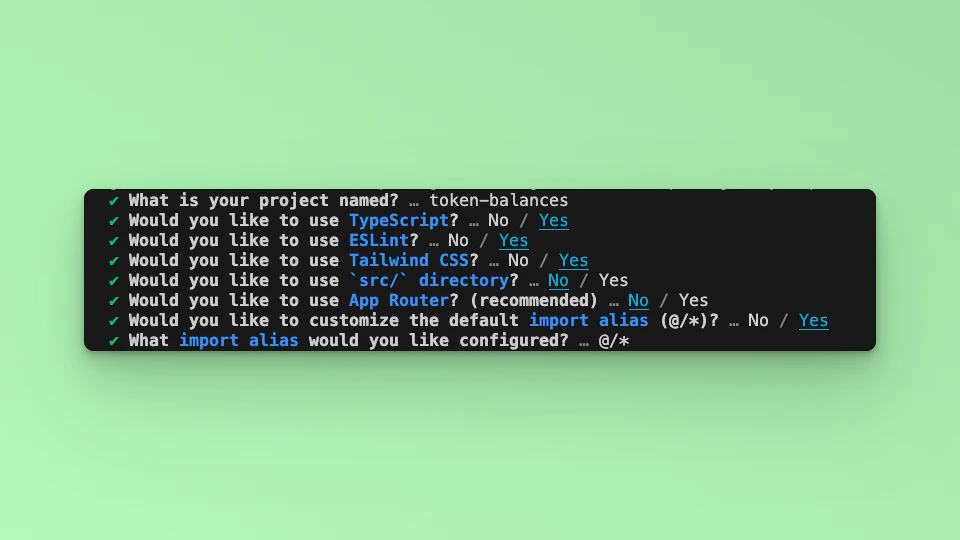
Answer the required prompts from NextJS in the terminal. Note that we use TypeScript and Tailwind CSS for this application.
 ## Step 2: API Endpoint
In this example tutorial, we are going to build a Dashboard that returns the Price Changes for the LadyBot Token in a Line Chart. We will use the Fetch API method to call the Fuse REST APIs and return the responses.
The end point that we will use in this tutorial is the **[GET Price Change for a Token Over An Interval](https://docs.fuse.io/trade_versioned/1.0.0/get-price-change-for-token-over-an-interval)**.
The base URL `https://api.fuse.io/api/v0/trade/pricechange/interval/:timeFrame/:tokenAddress?apiKey={API_KEY}`
Where `timeFrame` is the Interval for price change. Allowed values are: "ALL", "MONTH", "WEEK", "DAY", "HOUR".
and `tokenAddress` is the Token Contract Address. You can get an API KEY from [Console](https://console.fuse.io/build).
The URL when appended with the parameters for examples:
`https://api.fuse.io/api/v0/trade/pricechange/interval/HOUR/0xDe4b9879B56187D13B2c41Da24c72Ff100A5AC9A?apiKey={API_KEY}`
## Step 3: Understanding the API Response
The URL will return the following response, for example:
```json theme={null}
{
"data": [
{
"timestamp": 0,
"priceChange": "string",
"previousPrice": "string",
"currentPrice": "string"
}
]
}
….
```
Where:
| Param | Type | Description |
| ----------------- | --------- | ----------------------------------------------------------------------- |
| **timeStamp** | `integer` | a Unix timestamp (which is the number of seconds since January 1, 1970) |
| **priceChange** | `string` | The difference between `previousPrice` and `currentPrice` |
| **previousPrice** | `string` | The Previous Price at the timestamp |
| **currentPrice** | `string` | The Current Price at the timestamp |
An example response from calling the URL looks like this:
```json theme={null}
{
data: [
{
timestamp: 1714626000,
priceChange: 0,
previousPrice: 0.22263642188397303,
currentPrice: 0.22263642188397303
},
{
timestamp: 1714626099,
priceChange: 0,
previousPrice: 0.22263642188397303,
currentPrice: 0.22263642188397303
},
{
timestamp: 1714626198,
priceChange: 0.024984737664834156,
previousPrice: 0.22263642188397303,
currentPrice: 0.22269204700992712
},
…
]
}
```
We will track the `timestamp` on the **y-axis** and the `currentPrice` on the **x-axis** of the line chart.
## Step 4: Fetch the API response.
In this step, we will test calling the API and parsing the response to the web browser console. Add the following code to index.tsx before the return statement.
```javascript theme={null}
const apiUrl = `https://api.fuse.io/api/v0/trade/pricechange/interval/HOUR/0xDe4b9879B56187D13B2c41Da24c72Ff100A5AC9A?apiKey={API_KEY}`
async function fetchData() {
try {
const response = await fetch(apiUrl);
if (!response.ok) {
throw new Error('Network response was not ok');
}
const data = await response.json();
console.log(data);
} catch (error) {
console.error('There was a problem with the fetch operation:', error);
}
}
fetchData();
```
Save the file.
Run the application using the command:
```bash theme={null}
npm run dev
```
Open your browser go to [http://localhost:3000](http://localhost:3000) and open the developer console, you will find the results logged to the console.
## Step 5: UI
TO display the response in a Chart using a Line Chart, we will make use of the **react-chartjs-2** Library. A set of React components for Chart.js a JavaScript charting library. Install the following packages:
```javascript theme={null}
npm install chart.js react-chartjs-2
```
To parse the responses via the UI, we will use React useState to update the UI components. Create an interface to handle the Token response object:
```javascript theme={null}
interface Token {
timestamp: number
priceChange: string
previousPrice: string
currentPrice: string
}
```
Add the useState Hook from React
```javascript theme={null}
import { useState, useEffect } from "react";
```
Create a state to store the responses from the Fetch call using the Token interface.
```javascript theme={null}
const [priceData, setPriceData] = useState([]);
```
Update the FetchData function by parsing the data response to the state:
```javascript theme={null}
const response = await fetch(apiUrl);
if (!response.ok) {
throw new Error('Network response was not ok');
}
const data = await response.json();
setPriceData(data.data);
```
To create the Chart import the required methods:
```javascript theme={null}
import {
Chart as ChartJS,
CategoryScale,
LinearScale,
PointElement,
LineElement,
Title,
Tooltip,
Legend,
} from 'chart.js';
import { Line } from 'react-chartjs-2';
ChartJS.register(
CategoryScale,
LinearScale,
PointElement,
LineElement,
Title,
Tooltip,
Legend
);
```
The Chart JS `Line` component takes in a series of parameters, the two most important being `options` and `data`. We are going to create an options and data variables:
```javascript theme={null}
const options = {
responsive: true,
plugins: {
legend: {
position: 'top' as const,
},
},
};
```
```javascript theme={null}
const data = {
labels,
datasets: [
{
label: 'LadyBot Token Price Change Per Hour',
data: priceData.map((token) => token.currentPrice),
borderColor: 'rgb(255, 99, 132)',
backgroundColor: 'rgba(255, 99, 132, 0.5)',
},
],
};
```
The Data object variable has `labels` as a parameter, which the y-axis and `data` going on the x-axis. As mentioned above, we will parse `timeStamp` to the y-axis and `currentPrice` to the x-axis. To do this we will map over the response stored in the `token` state.
For the `timeStamp` we will convert it to human readable date time in “Hours”, “Minutes” and “Seconds”..
```javascript theme={null}
const labels = priceData.map(token => {
const date = new Date(token.timestamp * 1000);
const hours = date.getHours();
const minutes = date.getMinutes();
const seconds = date.getSeconds();
return `${hours < 10 ? '0' : ''}${hours}:${minutes < 10 ? '0' : ''}${minutes}:${seconds < 10 ? '0' : ''}${seconds}`;
});
```
To display the Chart add the Line Component after the “Hello, World!” inside the `return` statement.
```javascript theme={null}
```
Save the file. Run the application using the following command:
```javascript theme={null}
npm run dev
```
Visit `http://localhost:3000` in your browser to see the application in action.
Checkout the complete [code](https://github.com/fuseio/examples/blob/api-price-changes-by-interval/api-price-changes-by-interval/pages/index.tsx). 💻
## Step 2: API Endpoint
In this example tutorial, we are going to build a Dashboard that returns the Price Changes for the LadyBot Token in a Line Chart. We will use the Fetch API method to call the Fuse REST APIs and return the responses.
The end point that we will use in this tutorial is the **[GET Price Change for a Token Over An Interval](https://docs.fuse.io/trade_versioned/1.0.0/get-price-change-for-token-over-an-interval)**.
The base URL `https://api.fuse.io/api/v0/trade/pricechange/interval/:timeFrame/:tokenAddress?apiKey={API_KEY}`
Where `timeFrame` is the Interval for price change. Allowed values are: "ALL", "MONTH", "WEEK", "DAY", "HOUR".
and `tokenAddress` is the Token Contract Address. You can get an API KEY from [Console](https://console.fuse.io/build).
The URL when appended with the parameters for examples:
`https://api.fuse.io/api/v0/trade/pricechange/interval/HOUR/0xDe4b9879B56187D13B2c41Da24c72Ff100A5AC9A?apiKey={API_KEY}`
## Step 3: Understanding the API Response
The URL will return the following response, for example:
```json theme={null}
{
"data": [
{
"timestamp": 0,
"priceChange": "string",
"previousPrice": "string",
"currentPrice": "string"
}
]
}
….
```
Where:
| Param | Type | Description |
| ----------------- | --------- | ----------------------------------------------------------------------- |
| **timeStamp** | `integer` | a Unix timestamp (which is the number of seconds since January 1, 1970) |
| **priceChange** | `string` | The difference between `previousPrice` and `currentPrice` |
| **previousPrice** | `string` | The Previous Price at the timestamp |
| **currentPrice** | `string` | The Current Price at the timestamp |
An example response from calling the URL looks like this:
```json theme={null}
{
data: [
{
timestamp: 1714626000,
priceChange: 0,
previousPrice: 0.22263642188397303,
currentPrice: 0.22263642188397303
},
{
timestamp: 1714626099,
priceChange: 0,
previousPrice: 0.22263642188397303,
currentPrice: 0.22263642188397303
},
{
timestamp: 1714626198,
priceChange: 0.024984737664834156,
previousPrice: 0.22263642188397303,
currentPrice: 0.22269204700992712
},
…
]
}
```
We will track the `timestamp` on the **y-axis** and the `currentPrice` on the **x-axis** of the line chart.
## Step 4: Fetch the API response.
In this step, we will test calling the API and parsing the response to the web browser console. Add the following code to index.tsx before the return statement.
```javascript theme={null}
const apiUrl = `https://api.fuse.io/api/v0/trade/pricechange/interval/HOUR/0xDe4b9879B56187D13B2c41Da24c72Ff100A5AC9A?apiKey={API_KEY}`
async function fetchData() {
try {
const response = await fetch(apiUrl);
if (!response.ok) {
throw new Error('Network response was not ok');
}
const data = await response.json();
console.log(data);
} catch (error) {
console.error('There was a problem with the fetch operation:', error);
}
}
fetchData();
```
Save the file.
Run the application using the command:
```bash theme={null}
npm run dev
```
Open your browser go to [http://localhost:3000](http://localhost:3000) and open the developer console, you will find the results logged to the console.
## Step 5: UI
TO display the response in a Chart using a Line Chart, we will make use of the **react-chartjs-2** Library. A set of React components for Chart.js a JavaScript charting library. Install the following packages:
```javascript theme={null}
npm install chart.js react-chartjs-2
```
To parse the responses via the UI, we will use React useState to update the UI components. Create an interface to handle the Token response object:
```javascript theme={null}
interface Token {
timestamp: number
priceChange: string
previousPrice: string
currentPrice: string
}
```
Add the useState Hook from React
```javascript theme={null}
import { useState, useEffect } from "react";
```
Create a state to store the responses from the Fetch call using the Token interface.
```javascript theme={null}
const [priceData, setPriceData] = useState([]);
```
Update the FetchData function by parsing the data response to the state:
```javascript theme={null}
const response = await fetch(apiUrl);
if (!response.ok) {
throw new Error('Network response was not ok');
}
const data = await response.json();
setPriceData(data.data);
```
To create the Chart import the required methods:
```javascript theme={null}
import {
Chart as ChartJS,
CategoryScale,
LinearScale,
PointElement,
LineElement,
Title,
Tooltip,
Legend,
} from 'chart.js';
import { Line } from 'react-chartjs-2';
ChartJS.register(
CategoryScale,
LinearScale,
PointElement,
LineElement,
Title,
Tooltip,
Legend
);
```
The Chart JS `Line` component takes in a series of parameters, the two most important being `options` and `data`. We are going to create an options and data variables:
```javascript theme={null}
const options = {
responsive: true,
plugins: {
legend: {
position: 'top' as const,
},
},
};
```
```javascript theme={null}
const data = {
labels,
datasets: [
{
label: 'LadyBot Token Price Change Per Hour',
data: priceData.map((token) => token.currentPrice),
borderColor: 'rgb(255, 99, 132)',
backgroundColor: 'rgba(255, 99, 132, 0.5)',
},
],
};
```
The Data object variable has `labels` as a parameter, which the y-axis and `data` going on the x-axis. As mentioned above, we will parse `timeStamp` to the y-axis and `currentPrice` to the x-axis. To do this we will map over the response stored in the `token` state.
For the `timeStamp` we will convert it to human readable date time in “Hours”, “Minutes” and “Seconds”..
```javascript theme={null}
const labels = priceData.map(token => {
const date = new Date(token.timestamp * 1000);
const hours = date.getHours();
const minutes = date.getMinutes();
const seconds = date.getSeconds();
return `${hours < 10 ? '0' : ''}${hours}:${minutes < 10 ? '0' : ''}${minutes}:${seconds < 10 ? '0' : ''}${seconds}`;
});
```
To display the Chart add the Line Component after the “Hello, World!” inside the `return` statement.
```javascript theme={null}
```
Save the file. Run the application using the following command:
```javascript theme={null}
npm run dev
```
Visit `http://localhost:3000` in your browser to see the application in action.
Checkout the complete [code](https://github.com/fuseio/examples/blob/api-price-changes-by-interval/api-price-changes-by-interval/pages/index.tsx). 💻