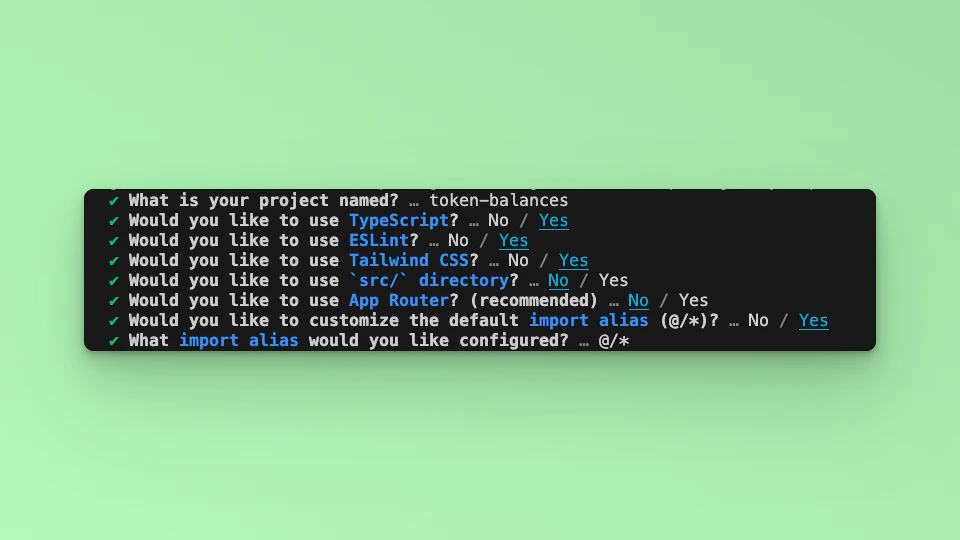
 ## Step 2: Update the UI
In this example tutorial, we are going to build a Form element that takes in any External Owned Address or Smart Contract Address and return its NFTs collections. We will use the Fetch API method to call the Fuse REST APIs and parse the results to a UI.
The end point that we will use in this tutorial is the [Get Non Fungible NFT Token Balances](/api-reference/nft-tokens/get-non-fungible-nft-token-balances).
The URL takes in the EOA or SCA, below is an example:
[`https://api.fuse.io/api/v0/balances/nft-assets/0x07dc9cb1d2f8e7acf92c856cf43467936203f26a?apiKey=API_KEY`](https://api.fuse.io/api/v0/balances/nft-assets/0x07dc9cb1d2f8e7acf92c856cf43467936203f26a?apiKey=API_KEY)
Replace `API_KEY` with your actual `apiKey` too see the response. [Get an API KEY](https://console.fuse.io/build).
## Step 3: Fetch the API response.
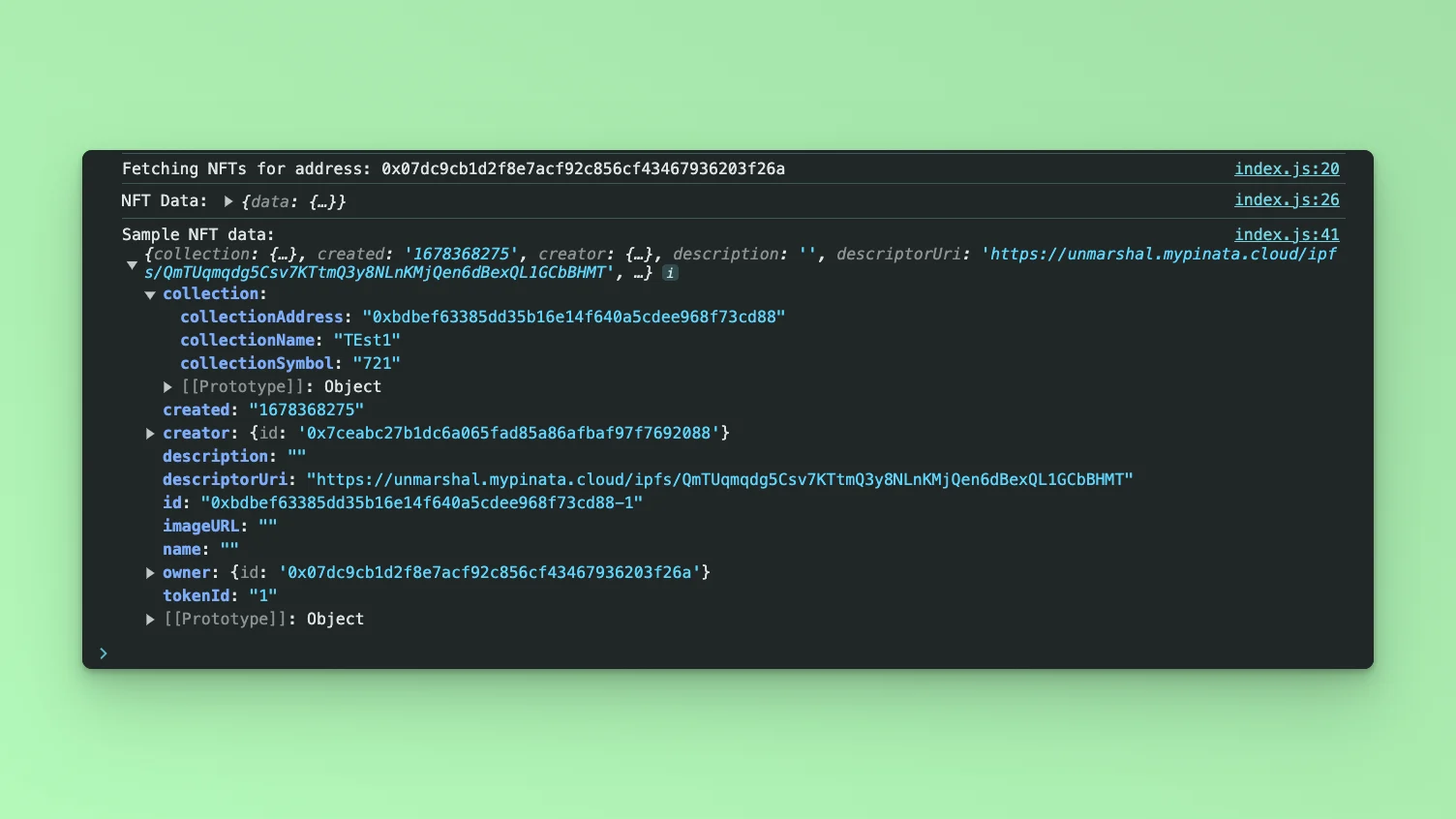
In this step, we will test calling the API and parsing the response to the web browser console. Add the following code to index.tsx before the `return` statement.
```javascript theme={null}
const apiUrl = `https://api.fuse.io/api/v0/balances/nft-assets/0x07dc9cb1d2f8e7acf92c856cf43467936203f26a?apiKey=API_KEY`;
async function fetchNFTData() {
try {
console.log("Fetching NFTs for address:", address);
const response = await fetch(apiUrl);
if (!response.ok) {
throw new Error("Network response was not ok");
}
const data = await response.json();
console.log("NFT Data:", data);
if (
data &&
data.data &&
data.data.account &&
data.data.account.collectibles
) {
setNftData(data.data.account.collectibles);
} else {
setNftData([]); // Ensures nftData is reset to an empty array if no collectibles are found
}
} catch (error) {
console.error("There was a problem with the fetch operation:", error);
setNftData([]); // Reset on error to ensure no invalid data structures are used
}
}
fetchData();
```
Save the file.
Run the application using the command:
```javascript theme={null}
npm run dev
```
Open your browser go to `http://localhost:3000` and open the developer console, you will find the results logged to the console.
## Step 2: Update the UI
In this example tutorial, we are going to build a Form element that takes in any External Owned Address or Smart Contract Address and return its NFTs collections. We will use the Fetch API method to call the Fuse REST APIs and parse the results to a UI.
The end point that we will use in this tutorial is the [Get Non Fungible NFT Token Balances](/api-reference/nft-tokens/get-non-fungible-nft-token-balances).
The URL takes in the EOA or SCA, below is an example:
[`https://api.fuse.io/api/v0/balances/nft-assets/0x07dc9cb1d2f8e7acf92c856cf43467936203f26a?apiKey=API_KEY`](https://api.fuse.io/api/v0/balances/nft-assets/0x07dc9cb1d2f8e7acf92c856cf43467936203f26a?apiKey=API_KEY)
Replace `API_KEY` with your actual `apiKey` too see the response. [Get an API KEY](https://console.fuse.io/build).
## Step 3: Fetch the API response.
In this step, we will test calling the API and parsing the response to the web browser console. Add the following code to index.tsx before the `return` statement.
```javascript theme={null}
const apiUrl = `https://api.fuse.io/api/v0/balances/nft-assets/0x07dc9cb1d2f8e7acf92c856cf43467936203f26a?apiKey=API_KEY`;
async function fetchNFTData() {
try {
console.log("Fetching NFTs for address:", address);
const response = await fetch(apiUrl);
if (!response.ok) {
throw new Error("Network response was not ok");
}
const data = await response.json();
console.log("NFT Data:", data);
if (
data &&
data.data &&
data.data.account &&
data.data.account.collectibles
) {
setNftData(data.data.account.collectibles);
} else {
setNftData([]); // Ensures nftData is reset to an empty array if no collectibles are found
}
} catch (error) {
console.error("There was a problem with the fetch operation:", error);
setNftData([]); // Reset on error to ensure no invalid data structures are used
}
}
fetchData();
```
Save the file.
Run the application using the command:
```javascript theme={null}
npm run dev
```
Open your browser go to `http://localhost:3000` and open the developer console, you will find the results logged to the console.
 ## Step 4: Display response via UI.
Create a state to store the responses from the Fetch call.
```javascript theme={null}
const [nftData, setNftData] = useState([]);
```
To display the results on the UI add the map() method inside the return statement:
```javascript theme={null}
## Step 4: Display response via UI.
Create a state to store the responses from the Fetch call.
```javascript theme={null}
const [nftData, setNftData] = useState([]);
```
To display the results on the UI add the map() method inside the return statement:
```javascript theme={null}
 ## Complete code
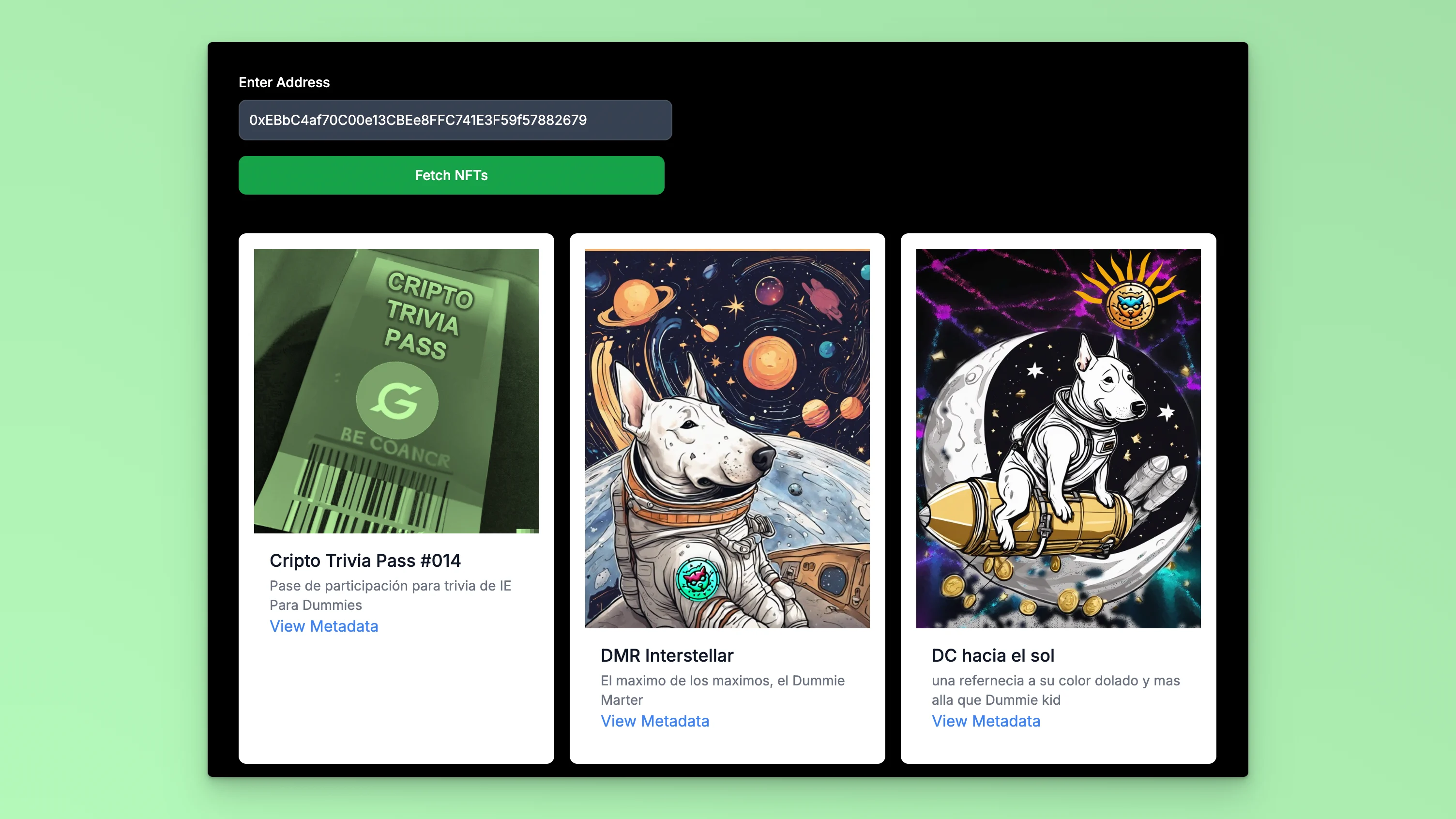
This example code creates a web application that allows users to enter an address, fetch its NFTs balances using a REST API, and display the data.
Checkout the complete [code](https://github.com/fuseio/examples/blob/api-erc721-balance/erc721/pages/index.js). 💻
## Complete code
This example code creates a web application that allows users to enter an address, fetch its NFTs balances using a REST API, and display the data.
Checkout the complete [code](https://github.com/fuseio/examples/blob/api-erc721-balance/erc721/pages/index.js). 💻
{nft.imageURL && (
 )}
)}
))}